Zlendo Realty|Help Center

AI Floor Planner

Design & Visualize in 3D

2D to 3D Converter

Instant floor plan conversion

Smart Room Styler

AI-driven interior styling

Interiors & Exteriors

Region-aware design intelligence

Smart Cost Estimator

Precise project budgeting

Vastu Optimizer

Ancient wisdom, modern tech

Realistic Renders

Photorealistic lighting visualization

Virtual Walkthrough

8K Ultra-realistic experiences

Home Remodeling

Revitalize your current space

Interior Design

Aesthetic room planning

Vastu Optimization

Harmony & energy flow

New Home Building

From plot to perfection

Design Library

Inspiration gallery

Tutorials

Learn the platform

Help Center

Find answers & support

Blog

Insights & Updates

Plans

Business Free Trial

Try enterprise features

Affiliate & Partner Program

Grow with Zlendo

Zlendo Realty API Suite

Grow your Business with Us

Business
Login Start For Free

Menu

AI Floor Planner 2D to 3D Converter Smart Room Styler Interiors & Exteriors Smart Cost Estimator Vastu Optimizer Realistic Renders Virtual Walkthrough
Home Remodeling Interior Design Vastu Optimization New Home Building
Design Library Tutorials Help Center Blog
Plans
Business Free Trial Affiliate & Partner Program Zlendo Realty API Suite
For Individuals For Business
Login Start For Free

General

4
  • About Zlendo Realty 
  • Zlendo Realty FAQ
  • Navigation Tools & Keyboard Shortcuts Cheat Sheet
  • Signing In 

Editor

8
  • Export Plan Tool
  • Editor Tour: Introducing the Project Workspace
  • Navigation Tools & Keyboard Shortcuts Cheat Sheet
  • 2D Floor Planner: Drawing or Editing in the Zlendo Realty Workspace
  • 3D Visualization, 360° Walkthrough & Panorama
  • Zlendo Realty Render Tool
  • Zlendo Realty AI Inspiration Tools
  • Zlendo Realty Cost Estimation Tool

Project Cost Estimation

2
  • Zlendo Realty Cost Estimation Tool
  • Editor Tour: Introducing the Project Workspace

Vastu

1
  • Zlendo Realty Vastu Tool

Render

2
  • Zlendo Realty Render Tool
  • Editor Tour: Introducing the Project Workspace

3D Editing & Viewing

5
  • 3D Visualization, 360° Walkthrough & Panorama
  • Navigation Tools & Keyboard Shortcuts Cheat Sheet
  • Editor Tour: Introducing the Project Workspace
  • Zlendo Realty Cost Estimation Tool
  • Zlendo Realty Render Tool

AI Inspiration

2
  • Zlendo Realty AI Inspiration Tools
  • Editor Tour: Introducing the Project Workspace

Interior Design

5
  • Furniture & Decor
  • Zlendo Realty AI Inspiration Tools
  • Editor Tour: Introducing the Project Workspace
  • 2D Floor Planner: Drawing or Editing in the Zlendo Realty Workspace
  • 3D Visualization, 360° Walkthrough & Panorama

Real-World Preview

1
  • 3D Visualization, 360° Walkthrough & Panorama

Signing In

1
  • Signing In 

Getting Started

3
  • Creating a Zlendo Realty Account 
  • Signing In 
  • Zlendo Realty Dashboard: First-Time User Tour 

Password Change

1
  • Resetting Your Password 

Projects

10
  • Export Plan Tool
  • 2D Floor Planner: Drawing or Editing in the Zlendo Realty Workspace
  • Creating New Projects
  • Find & Manage Projects
  • Editor Tour: Introducing the Project Workspace
  • 3D Visualization, 360° Walkthrough & Panorama
  • Navigation Tools & Keyboard Shortcuts Cheat Sheet
  • Zlendo Realty AI Inspiration Tools
  • Furniture & Decor
  • Zlendo Realty Cost Estimation Tool

Project Workspace Settings

1
  • Editor Tour: Introducing the Project Workspace

Project Workspace

8
  • Editor Tour: Introducing the Project Workspace
  • Navigation Tools & Keyboard Shortcuts Cheat Sheet
  • 2D Floor Planner: Drawing or Editing in the Zlendo Realty Workspace
  • 3D Visualization, 360° Walkthrough & Panorama
  • Zlendo Realty Cost Estimation Tool
  • Zlendo Realty Render Tool
  • Zlendo Realty Vastu Tool
  • Zlendo Realty AI Inspiration Tools

FAQ

1
  • Zlendo Realty FAQ

Workspace Navigation

2
  • Navigation Tools & Keyboard Shortcuts Cheat Sheet
  • 3D Visualization, 360° Walkthrough & Panorama

360° Walkthrough & Panorama

2
  • 3D Visualization, 360° Walkthrough & Panorama
  • Navigation Tools & Keyboard Shortcuts Cheat Sheet

Account Setup

1
  • Creating a Zlendo Realty Account 

Creating New Projects

1
  • Creating New Projects

2D Drawing & Editing

5
  • 2D Floor Planner: Drawing or Editing in the Zlendo Realty Workspace
  • Editor Tour: Introducing the Project Workspace
  • Navigation Tools & Keyboard Shortcuts Cheat Sheet
  • Zlendo Realty Render Tool
  • Zlendo Realty Cost Estimation Tool

Dashboard

2
  • Zlendo Realty Dashboard: First-Time User Tour 
  • Find & Manage Projects

Find Projects

1
  • Find & Manage Projects

Manage Projects

1
  • Find & Manage Projects

Account

2
  • Creating a Zlendo Realty Account 
  • Payment & Billing

Payment & Billing

1
  • Payment & Billing

Create Templates

1
  • Zlendo Realty Community: Creating Project Templates & Sharing Designs

Community

1
  • Zlendo Realty Community: Creating Project Templates & Sharing Designs

Share Designs

1
  • Zlendo Realty Community: Creating Project Templates & Sharing Designs

Export Plan

1
  • Export Plan Tool
View Categories
  • Home
  • Docs
  • Dashboard
  • Zlendo Realty Dashboard: First-Time User Tour 

Zlendo Realty Dashboard: First-Time User Tour 

4 min read

The Quick Start Hub: Four Design Options #

Welcome to Zlendo Realty! This dashboard is designed to be your all-in-one interior design command center.

Right at the top of the Dashboard, you have four ways to kick off a new design.

Start From Scratch: Best for when you have a specific vision and want a blank canvas.

Upload 2D Plan: Turn your existing blueprints or sketches into a digital model.

Template Based Design: Save time by choosing a pre-made layout and customizing it to fit your needs.

Wizard: Based on your inputs and preferences, the AI can automatically generate smart layout suggestions tailored to your space.

Dashboard Sidebar (Navigation) #

The Dashboard left-hand sidebar menu helps you navigate effortlessly between your project files, asset libraries, and professional support services.

1. My Project #

This is your main Dashboard page and the default landing page.

What it is: A central hub showing your most recent work and options to start new designs.

How to use it: Click here to quickly jump back into a project you’ve been working on. You can also start fresh using the Start From Scratch, Upload 2D Plan, Template Based Design, or the AI-guided Wizard.

2. Gallery #

Your personal storage for all exported visual content.

What it is: A collection of all your saved screenshots and high-quality renders.

How to use it: Use this tab to check the status of a “Render in progress” or to find and download previously completed images. You can use the search bar to locate specific renders by project name.

3. AI Inspiration #

An AI-powered discovery engine for interior design.

What it is: A curated feed of high-quality, AI-generated room designs categorized by type (Living Room, Bedroom, Kitchen, etc.).

How to use it: Browse through these professional-grade visuals to find styles, color palettes, or furniture layouts that you want to replicate in your own projects.

4. Design Library #

The master catalog of 3D assets.

What it is: A comprehensive directory of furniture, fixtures, and decor items ranging from electronics to kitchen appliances.

How to use it: Use the categories or search bar to find specific pieces for your design. Each item lists its estimated cost, helping you keep your project within a realistic budget.

5. Templates #

A library of pre-configured architectural layouts.

What it is: A collection of pre-designed floor plans and villa layouts that are ready to be edited.

How to use it: Filter by room count, house type, or architectural style to find a layout that fits your needs. Click Use to load the template into your workspace, saving you the time of building walls from scratch.

6. Community #

The social hub for Zlendo users.

What it is: A public showcase where designers share their creations and connect with others.

How to use it: Explore the Featured tab to see top-rated designs for inspiration. You can also view your own shared content under My Posts to see how the community is interacting with your work.

7. Support & Account Management #

The bottom section of the sidebar handles the technical and financial side of your workspace:

Resources: Stay updated and read our latest blogs.

Plan: View your current subscription status and pricing options.

Hire Professional: Connect with expert designers if you need professional assistance with your project.

Help Center: Access tutorials and support guides for any troubleshooting needs.
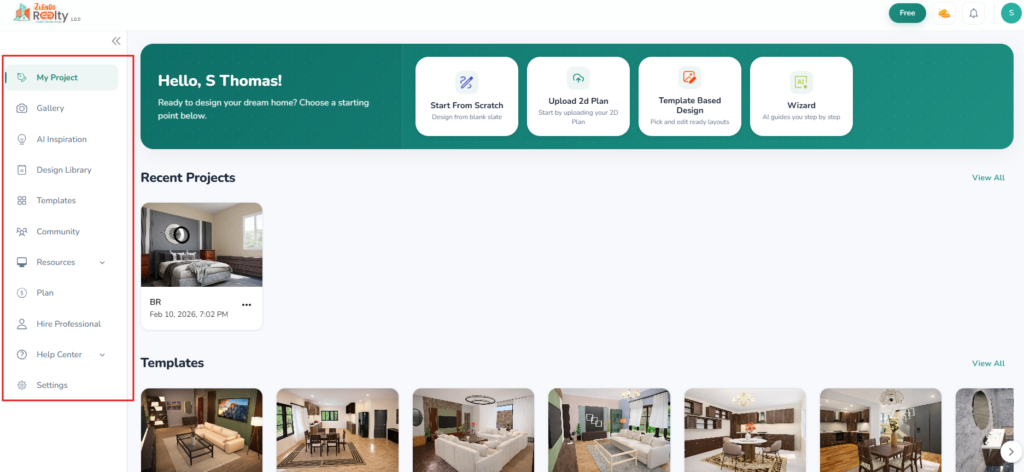
Dashboard Sidebar

Dashboard Content Sections #

From the Dashboard view, you can quickly pick up where you left off with one-click access to your latest design drafts, get some inspiration, or learn a Workspace skill.

Recent Projects: Jump right back into the work you were doing last.

Templates: A quick-scroll gallery of popular room layouts (Living Rooms, Kitchens, etc.) to spark ideas.

Tutorials: Located at the bottom, this is where you can learn the “how-to” of the platform
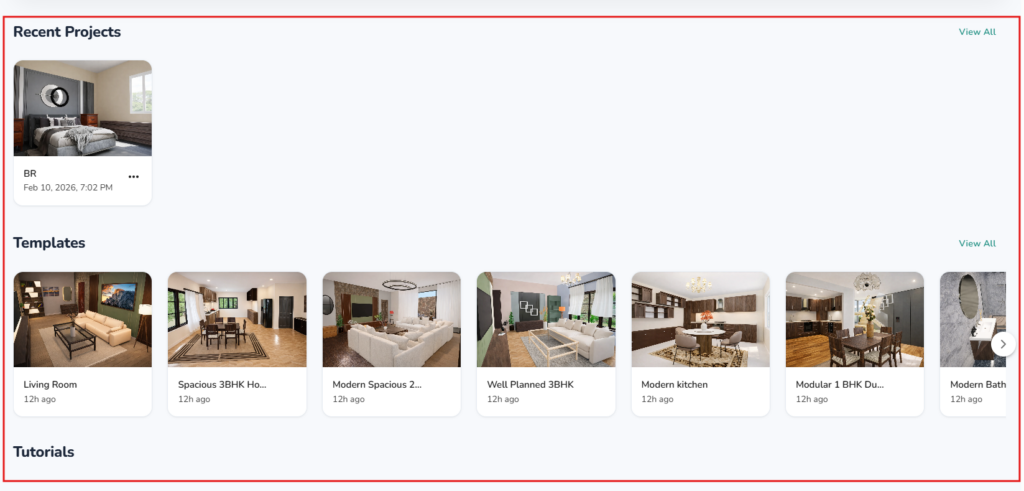
Dashboard Content Sections

Account & Status #

In the top-right corner of the Dashboard, you have the quick access icons to a few Account-related pages.

Notifications: Stay updated on project renders or community comments.

Check your Plan & Upgrade: See if you are on the “Free” or “Pro” tier. You can upgrade your plan any time you wish to.

Currency/Credits: View your “Gold Coin” balance for premium assets and upgrade if required.

Your Profile: Click on your Profile icon to access and edit your Profile, view Billing History/Upgrade your Plan, Manage Account settings and your password.

Updated on March 12, 2026
Dashboard Navigation

What are your Feelings

  • Happy
  • Normal
  • Sad

Share This Article :

  • Facebook
  • X
  • LinkedIn
  • Pinterest
Signing In Find & Manage Projects

Powered by BetterDocs

Leave a Reply Cancel reply

Your email address will not be published. Required fields are marked *

Table of Contents
  • The Quick Start Hub: Four Design Options
  • Dashboard Sidebar (Navigation)
    • 1. My Project
    • 2. Gallery
    • 3. AI Inspiration
    • 4. Design Library
    • 5. Templates
    • 6. Community
    • 7. Support & Account Management
  • Dashboard Content Sections
  • Account & Status

Create your account today

Experience the future of AI home design for free.

Get Started
Zlendo Realty Logo

The world's first Design-to-Sales engine. Experience your space in 360° ultra-realistic 8K, AR/MR.

Products

  • AI Floor Planner
  • 2D to 3D Converter
  • Smart Room Styler
  • Interiors & Exteriors
  • Smart Cost Estimator
  • Vastu Optimizer
  • Zlendo API Suite
  • Virtual Walkthrough

Use Cases

  • Commercial Spaces
  • Real Estate Brokers
  • NRI & Remote Planning
  • Developer Solutions
  • Home Remodeling
  • New Home Building

Resources

  • Design Library
  • Tutorials
  • Help Center
  • Grow with Zlendo
  • Contact Us

Legal

  • Privacy Policy
  • Terms of Service
  • Cookie Policy
  • Refund Policy
  • SLA

Contact Us

  • [email protected]
  • 0452-3583474
  • Headquarters

    36/1, Ganapathy Street,
    Alagappan Nagar, Madurai – 625003
    Tamil Nadu, India

  • Other Cities

    Pune • Bengaluru • Delhi • Hyderabad

Copyright © 2026 Zlendo Technologies Pvt. Ltd. | All Rights Reserved.

Cookie PolicyTerms & ConditionsPrivacy Policy
Contact Us