Zlendo Realty|Help Center

AI Floor Planner

Design & Visualize in 3D

2D to 3D Converter

Instant floor plan conversion

Smart Room Styler

AI-driven interior styling

Interiors & Exteriors

Region-aware design intelligence

Smart Cost Estimator

Precise project budgeting

Vastu Optimizer

Ancient wisdom, modern tech

Realistic Renders

Photorealistic lighting visualization

Virtual Walkthrough

8K Ultra-realistic experiences

Home Remodeling

Revitalize your current space

Interior Design

Aesthetic room planning

Vastu Optimization

Harmony & energy flow

New Home Building

From plot to perfection

Design Library

Inspiration gallery

Tutorials

Learn the platform

Help Center

Find answers & support

Blog

Insights & Updates

Plans

Business Free Trial

Try enterprise features

Affiliate & Partner Program

Grow with Zlendo

Zlendo Realty API Suite

Grow your Business with Us

Business
Login Start For Free

Menu

AI Floor Planner 2D to 3D Converter Smart Room Styler Interiors & Exteriors Smart Cost Estimator Vastu Optimizer Realistic Renders Virtual Walkthrough
Home Remodeling Interior Design Vastu Optimization New Home Building
Design Library Tutorials Help Center Blog
Plans
Business Free Trial Affiliate & Partner Program Zlendo Realty API Suite
For Individuals For Business
Login Start For Free

General

4
  • About Zlendo Realty 
  • Zlendo Realty FAQ
  • Navigation Tools & Keyboard Shortcuts Cheat Sheet
  • Signing In 

Editor

8
  • Export Plan Tool
  • Editor Tour: Introducing the Project Workspace
  • Navigation Tools & Keyboard Shortcuts Cheat Sheet
  • 2D Floor Planner: Drawing or Editing in the Zlendo Realty Workspace
  • 3D Visualization, 360° Walkthrough & Panorama
  • Zlendo Realty Render Tool
  • Zlendo Realty AI Inspiration Tools
  • Zlendo Realty Cost Estimation Tool

Project Cost Estimation

2
  • Zlendo Realty Cost Estimation Tool
  • Editor Tour: Introducing the Project Workspace

Vastu

1
  • Zlendo Realty Vastu Tool

Render

2
  • Zlendo Realty Render Tool
  • Editor Tour: Introducing the Project Workspace

3D Editing & Viewing

5
  • 3D Visualization, 360° Walkthrough & Panorama
  • Navigation Tools & Keyboard Shortcuts Cheat Sheet
  • Editor Tour: Introducing the Project Workspace
  • Zlendo Realty Cost Estimation Tool
  • Zlendo Realty Render Tool

AI Inspiration

2
  • Zlendo Realty AI Inspiration Tools
  • Editor Tour: Introducing the Project Workspace

Interior Design

5
  • Furniture & Decor
  • Zlendo Realty AI Inspiration Tools
  • Editor Tour: Introducing the Project Workspace
  • 2D Floor Planner: Drawing or Editing in the Zlendo Realty Workspace
  • 3D Visualization, 360° Walkthrough & Panorama

Real-World Preview

1
  • 3D Visualization, 360° Walkthrough & Panorama

Signing In

1
  • Signing In 

Getting Started

3
  • Creating a Zlendo Realty Account 
  • Signing In 
  • Zlendo Realty Dashboard: First-Time User Tour 

Password Change

1
  • Resetting Your Password 

Projects

10
  • Export Plan Tool
  • 2D Floor Planner: Drawing or Editing in the Zlendo Realty Workspace
  • Creating New Projects
  • Find & Manage Projects
  • Editor Tour: Introducing the Project Workspace
  • 3D Visualization, 360° Walkthrough & Panorama
  • Navigation Tools & Keyboard Shortcuts Cheat Sheet
  • Zlendo Realty AI Inspiration Tools
  • Furniture & Decor
  • Zlendo Realty Cost Estimation Tool

Project Workspace Settings

1
  • Editor Tour: Introducing the Project Workspace

Project Workspace

8
  • Editor Tour: Introducing the Project Workspace
  • Navigation Tools & Keyboard Shortcuts Cheat Sheet
  • 2D Floor Planner: Drawing or Editing in the Zlendo Realty Workspace
  • 3D Visualization, 360° Walkthrough & Panorama
  • Zlendo Realty Cost Estimation Tool
  • Zlendo Realty Render Tool
  • Zlendo Realty Vastu Tool
  • Zlendo Realty AI Inspiration Tools

FAQ

1
  • Zlendo Realty FAQ

Workspace Navigation

2
  • Navigation Tools & Keyboard Shortcuts Cheat Sheet
  • 3D Visualization, 360° Walkthrough & Panorama

360° Walkthrough & Panorama

2
  • 3D Visualization, 360° Walkthrough & Panorama
  • Navigation Tools & Keyboard Shortcuts Cheat Sheet

Account Setup

1
  • Creating a Zlendo Realty Account 

Creating New Projects

1
  • Creating New Projects

2D Drawing & Editing

5
  • 2D Floor Planner: Drawing or Editing in the Zlendo Realty Workspace
  • Editor Tour: Introducing the Project Workspace
  • Navigation Tools & Keyboard Shortcuts Cheat Sheet
  • Zlendo Realty Render Tool
  • Zlendo Realty Cost Estimation Tool

Dashboard

2
  • Zlendo Realty Dashboard: First-Time User Tour 
  • Find & Manage Projects

Find Projects

1
  • Find & Manage Projects

Manage Projects

1
  • Find & Manage Projects

Account

2
  • Creating a Zlendo Realty Account 
  • Payment & Billing

Payment & Billing

1
  • Payment & Billing

Create Templates

1
  • Zlendo Realty Community: Creating Project Templates & Sharing Designs

Community

1
  • Zlendo Realty Community: Creating Project Templates & Sharing Designs

Share Designs

1
  • Zlendo Realty Community: Creating Project Templates & Sharing Designs

Export Plan

1
  • Export Plan Tool
View Categories
  • Home
  • Docs
  • Editor
  • 2D Drawing & Editing
  • Zlendo Realty Render Tool

Zlendo Realty Render Tool

2 min read

Screenshot & Rendering Tools #

You can capture your progress or create marketing assets with realistic 3D screenshots and Rendered Images/Videos.

Rendered Videos/Images/and Screenshots can be shared as a Design Video to your Zlendo Community.
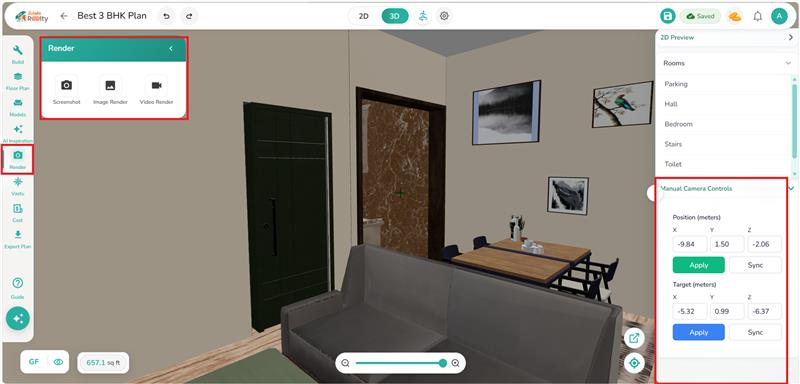
Render

Taking a Screenshot #

In 3D Mode use the Render (Camera) Icon on the left Workspace Menu to take a high-quality screenshot of your current view.

On the Workspace in 3D Mode, Click on Render –> Screenshot
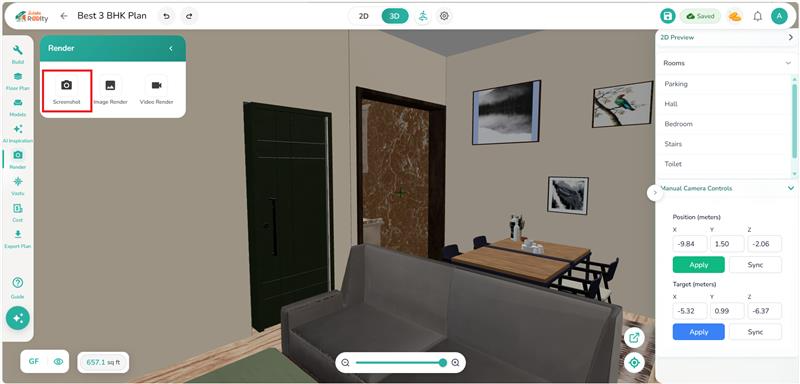
Render Screenshot

How to Capture an Image Render #

In 3D mode Zlendo Realty allows you to render smooth image/video walkthroughs to showcase the flow of your property.

Click on Render Tool icon on the left Menu bar –> Choose Image.

Select View: On the Render screen choose Top view or Perspective.

Select a Room: Use the 2D Preview panel to select a Room by clicking on the room camera.

Room Navigation: Use the on-screen Navigation arrows / mouse movements to adjust the room view

Adjust Environment: Choose your lighting preset.

Adjust Camera Settings: Use the Camera Settings panel on the right to fine-tune your perspective. You can adjust the FOV (Field of View) and Height to perfectly frame your scene.

Select the Render Resolution: On the left-hand Select Quality & Capture panel, choose your desired output quality. Resolution options range from Draft to 12K.

Capture Render: Once your scene is set, click the Capture [Your selected picture quality] button / AI Render button located at the bottom of the screen to start rendering.
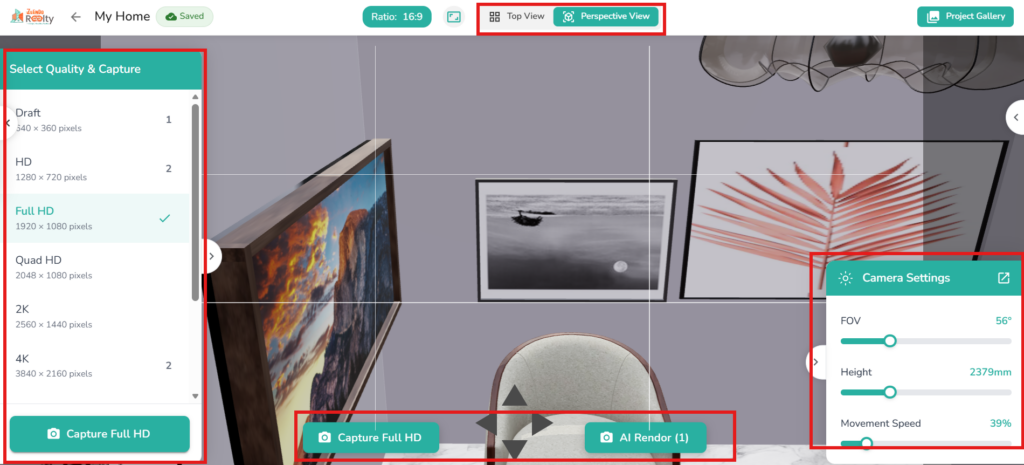
Image Rendering Settings

How to Capture a Video Render #

To create a video walkthrough of your project, you will use the Video Render interface. Follow these steps to set up and export your video:

1. Build Your Camera Sequence

Adjust Camera Position, Speed and time controls: On the right-side panel of the screen, use the slider to adjust camera speed, movement time.

Add Keyframes: You must add keyframes to start a sequence, which tells the camera which direction to move and at what time.

Set the Camera Path: Use the Path tools on the left Toolbar to define your camera path.

There are 3 Path Tools you can choose from: Straight, Curved and Vertical.

– Click on the Path Tool (e.g., Straight/Curved/Vertical)

– Click on the room you wish to start recording. Adjust camera movement path using the provided handles (Straight-line path for the Straight Tool).

– Use the 3D Live Preview on the right-side panel to check the camera position and path as you adjust it.

– Click play to view the frame. This will also set the first Key frame. Repeat for each room.

2. Preview and Organize

Live Preview: Monitor your progress in the Live Preview window on the right sidebar. This shows a real-time 3D view of what the final video will look like.

Key Frames Storyboard: Manage the various segments of your video in the Storyboard section below the preview window to ensure the flow of the walkthrough is correct.

Playback Controls: Use the play, stop, and skip buttons on the timeline to test the timing and smoothness of your camera transitions.

3. Render the Video

Once you are satisfied with the sequence, click the Render [Your chosen video quality] Video button in the top-right corner of the interface to begin the high-quality export process.
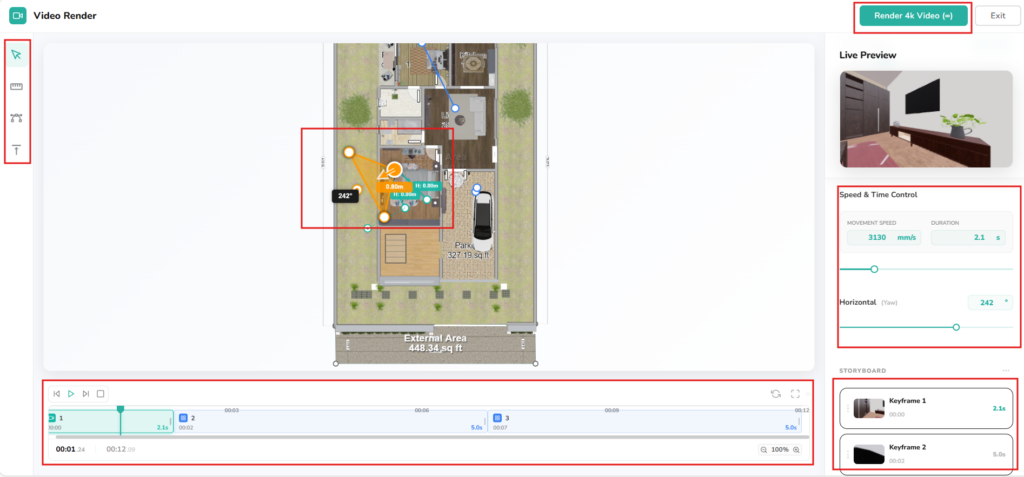
Video Rendering

Where to Find your Screenshots and Rendered Images/Videos #

Once complete, your Screenshot/Image/Video will be saved to the Gallery.

From the Workspace –>Render –> Project Gallery
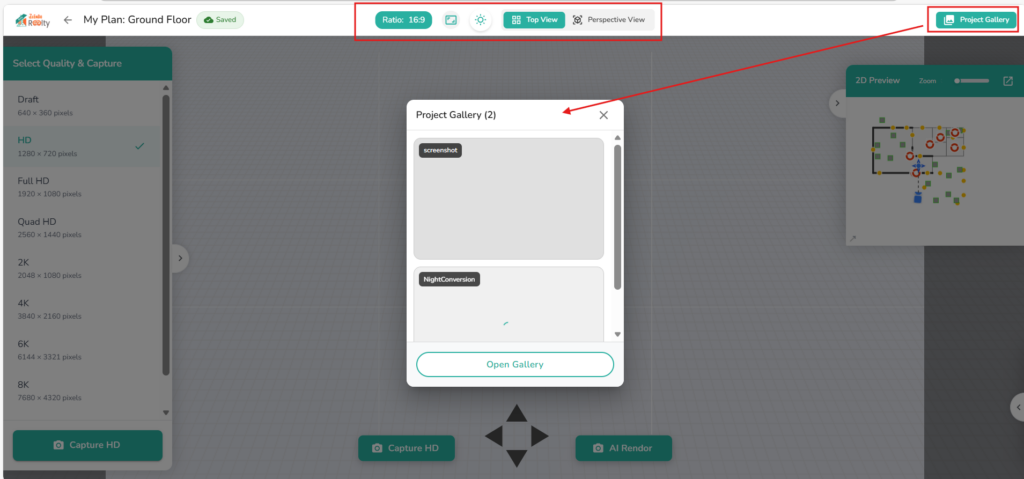
Rendered Images saved to Project Gallery

From the Dashboard –> Gallery –> Screenshot/Image/Video.
Click on the 3 dots under an image to View/download it.
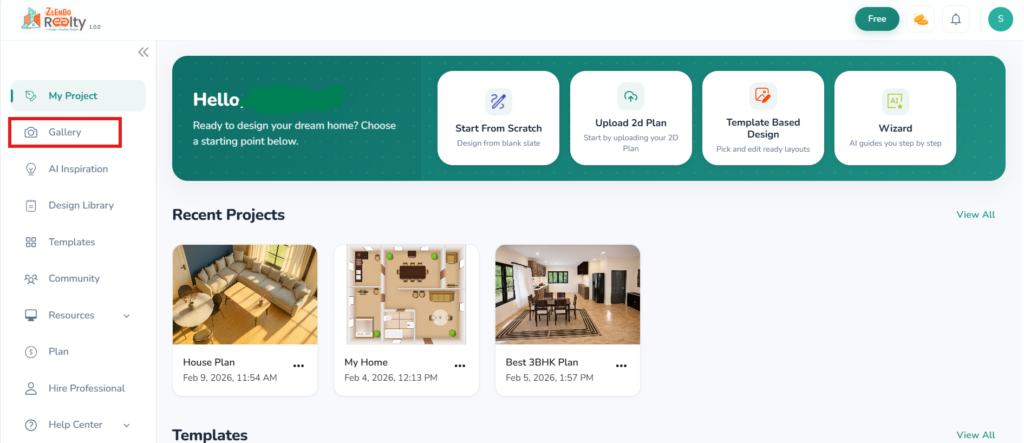
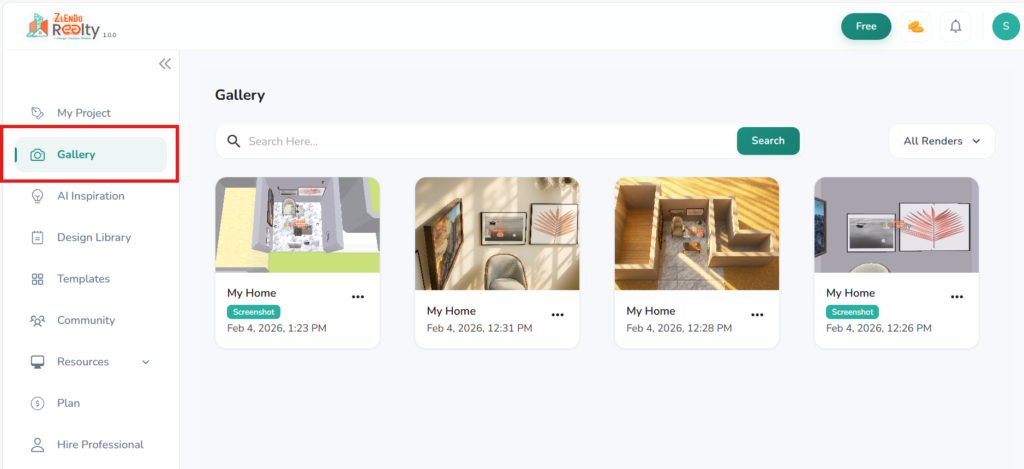
Dashboard: Gallery
Gallery

💡 Rendering Best Practices #

Lighting First: Always place light fixtures (lamps, recessed lighting) before rendering an interior shot; the renderer uses these to create realistic “bounce” light.

The “Rule of Thirds”: Position your camera so your main focal point (like a kitchen island) isn’t perfectly centered for a more professional, “architectural magazine” look.

Check Your Specs: High-quality video rendering can take several minutes. You don’t need to keep the tab open; we’ll process it in the cloud and save it to your account.

Updated on March 12, 2026
Projects Render

What are your Feelings

  • Happy
  • Normal
  • Sad

Share This Article :

  • Facebook
  • X
  • LinkedIn
  • Pinterest
Navigation Tools & Keyboard Shortcuts Cheat SheetExport Plan Tool

Powered by BetterDocs

Table of Contents
  • Screenshot & Rendering Tools
    • Taking a Screenshot
    • How to Capture an Image Render
    • How to Capture a Video Render
    • Where to Find your Screenshots and Rendered Images/Videos
  • 💡 Rendering Best Practices

Create your account today

Experience the future of AI home design for free.

Get Started
Zlendo Realty Logo

The world's first Design-to-Sales engine. Experience your space in 360° ultra-realistic 8K, AR/MR.

Products

  • AI Floor Planner
  • 2D to 3D Converter
  • Smart Room Styler
  • Interiors & Exteriors
  • Smart Cost Estimator
  • Vastu Optimizer
  • Zlendo API Suite
  • Virtual Walkthrough

Use Cases

  • Commercial Spaces
  • Real Estate Brokers
  • NRI & Remote Planning
  • Developer Solutions
  • Home Remodeling
  • New Home Building

Resources

  • Design Library
  • Tutorials
  • Help Center
  • Grow with Zlendo
  • Contact Us

Legal

  • Privacy Policy
  • Terms of Service
  • Cookie Policy
  • Refund Policy
  • SLA

Contact Us

  • [email protected]
  • 0452-3583474
  • Headquarters

    36/1, Ganapathy Street,
    Alagappan Nagar, Madurai – 625003
    Tamil Nadu, India

  • Other Cities

    Pune • Bengaluru • Delhi • Hyderabad

Copyright © 2026 Zlendo Technologies Pvt. Ltd. | All Rights Reserved.

Cookie PolicyTerms & ConditionsPrivacy Policy
Contact Us