Personalizing Your Project #
Transform your structural layout into a home with the Zlendo Realty Furniture & Decoration library. Our extensive catalog offers thousands of items to help you style every inch of your space, from the living room to the backyard.
Adding Furniture #
Adding furniture/decor items into your project is a simple “Drag and Drop” process.
How to Add Furtinure & Decor Items #
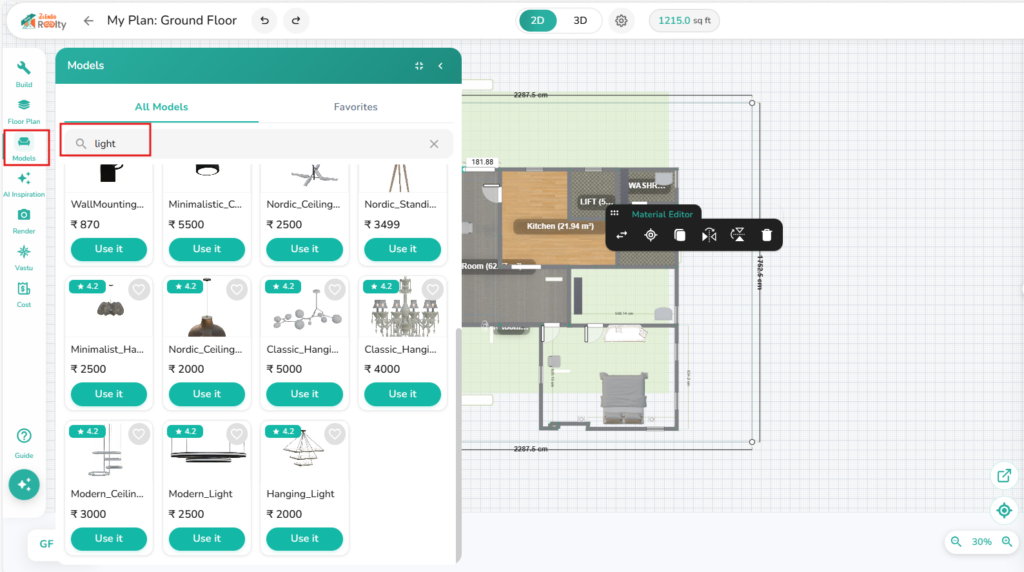
Workspace left side menu bar –> Models Icon (chair icon), to open the Furniture and Decor Catalog.
Select an item and drag it directly into the room/space you want to place it in.
Placement: Objects will automatically “snap” to the floor level or against walls for easy alignment.
Grid, Snap & Alignment of Objects #
Any Furniture/Decor element added to a room has a Material Editor and tool bar. When it is placed in the space it will snap into position.
3D Mode –> Double click a piece of furniture to engage Snap Mode (unlock).
Use the guide arrows in snap mode to move a piece across the room or to turn it around.
Lock it in place: Click again to lock it in place. Or use the Material Editor mobile bar Lock icon.
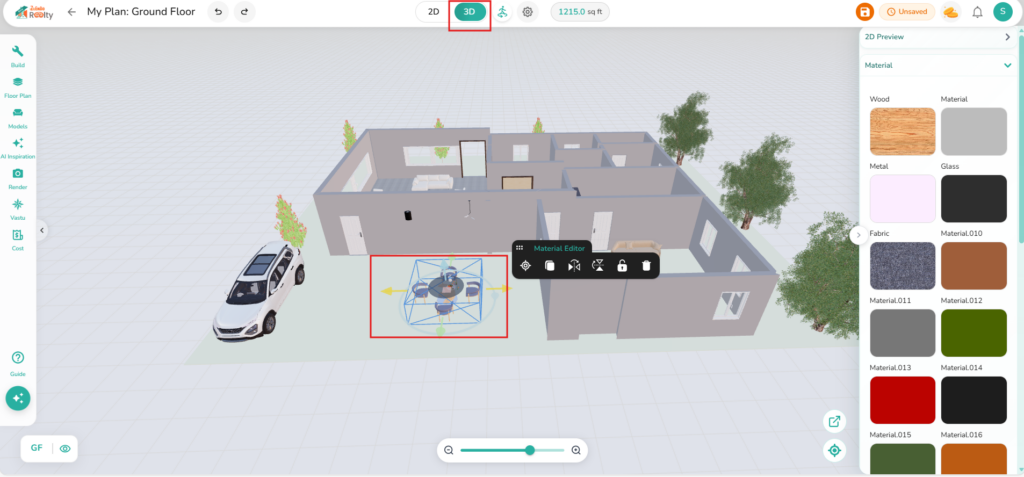
Edit Position Using the Material Editor #
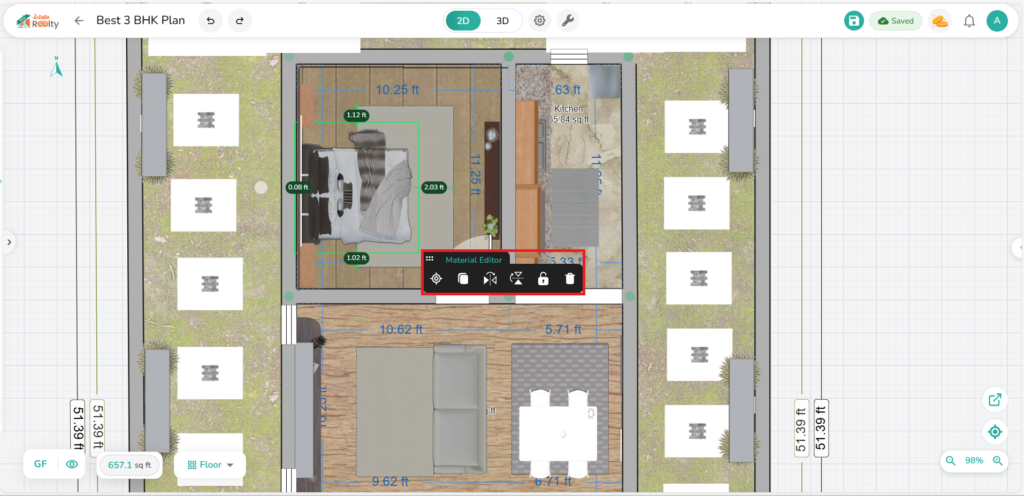
Position and lock the element can also be adjusted from the mobile Material Editor bar.
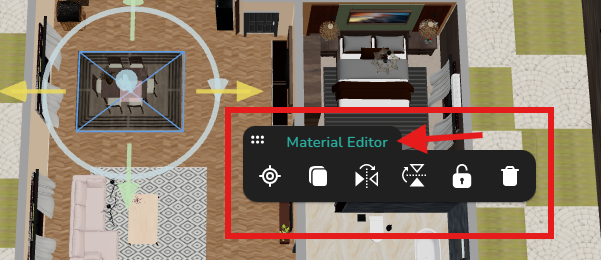
Click on the element/object to be edited –> Material Editor Mobile Tool Bar:
– Center
– Copy
– Flip (Horizontal/Vertical)
– Lock
– Delete
Editing Material Texture and Color #
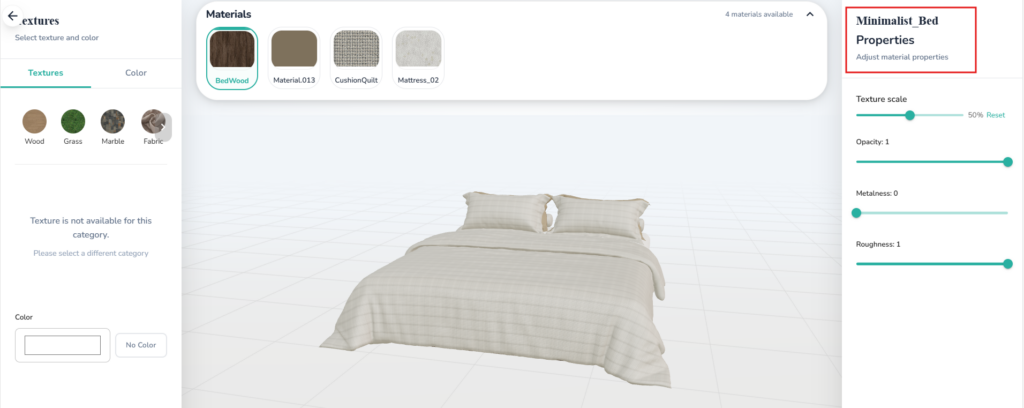
The Material Editor tool bar of any building element allows you to change the color/texture and look of building/furniture elements.
Click on the Material Editor to View the element’s/Objects material properties and edit its size, color and texture
Finding the Model you want #
Use Categories #
To make browsing easier, our library is organized by room and function:
Interior: Living Room, Bedroom, Kitchen, etc.
Structural: Windows, Doors, and Stairs.
Decorative: Plants, Curtains, and Frames.
Use the Search & Favorites #
Know exactly what you’re looking for? Save time with these tools:
Search Bar: Type keywords like “Sofa” or “Table” at the top of the catalog.
Favorites: Narrow down results by “hearting” your best finds to add them to your “Favorites” to find the perfect fit easily.
💡 Design Secret:
Use the Favorites (Heart) icon on items you love. This creates a curated shortlist, so you don’t have to search for that specific coffee table every time you start a new room.
Outdoor Furniture & Landscaping #
Zlendo Realty isn’t just for interiors! Explore the Outdoor Category to find:
Models Library –> Outdoor & Garden category / Exterior category.
Garden Sets: Patios, loungers, and umbrellas.
Landscaping: Trees, shrubs, and pools to create a realistic exterior environment.
Lighting: Path lights and lanterns to see your garden in “Night Mode.”
Quick Guide to Customizing Your Furniture & Decor #
Once an item is in your room, you can modify it to fit your exact specifications.
| Feature | How to Use |
| Removing and replacing Items | Select an object and click the Delete icon (bin). This lets you remove a chair or lamp and use a different model. |
| Scaling Objects | Select the item and use the Dimensions menu to manually enter height, width, and depth. (Note: Pro users can toggle “Uniform Scaling” to keep proportions locked). |
| Rotating & Positioning | Use the Rotation Handle (curved arrow) to spin the object. For precise positioning, use the arrow keys on your keyboard for “nudging.” |
| Change Material Texture/Colour | Select the item and use the Materials menu to select the texture or color of an object |
💡Decorating Tips #
Layering: Start with “Heavy” items (Sofa, Bed, Wardrobe) before adding “Light” decor (Rugs, Lamps, Vases).
Wall Decor: When dragging art or mirrors near a wall, they will automatically orient themselves to face the center of the room.
Grouping: Use the Multi-select tool (Shift + Click) to move entire furniture sets (like a dining table and chairs) at once.


