Export Plans #
The Export Plan tool, located on the Zlendo Editor Toolbar, is your gateway to creating professional, high-quality documentation of your designs.
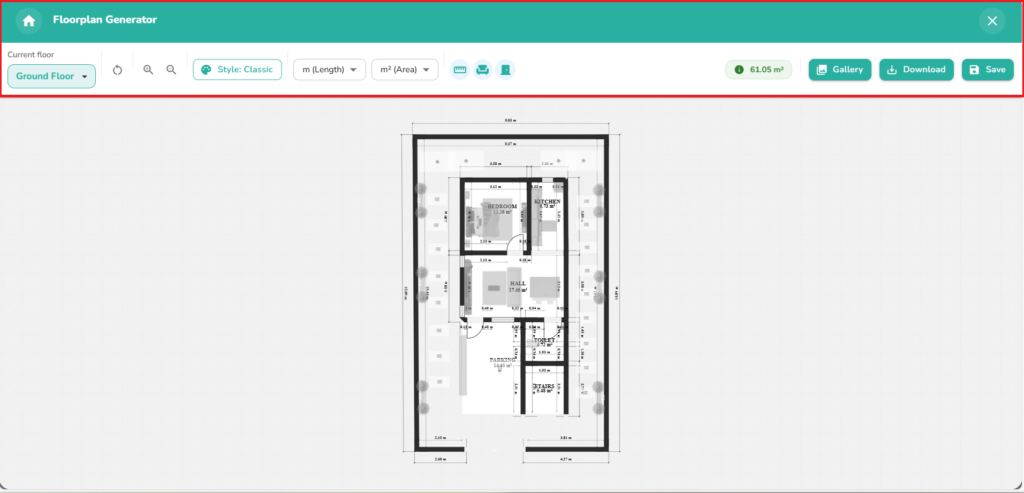
This tool opens the Floorplan Generator, where you can customize and finalize your project layout before sharing it.
Floorplan Generator Toolbar #
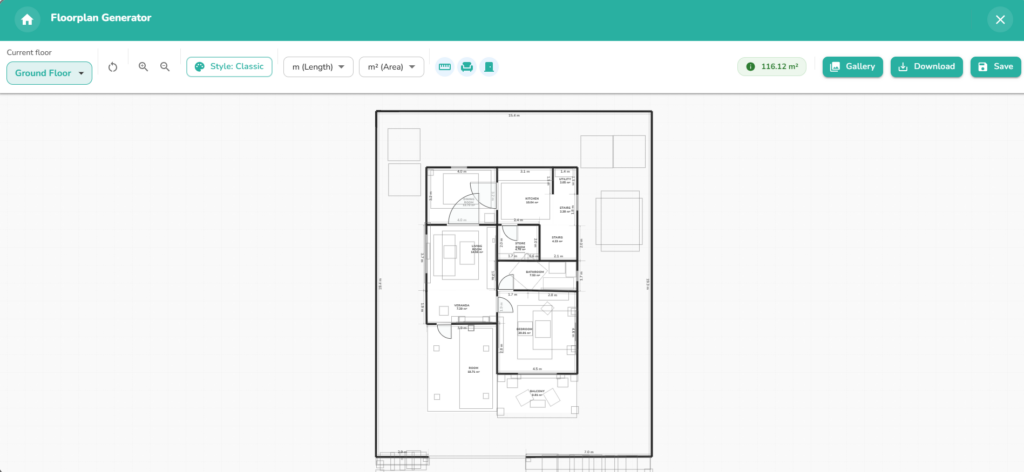
The Top Ribbon of the Floorplan generator has all the essential tools for customizing the look and feel of your floorplan.
You can adjust the style, and measurements of your plan before Saving and downloading it.
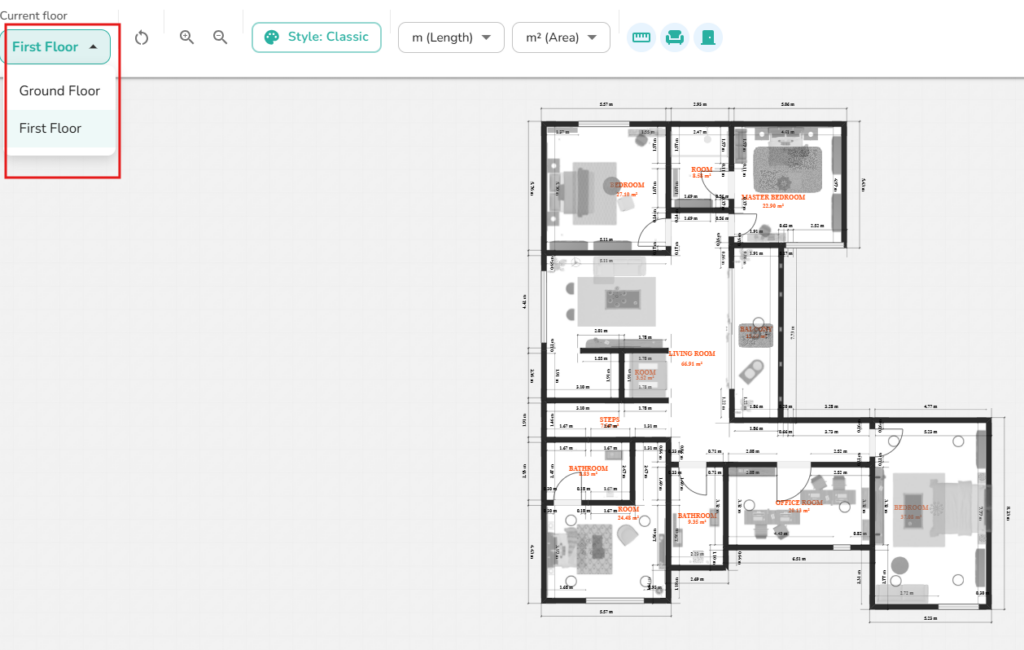
Current Floor Button: Quickly switch between different floors/levels of your project to view or export specific floors.
Reset View & Zoom Icons: Use these to instantly reset your design or adjust the magnification for a detailed look.
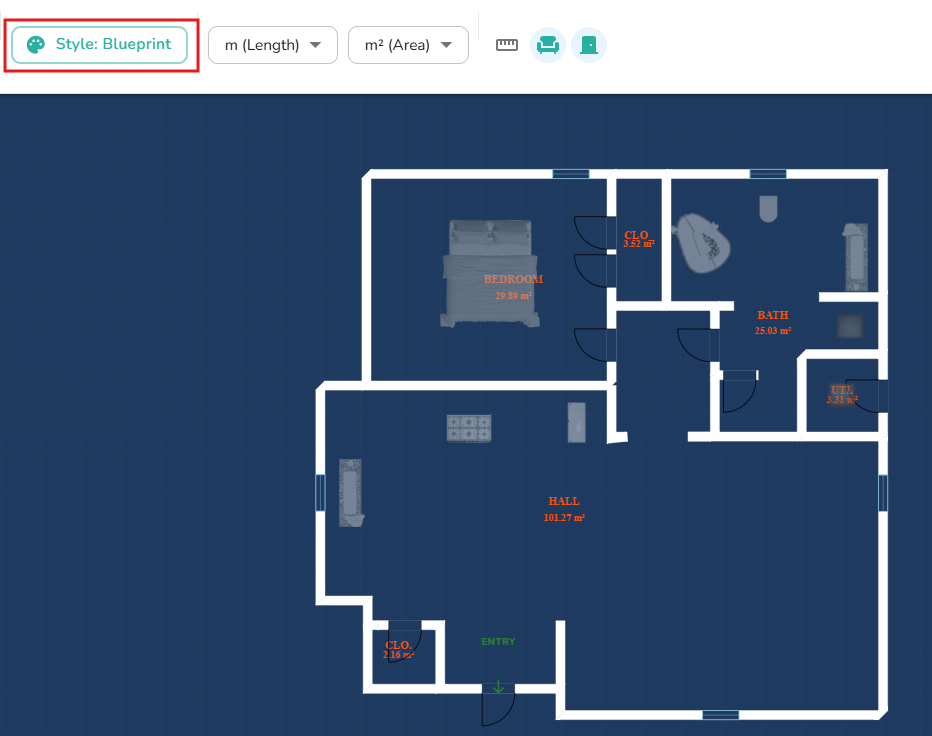
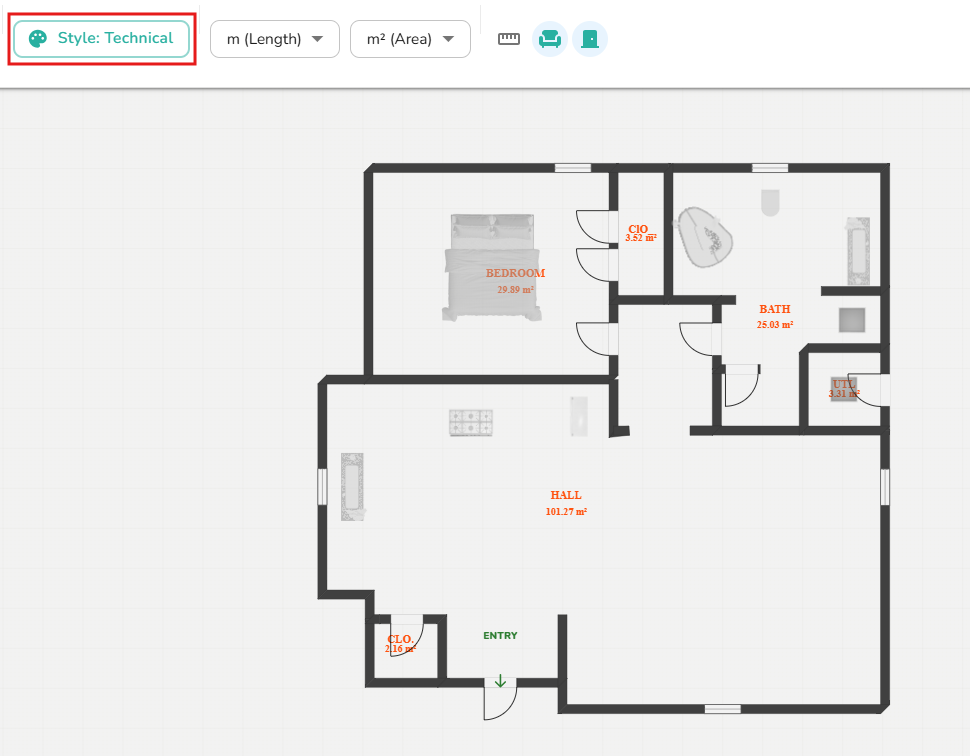
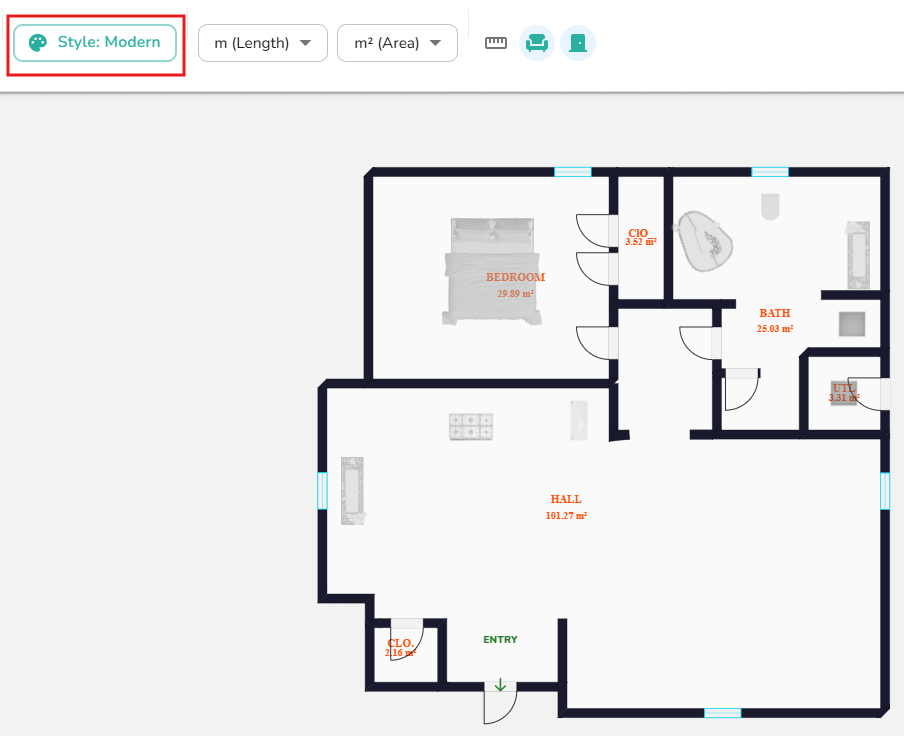
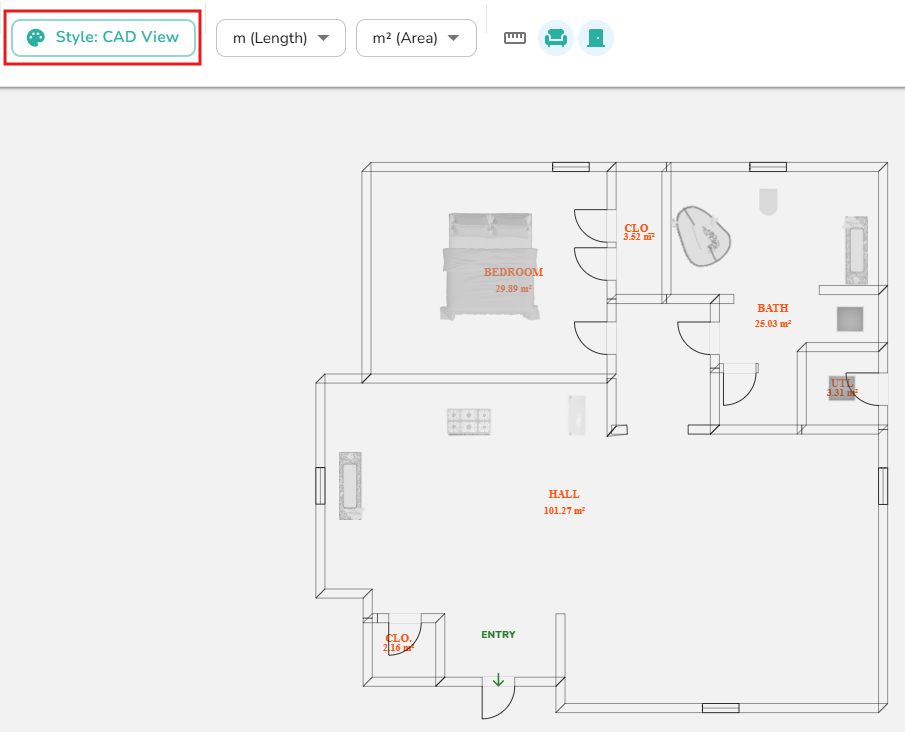
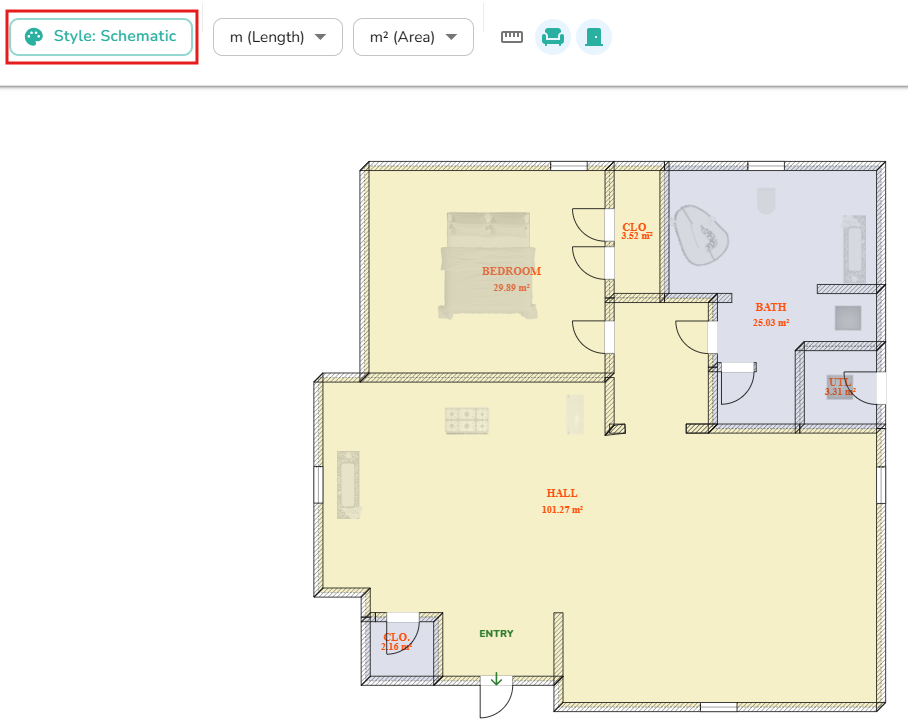
Style Selector: Customize the visual aesthetic of your plan by choosing from several available styles: Blueprint, Classic, Technical, Modern, Coloured, CAD, Presentation, or Schematic.
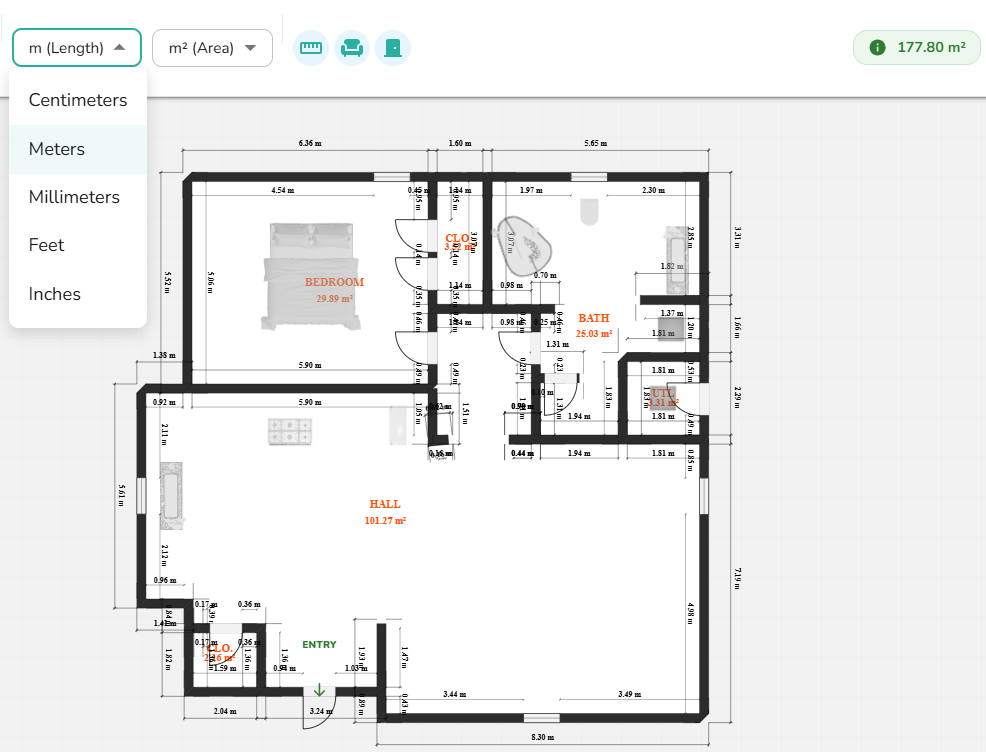
UOM Selector: Adjust the Units of Measurement (e.g., Feet, Meters) for all linear dimensions in your project.
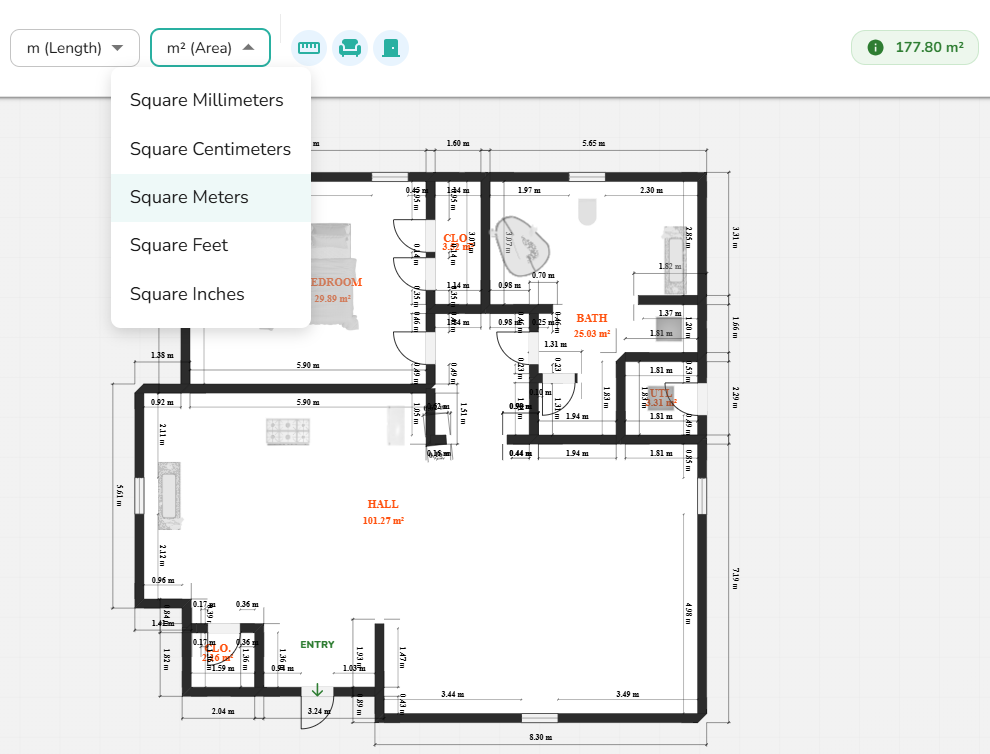
Area UOM Button: Change the units specifically used for calculating and displaying room or floor areas.
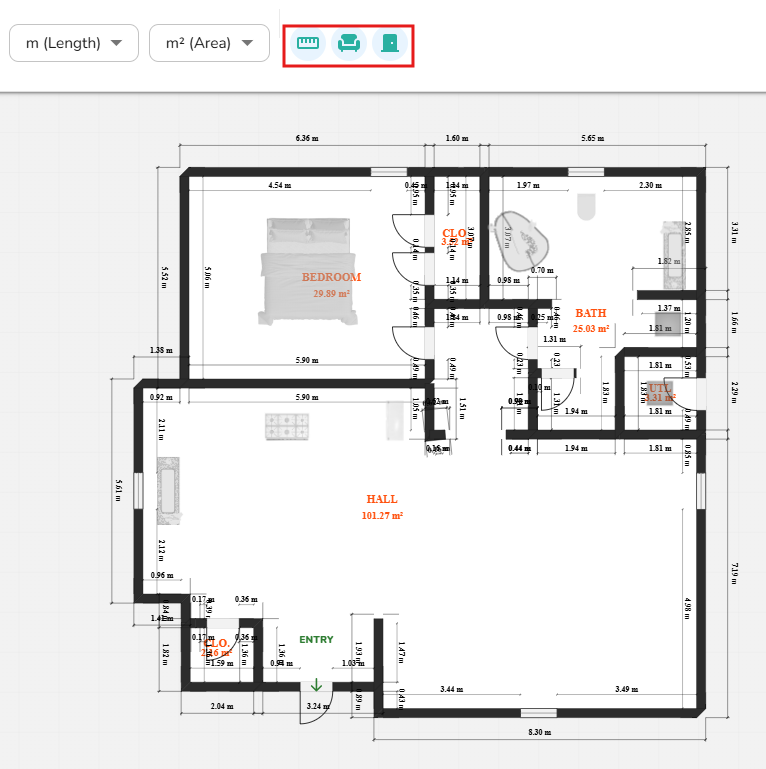
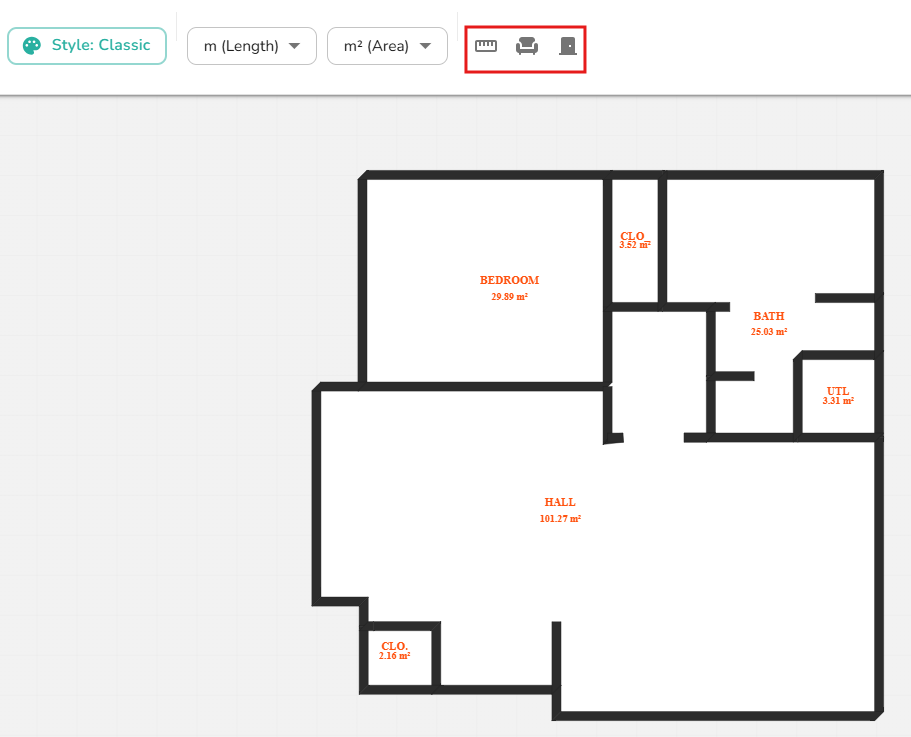
Hide Icons (3): Declutter your view by toggling the visibility of Measurements, Furniture, or Doors and Windows.
Area Indicator Box: View the total calculated area for the current selection or floor at a glance.
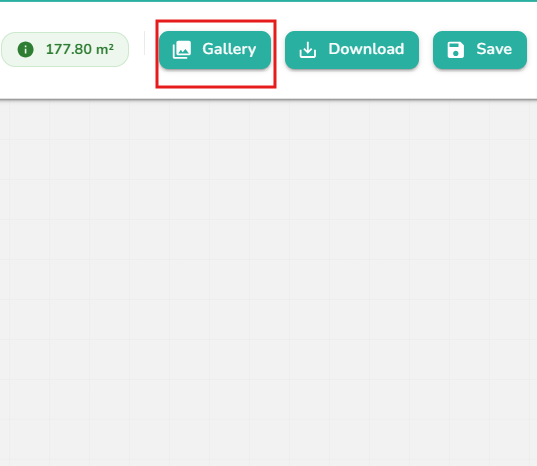
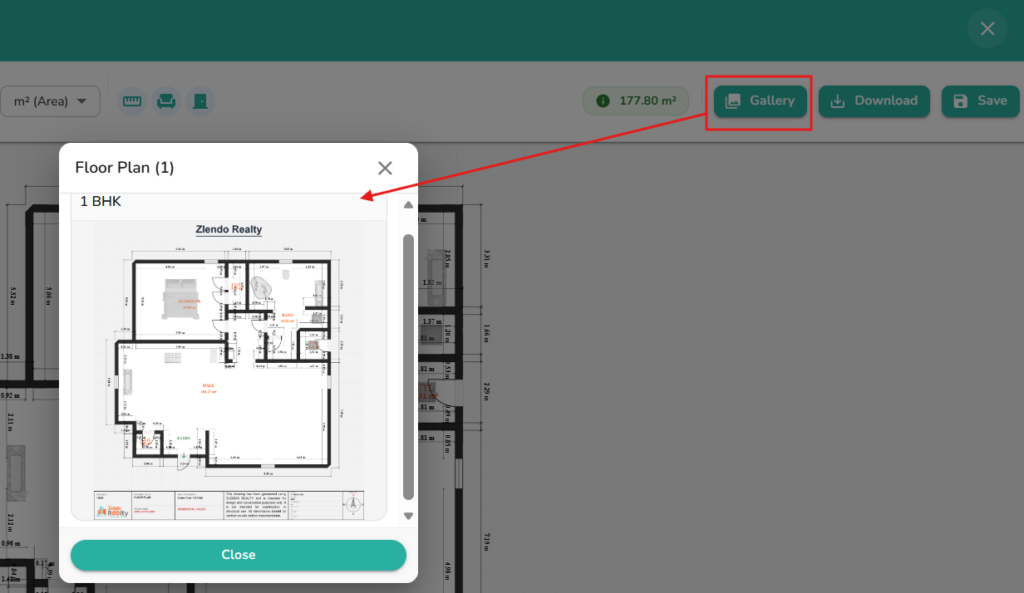
Gallery: Click this to view your previously saved floorplan versions.
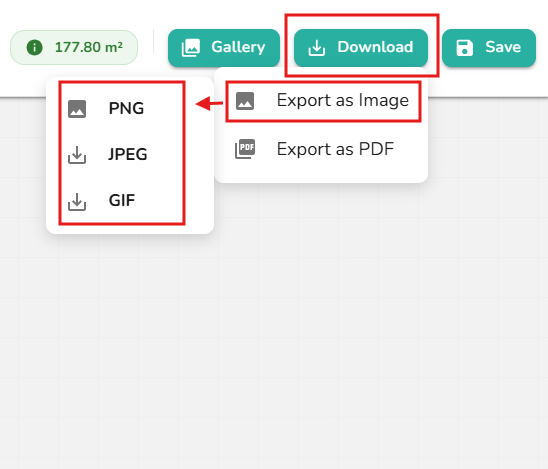
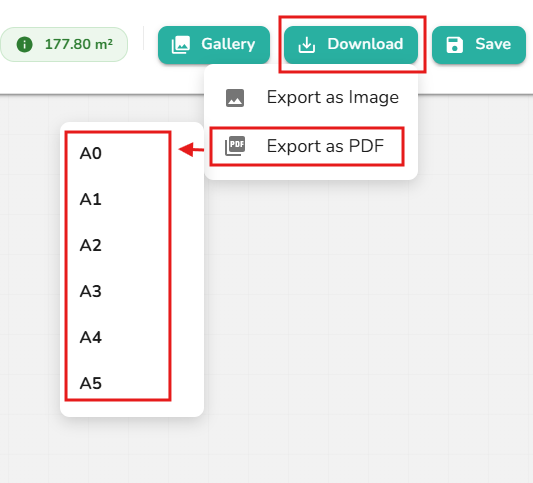
Download: Export your final design as a high-resolution JPG/PNG/GIF image or a PDF document in sizes ranging from A0 to A5.
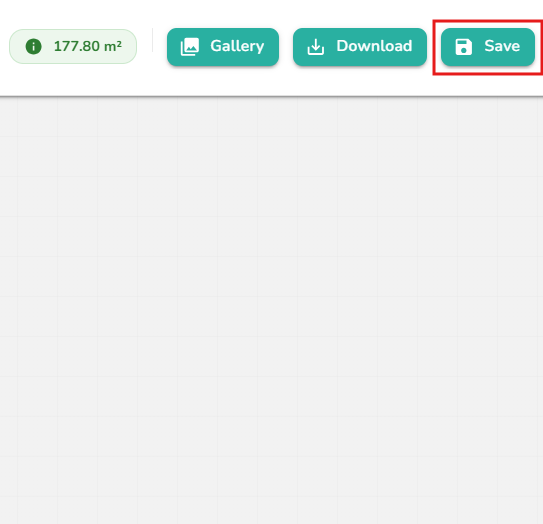
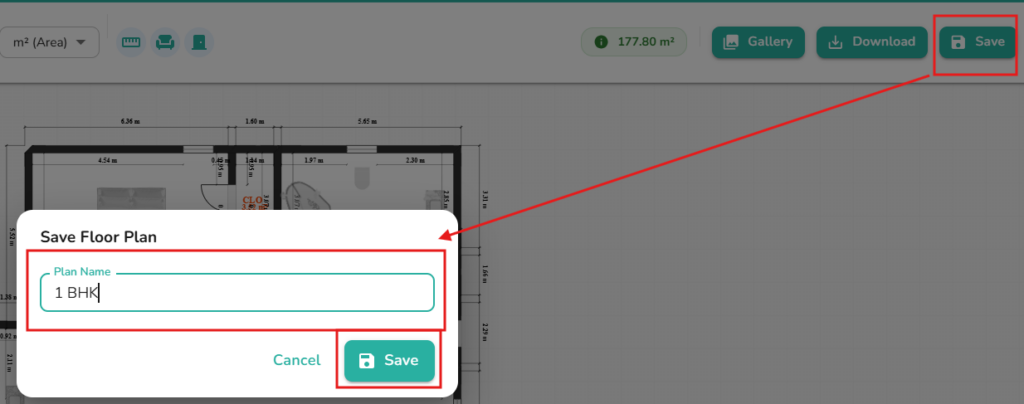
Save: Instantly save your current floorplan and view directly into your project’s Gallery.