Zlendo Realty|Help Center

AI Floor Planner

Design & Visualize in 3D

2D to 3D Converter

Instant floor plan conversion

Smart Room Styler

AI-driven interior styling

Interiors & Exteriors

Region-aware design intelligence

Smart Cost Estimator

Precise project budgeting

Vastu Optimizer

Ancient wisdom, modern tech

Realistic Renders

Photorealistic lighting visualization

Virtual Walkthrough

8K Ultra-realistic experiences

Home Remodeling

Revitalize your current space

Interior Design

Aesthetic room planning

Vastu Optimization

Harmony & energy flow

New Home Building

From plot to perfection

Design Library

Inspiration gallery

Tutorials

Learn the platform

Help Center

Find answers & support

Blog

Insights & Updates

Plans

Business Free Trial

Try enterprise features

Affiliate & Partner Program

Grow with Zlendo

Zlendo Realty API Suite

Grow your Business with Us

Business
Login Start For Free

Menu

AI Floor Planner 2D to 3D Converter Smart Room Styler Interiors & Exteriors Smart Cost Estimator Vastu Optimizer Realistic Renders Virtual Walkthrough
Home Remodeling Interior Design Vastu Optimization New Home Building
Design Library Tutorials Help Center Blog
Plans
Business Free Trial Affiliate & Partner Program Zlendo Realty API Suite
For Individuals For Business
Login Start For Free

General

4
  • About Zlendo Realty 
  • Zlendo Realty FAQ
  • Navigation Tools & Keyboard Shortcuts Cheat Sheet
  • Signing In 

Editor

8
  • Export Plan Tool
  • Editor Tour: Introducing the Project Workspace
  • Navigation Tools & Keyboard Shortcuts Cheat Sheet
  • 2D Floor Planner: Drawing or Editing in the Zlendo Realty Workspace
  • 3D Visualization, 360° Walkthrough & Panorama
  • Zlendo Realty Render Tool
  • Zlendo Realty AI Inspiration Tools
  • Zlendo Realty Cost Estimation Tool

Project Cost Estimation

2
  • Zlendo Realty Cost Estimation Tool
  • Editor Tour: Introducing the Project Workspace

Vastu

1
  • Zlendo Realty Vastu Tool

Render

2
  • Zlendo Realty Render Tool
  • Editor Tour: Introducing the Project Workspace

3D Editing & Viewing

5
  • 3D Visualization, 360° Walkthrough & Panorama
  • Navigation Tools & Keyboard Shortcuts Cheat Sheet
  • Editor Tour: Introducing the Project Workspace
  • Zlendo Realty Cost Estimation Tool
  • Zlendo Realty Render Tool

AI Inspiration

2
  • Zlendo Realty AI Inspiration Tools
  • Editor Tour: Introducing the Project Workspace

Interior Design

5
  • Furniture & Decor
  • Zlendo Realty AI Inspiration Tools
  • Editor Tour: Introducing the Project Workspace
  • 2D Floor Planner: Drawing or Editing in the Zlendo Realty Workspace
  • 3D Visualization, 360° Walkthrough & Panorama

Real-World Preview

1
  • 3D Visualization, 360° Walkthrough & Panorama

Signing In

1
  • Signing In 

Getting Started

3
  • Creating a Zlendo Realty Account 
  • Signing In 
  • Zlendo Realty Dashboard: First-Time User Tour 

Password Change

1
  • Resetting Your Password 

Projects

10
  • Export Plan Tool
  • 2D Floor Planner: Drawing or Editing in the Zlendo Realty Workspace
  • Creating New Projects
  • Find & Manage Projects
  • Editor Tour: Introducing the Project Workspace
  • 3D Visualization, 360° Walkthrough & Panorama
  • Navigation Tools & Keyboard Shortcuts Cheat Sheet
  • Zlendo Realty AI Inspiration Tools
  • Furniture & Decor
  • Zlendo Realty Cost Estimation Tool

Project Workspace Settings

1
  • Editor Tour: Introducing the Project Workspace

Project Workspace

8
  • Editor Tour: Introducing the Project Workspace
  • Navigation Tools & Keyboard Shortcuts Cheat Sheet
  • 2D Floor Planner: Drawing or Editing in the Zlendo Realty Workspace
  • 3D Visualization, 360° Walkthrough & Panorama
  • Zlendo Realty Cost Estimation Tool
  • Zlendo Realty Render Tool
  • Zlendo Realty Vastu Tool
  • Zlendo Realty AI Inspiration Tools

FAQ

1
  • Zlendo Realty FAQ

Workspace Navigation

2
  • Navigation Tools & Keyboard Shortcuts Cheat Sheet
  • 3D Visualization, 360° Walkthrough & Panorama

360° Walkthrough & Panorama

2
  • 3D Visualization, 360° Walkthrough & Panorama
  • Navigation Tools & Keyboard Shortcuts Cheat Sheet

Account Setup

1
  • Creating a Zlendo Realty Account 

Creating New Projects

1
  • Creating New Projects

2D Drawing & Editing

5
  • 2D Floor Planner: Drawing or Editing in the Zlendo Realty Workspace
  • Editor Tour: Introducing the Project Workspace
  • Navigation Tools & Keyboard Shortcuts Cheat Sheet
  • Zlendo Realty Render Tool
  • Zlendo Realty Cost Estimation Tool

Dashboard

2
  • Zlendo Realty Dashboard: First-Time User Tour 
  • Find & Manage Projects

Find Projects

1
  • Find & Manage Projects

Manage Projects

1
  • Find & Manage Projects

Account

2
  • Creating a Zlendo Realty Account 
  • Payment & Billing

Payment & Billing

1
  • Payment & Billing

Create Templates

1
  • Zlendo Realty Community: Creating Project Templates & Sharing Designs

Community

1
  • Zlendo Realty Community: Creating Project Templates & Sharing Designs

Share Designs

1
  • Zlendo Realty Community: Creating Project Templates & Sharing Designs

Export Plan

1
  • Export Plan Tool
View Categories
  • Home
  • Docs
  • Community
  • Zlendo Realty Community: Creating Project Templates & Sharing Designs

Zlendo Realty Community: Creating Project Templates & Sharing Designs

1 min read

The Zlendo Realty Community is a vibrant digital hub designed for architects, interior designers, and home enthusiasts to connect and grow. It serves as a collaborative space where creativity meets professional insight, allowing users to move beyond individual drafting and into a shared ecosystem of design.

Sharing Design Templates #

You can create your own design template from your project renders and share it on Zlendo Realty Community as a Post.

You can also view other featured designs see how the design community is interacting with your work.

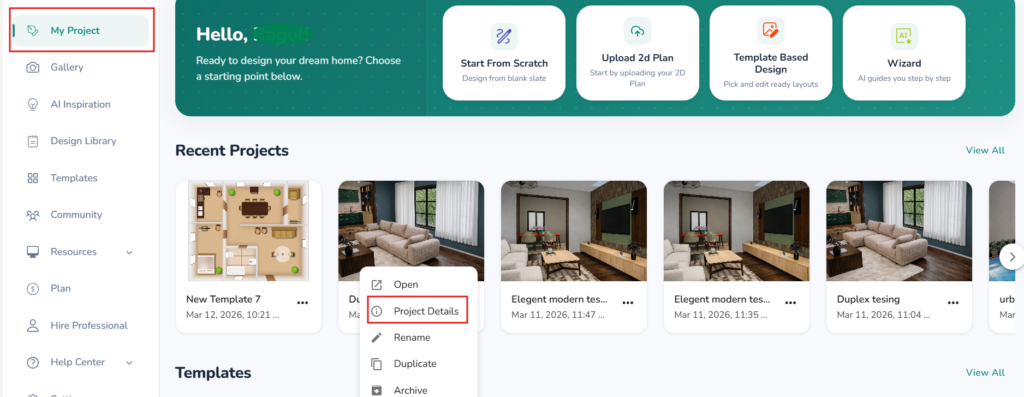
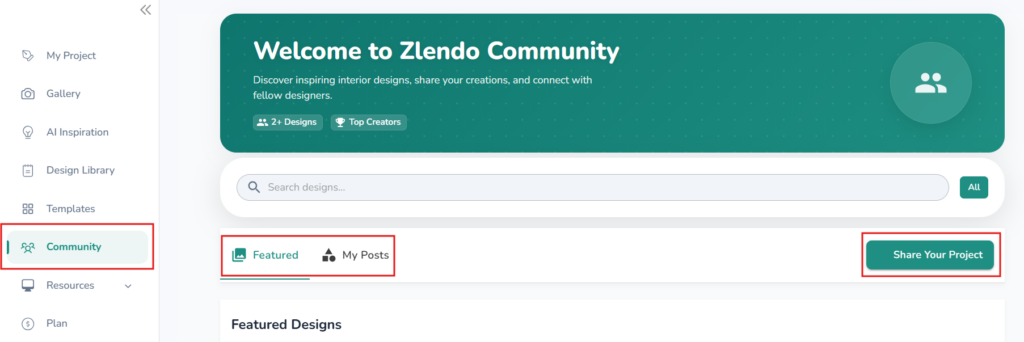
Community –> Share Post –> Recent Projects –> Project Thumbnail –> 3 Dots –> Project Options –> Share

1. Navigate to Community

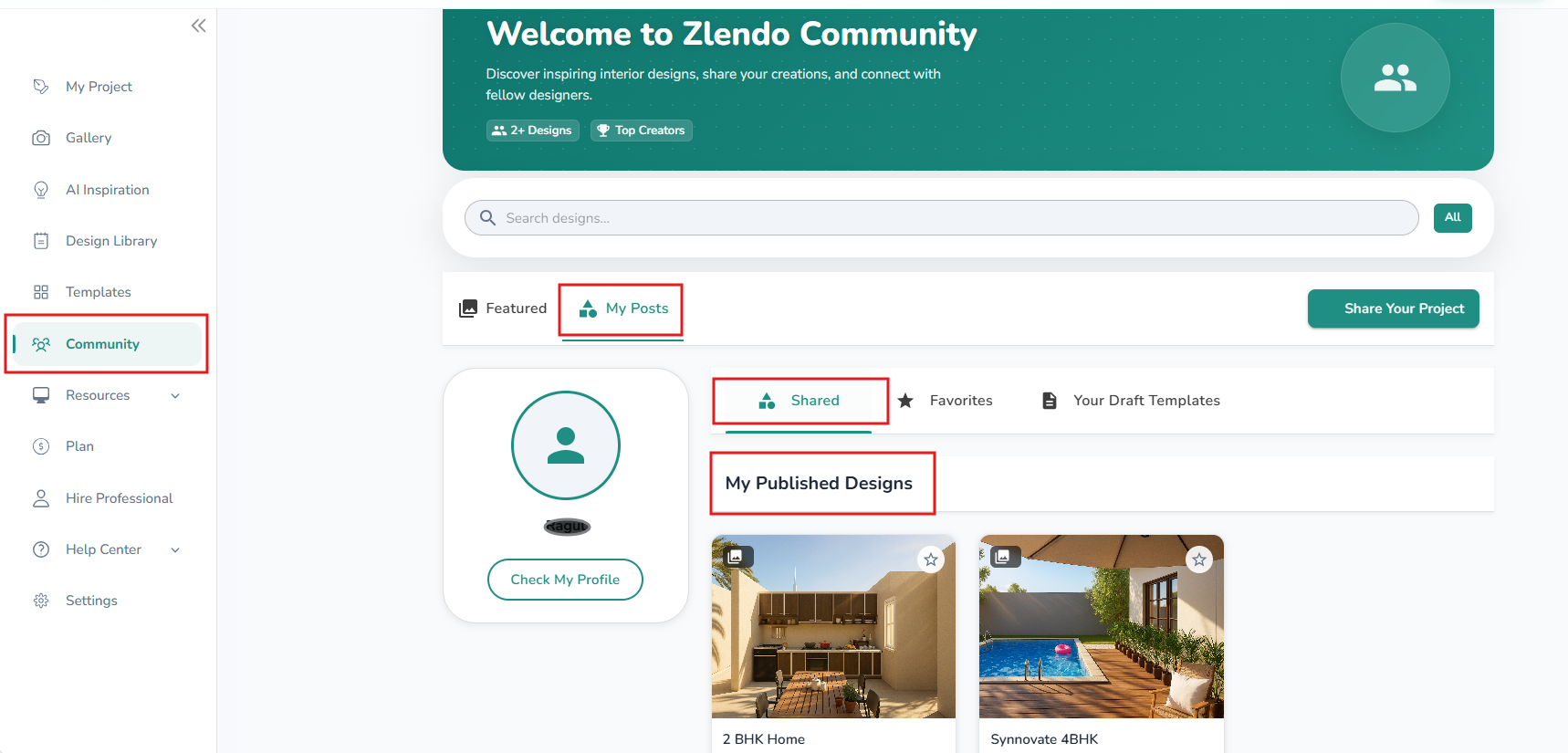
On the side bar of the Dashborad, Open your Community page.

– Click on the Share Your Project button.

– You will be redirected to the Recent Projects section on the Dashboard.

– Find the Project Thumbnail you wish to share and click the three dots (⋮) in the corner.

– Select Project Options from the dropdown menu.

2. Create the Design Template

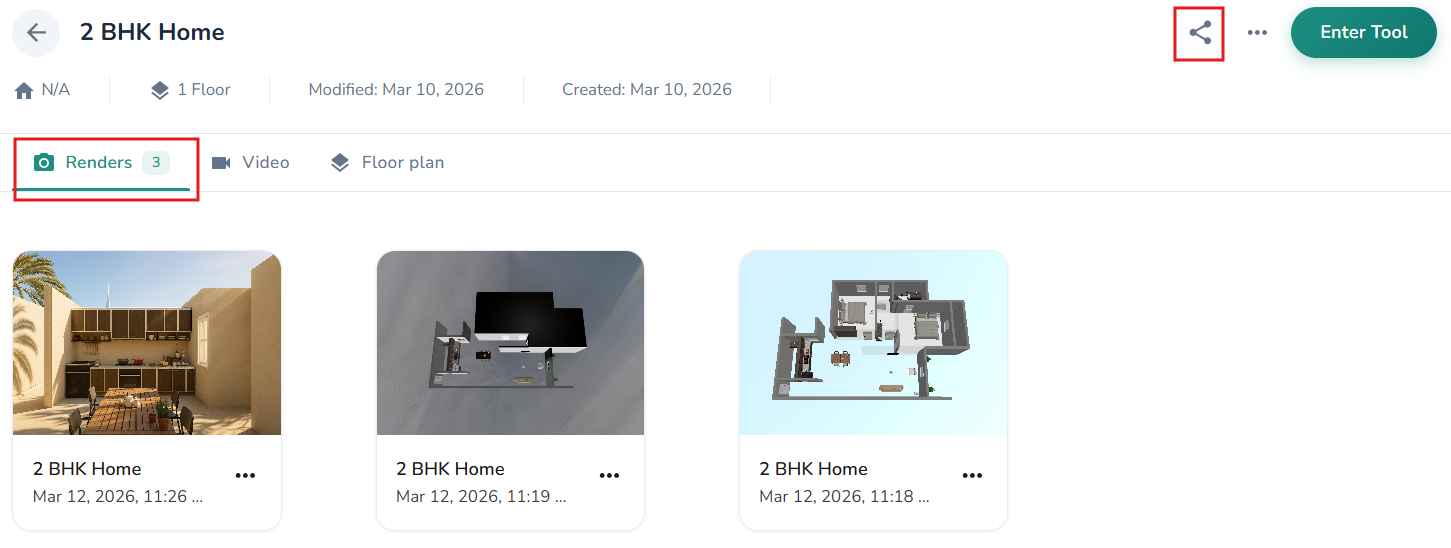
On the Project Details Page:

Navigate to the Renders tab.

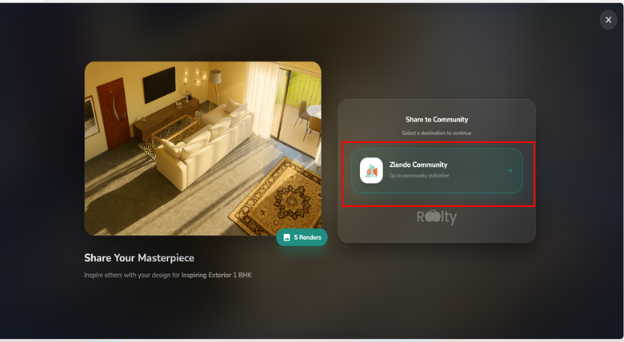
– Click the Share icon to launch the Template Creation Wizard.

– This four-step wizard ensures your project is presented with the professional polish it deserves.

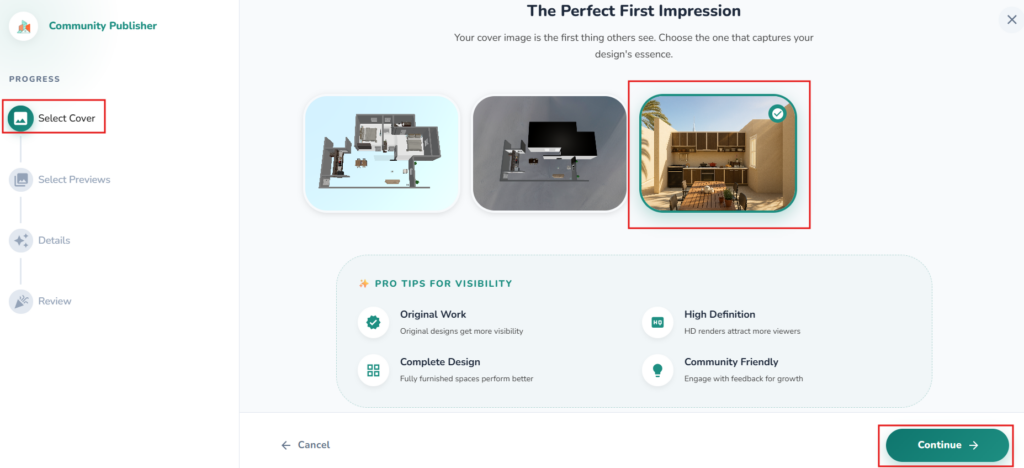
Step 1: Select the Template Cover

Choose the “hero” shot of your design. This is the first image users will see, so pick the one that truly captures the essence and atmosphere of your project.

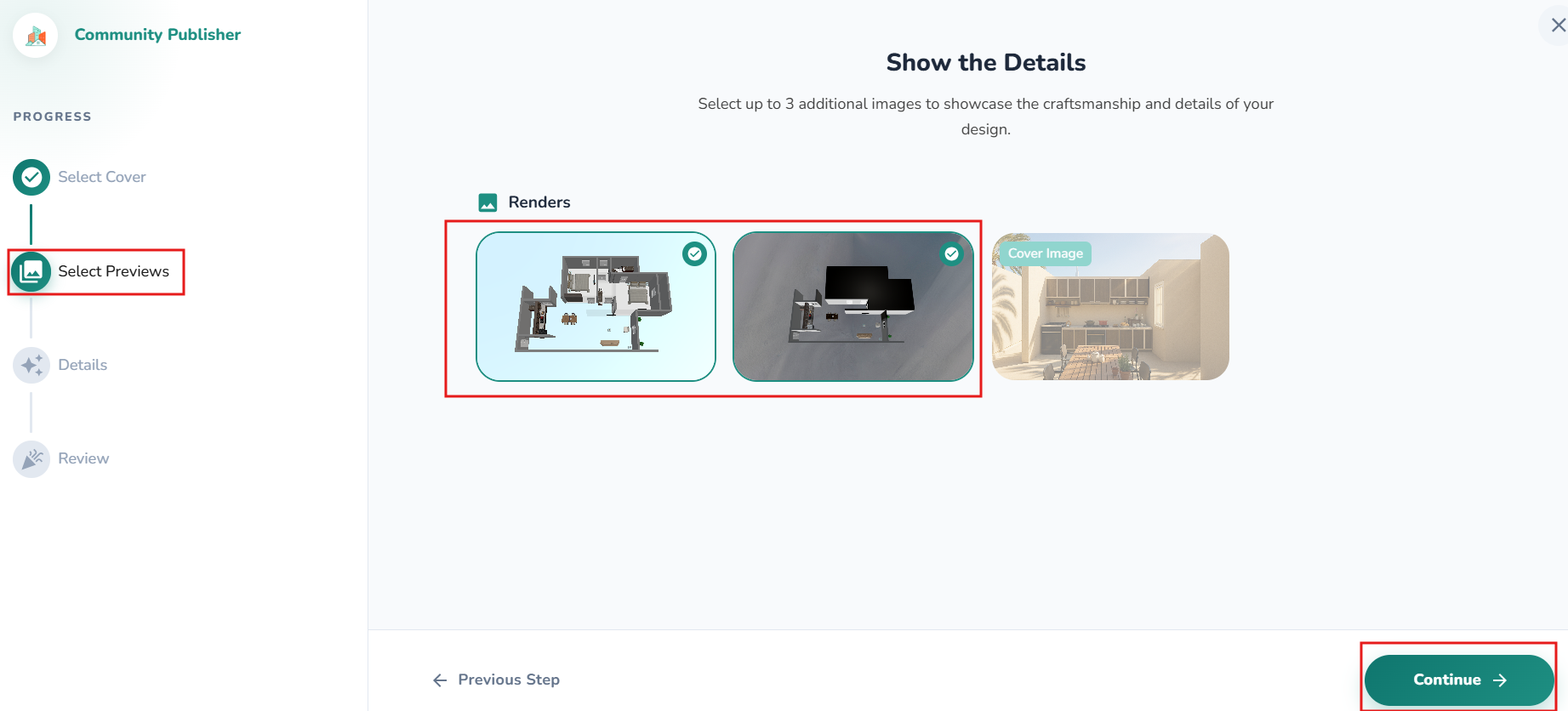
Step 2: Select Previews

Showcase the craftsmanship. You can select up to three additional images to highlight specific details, such as custom lighting, furniture scaling, or unique material textures.

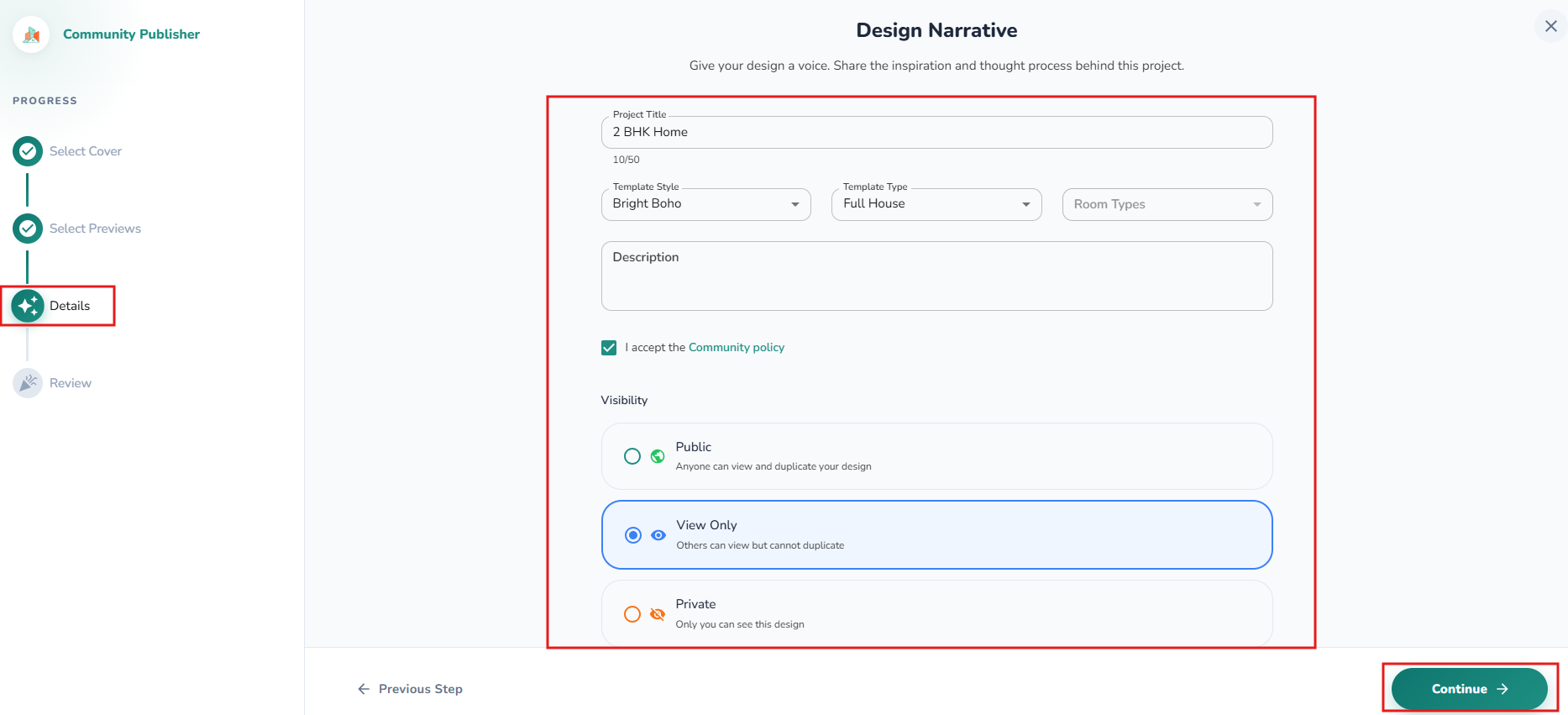
Step 3: Add Project Details

Give your design a voice. Use this space to share the inspiration and thought process behind the project. Explaining the “why” behind your layout helps other designers appreciate your creative choices.

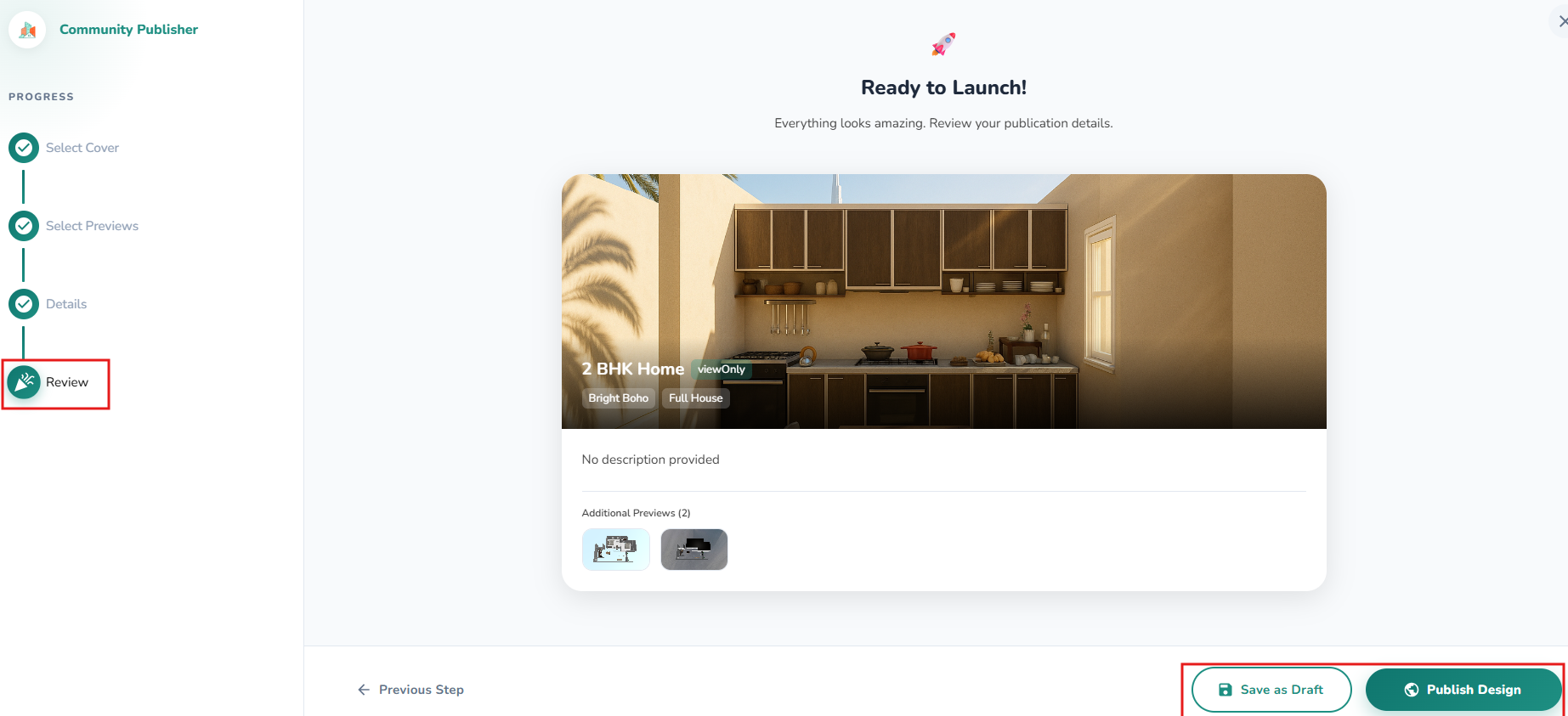
Step 4: Review

Carefully review your publication details to ensure every render and description is exactly as you intended. Select who can see your Design template: Public/Private/View only.

4. Publish and View

After the final review, you have two options:

  • Publish Design: Make your project live for the entire community to see and interact with.
  • Save as Draft: Keep your progress saved if you aren’t quite ready for the spotlight.

Once published, you can find your post and track engagement directly on your Community Page.
Share Your Project
Open Project Details
Share button on the Project details page
Wizard
Add a cover
Select other renders
Write a description
Publish Design
Community Page
Updated on March 12, 2026
Community Posts Create Template Share Projects

What are your Feelings

  • Happy
  • Normal
  • Sad

Share This Article :

  • Facebook
  • X
  • LinkedIn
  • Pinterest

Powered by BetterDocs

Leave a Reply Cancel reply

Your email address will not be published. Required fields are marked *

Table of Contents
  • Sharing Design Templates

Create your account today

Experience the future of AI home design for free.

Get Started
Zlendo Realty Logo

The world's first Design-to-Sales engine. Experience your space in 360° ultra-realistic 8K, AR/MR.

Products

  • AI Floor Planner
  • 2D to 3D Converter
  • Smart Room Styler
  • Interiors & Exteriors
  • Smart Cost Estimator
  • Vastu Optimizer
  • Zlendo API Suite
  • Virtual Walkthrough

Use Cases

  • Commercial Spaces
  • Real Estate Brokers
  • NRI & Remote Planning
  • Developer Solutions
  • Home Remodeling
  • New Home Building

Resources

  • Design Library
  • Tutorials
  • Help Center
  • Grow with Zlendo
  • Contact Us

Legal

  • Privacy Policy
  • Terms of Service
  • Cookie Policy
  • Refund Policy
  • SLA

Contact Us

  • [email protected]
  • 0452-3583474
  • Headquarters

    36/1, Ganapathy Street,
    Alagappan Nagar, Madurai – 625003
    Tamil Nadu, India

  • Other Cities

    Pune • Bengaluru • Delhi • Hyderabad

Copyright © 2026 Zlendo Technologies Pvt. Ltd. | All Rights Reserved.

Cookie PolicyTerms & ConditionsPrivacy Policy
Contact Us