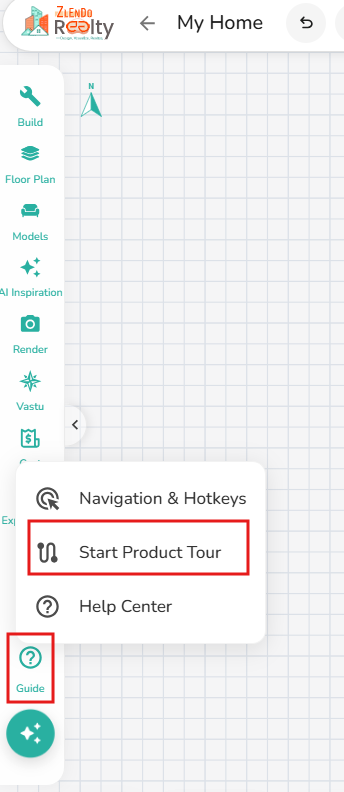
Before you start using the Zlendo Realty Workspace, take a Workspace Tour.
Click on the Guide Icon on the bottom-left of the Workspace for a quick tour and orientation tutorial.
Drawing Walls #
Transforming a large, open floor plan into purposeful, functional zones can completely redefine a home’s interior.
From the Dashboard –> Your Projects –> [The Project] you wish to edit or Create a New Project from Scratch.
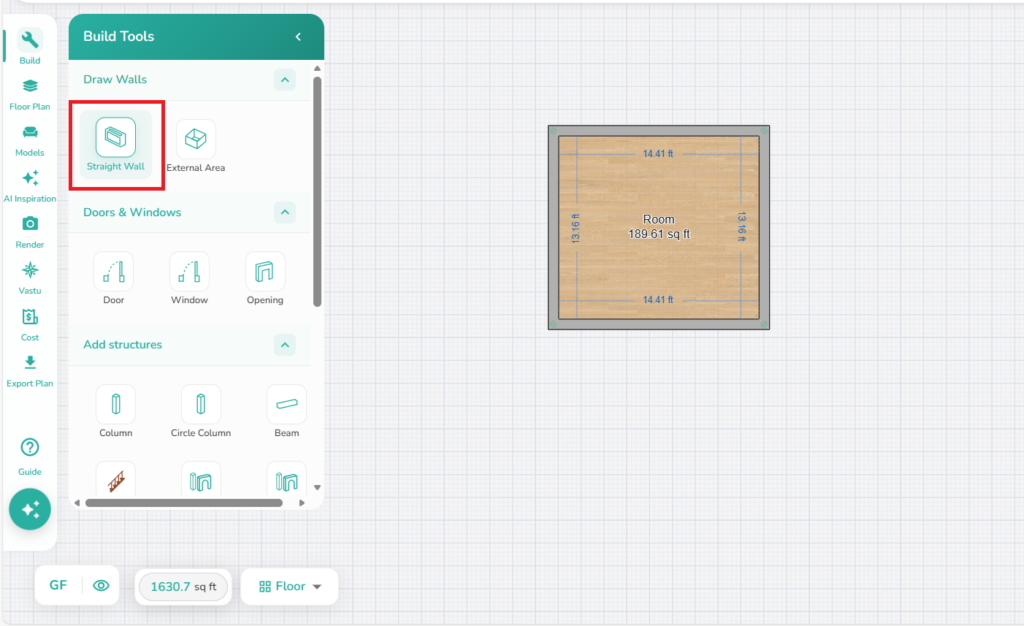
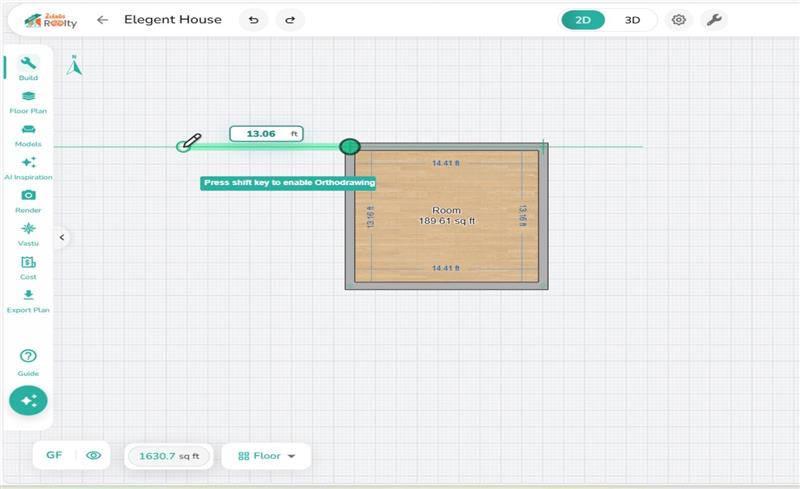
In the 2D Floor Planner Workspace, navigate to the Build Tools menu on the left side of the interface
– Click to select the Wall option
– Click and drag the line across the workspace to your desired endpoint.
Finalize the Placement: Once your wall line is perfectly positioned, double-click again at the endpoint to lock it in.
Changing Wall Color or Texture #
Styling: Select the wall to change its color, texture, or thickness to match your design aesthetic.
Additions: Remember that features like doors or windows must be added directly to the room walls.
💡 Design Tip:
Use partitions in Zlendo Realty to visualize “flex spaces,” such as a home office or a reading nook, to show potential buyers the true versatility of a property.
Editing Wall Length & Thickness #
Whether you are looking to create thin decorative partitions or thick, sturdy exterior walls, Zlendo Realty gives you full control over your structural dimensions.
Adjusting Wall Dimensions for an Entire Room #
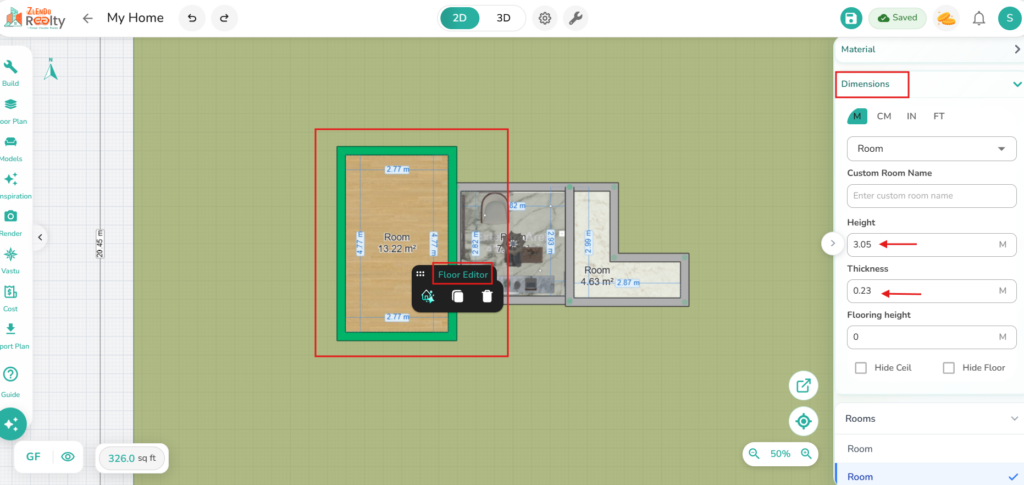
To change the thickness/length of every wall in a specific room simultaneously:
Click inside a Room to Select the Room wall you wish to modify.
Locate the thickness/length input field in the Dimension box at the right of your screen.
Enter the correct wall dimensions.
All walls within that room will update automatically.
Adjusting a Single Wall #
Change Wall dimensions/materials:
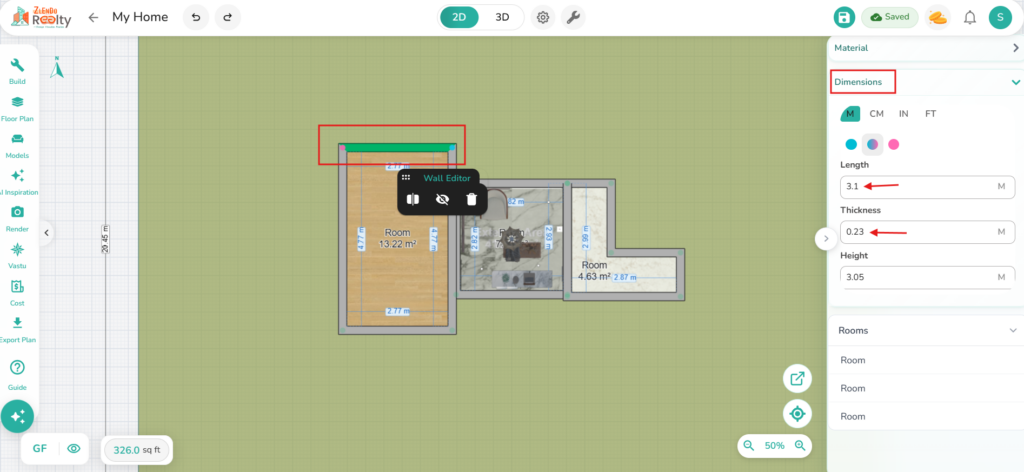
Click on the Wall you want to edit to select it.
Navigate to the thickness/length input field in the Dimension box at the right of your screen.
Enter the new value to adjust that wall independently of the rest of the room.
Change an Interior Wall Model/Style:
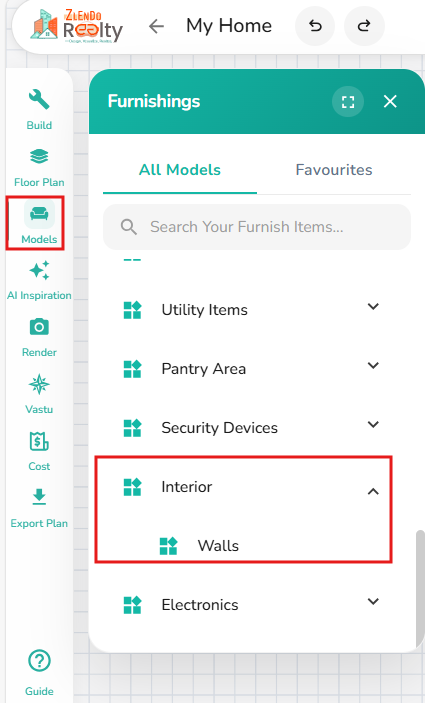
Navigate to Models on the Side Tool bar –> Models –> Interior –> Walls
Select wall Style/Model
Click on the Material Editor tool to fine tune the new Wall’s materials.
Creating Rooms #
There are two ways to add a new room to your plan:
Build –> Draw a Wall
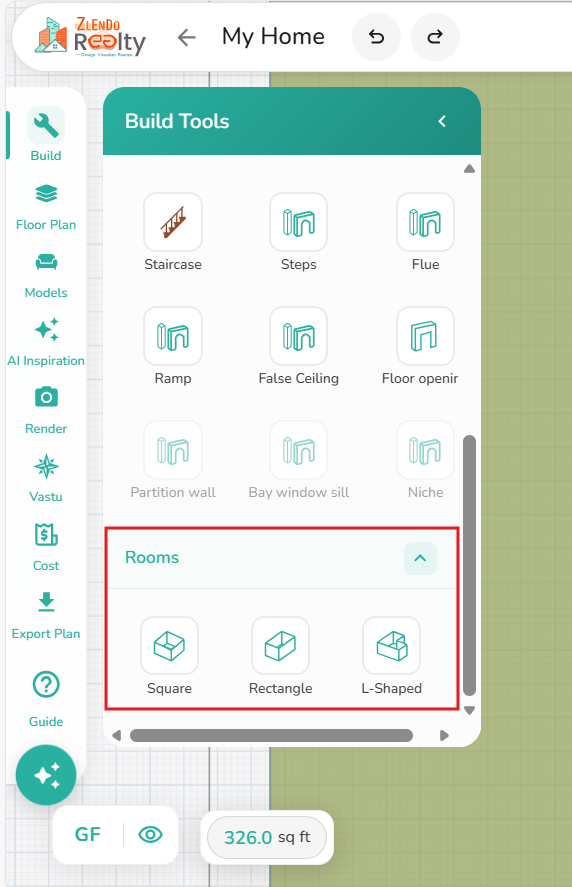
Build –> Rooms –> Room Shapes
1. Adding a Room of a Predefined Form: To streamline your design process, Zlendo Realty offers several predefined room shapes and flexible drawing tools.
– Square Room: A quick start for standard bedrooms or utility spaces.
– Rectangular Room: Ideal for living areas and hallways.
– L-shaped Room: Perfect for complex architectures or “L-shaped” open-concept zones.
2. Use the Wall Drawing Tool (draw walls): Best for unique layouts or custom-angled spaces.
💡 Zlendo Realty Tip:
Create separate rooms and position them next to each other.
Define each room individually rather than starting with a large space and dividing it later. This approach keeps the layout well-structured and helps maintain better organization during the design process.
How to Place Your Room #
To Add a Room from Predefined Forms:
Build –> Rooms
Select your preferred Room shape from the Build Icon library.
The room will be added into your plan.
📌 Note:
When you add a second room, and you want to move it click inside the room to select it and drag to move it.
Naming Rooms #
When you add a room remember to label it.
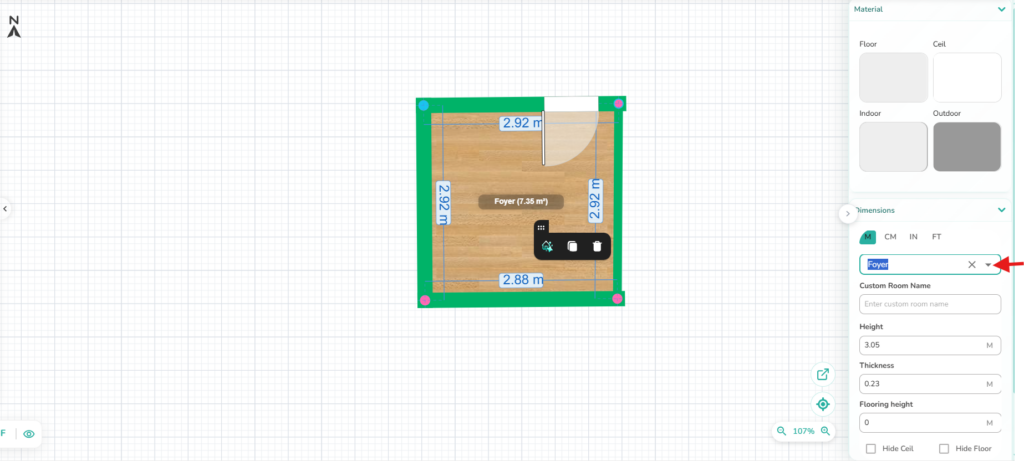
Select the room you wish to label.
Enter the Room Name in the Room Name editor box at the right of your screen.
– Click on the dropdown arrow to pick from a list.
– Or add your Custom Room Name.
Adding Doors #
To add a door to a room:
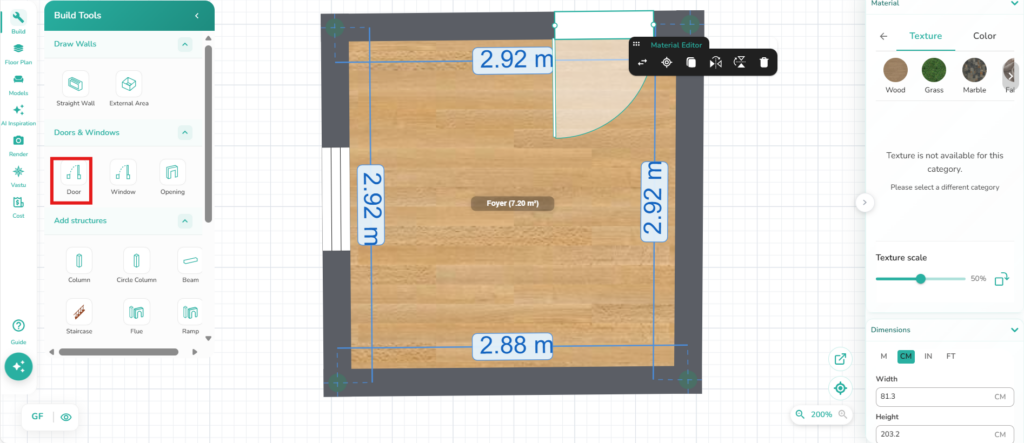
Build –> Doors & Window –> Door
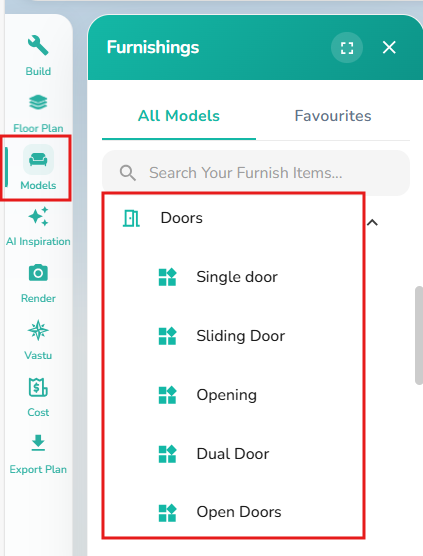
OR to select a particular Door Style/Model
Models –> Doors –> Select a door model
Click on the ‘Build’ icon on the left.
From the Doors & Windows section choose Door.
Click on the room wall where you want to place the door. You can drag it to adjust its position.
– Additionally, click on the door to select it and enter exact door dimensions in the box on the right to adjust the door size.
– Choose the Door materials from the Materials options from the box on the right.
You can also select and add doors from Models → Doors to place predefined door models in other styles.
Adding Windows #
To Add a Window to a Room:
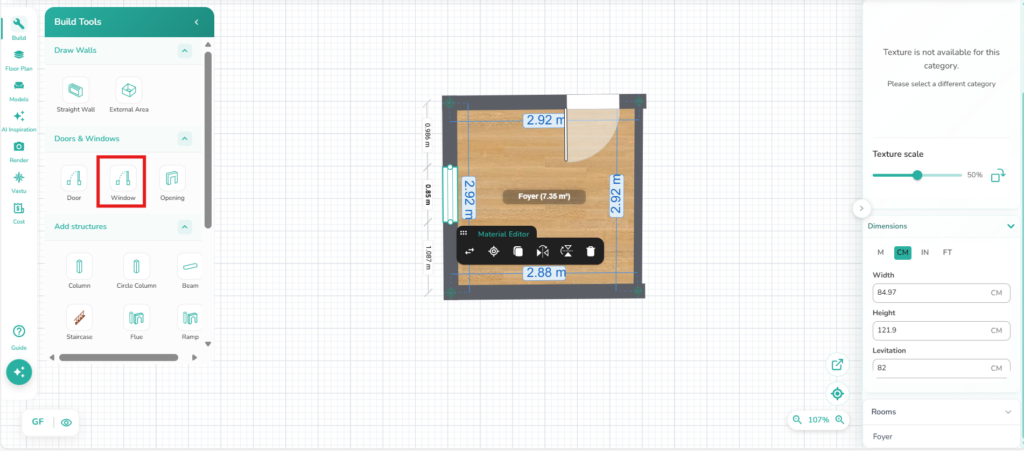
Build –> Doors & Windows –> Window
OR
To change window styles:
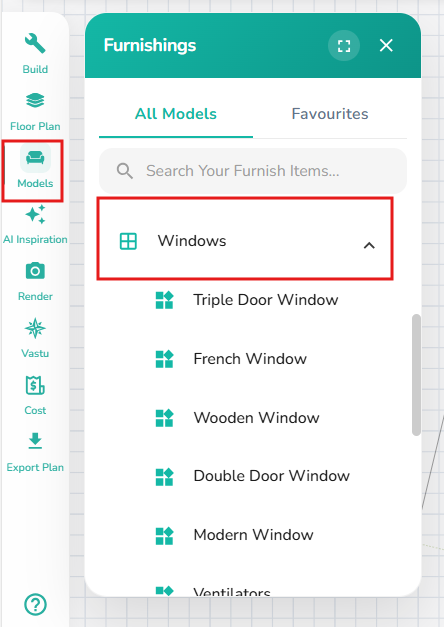
Models –> Interior –> Windows
Click on the ‘Build’ icon on the left.
Click on the Window option to select it.
Click on the external wall where you want to place the window. You can drag it to adjust its position or dimensions.
– Additionally, click on the window to select it and enter exact window dimensions in the box on the right to adjust the window size.
– Choose the window materials from the Materials options in the box on the right.
You can also select and add windows from Models → Windows to place predefined models in other styles.
Change Room Materials/Dimensions #
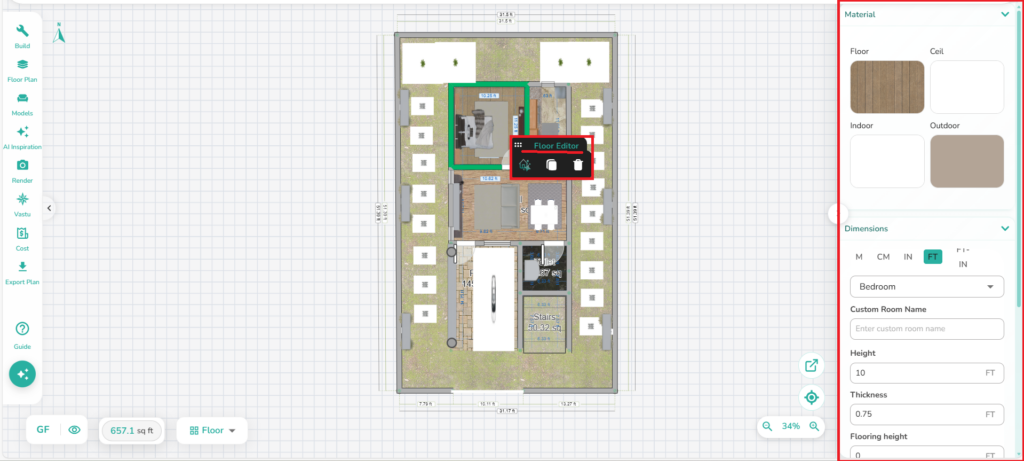
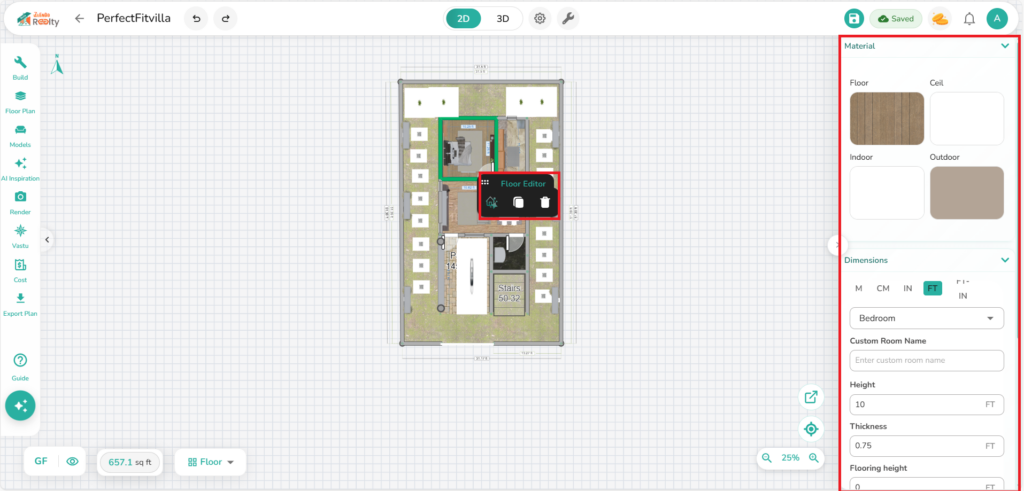
Once placed, you can easily drag the walls to match your exact dimensions or edit the room dimensions from the editor box on the right.
To Edit Room Materials:
Select the Room / Wall / Floor you want to edit
Click on the object you wish to edit.
– E.g., to change the flooring material, you can use the Editor box on the right side or the mobile Material Editor icon.
Verify all changes in 3D mode.
Adding More Floors #
To add a new upper or lower floor:
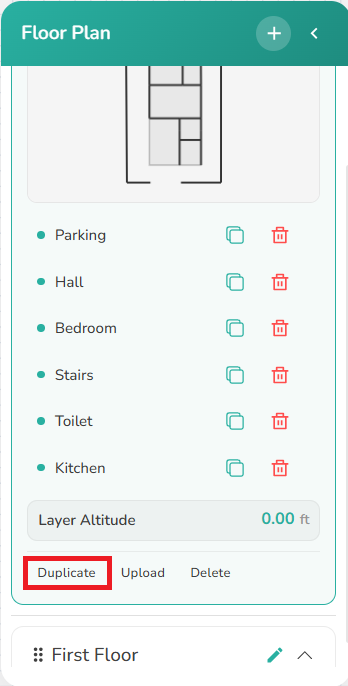
Floor Plan –> Duplicate floor / Add / Edit / Rename Floor.
You can duplicate the Ground Floor (GF), rename it and add, delete or keep the existing rooms.
💡Floor Building Tips:
Name Floors
If you are designing a complex building, rename your floors immediately (e.g., “Ground Floor,” “First Floor,” “Terrace”). This makes it easier to navigate the design when using the AI Room Stylist to apply different themes to different levels.
Plan for Stairs Early
Make sure to create a floor opening where the stairs will be placed.
– Place your staircase on the ground floor first.
– Once you add the second floor, use the “Floor opening” structure from the Build tool to create the corresponding hole in the upper floor’s surface so the stairs are visible in 3D mode.
Verify in 3D frequently
Switch from the 2D Planner to 3D View every time you add a level. This helps you spot “floating” walls or misaligned balconies that might not be obvious in the flat 2D view.
External Area #
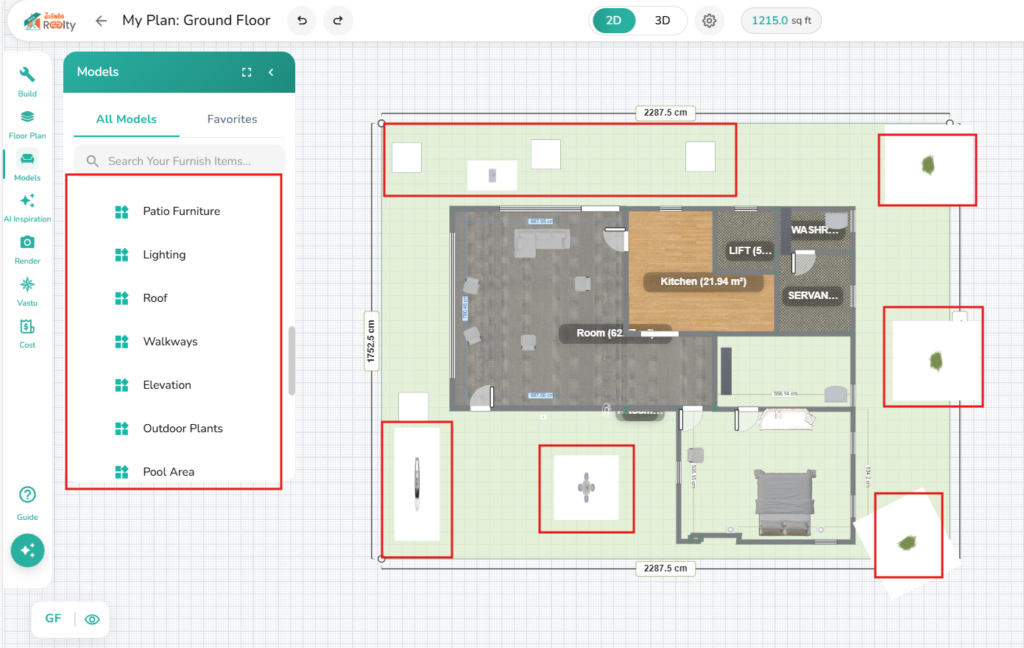
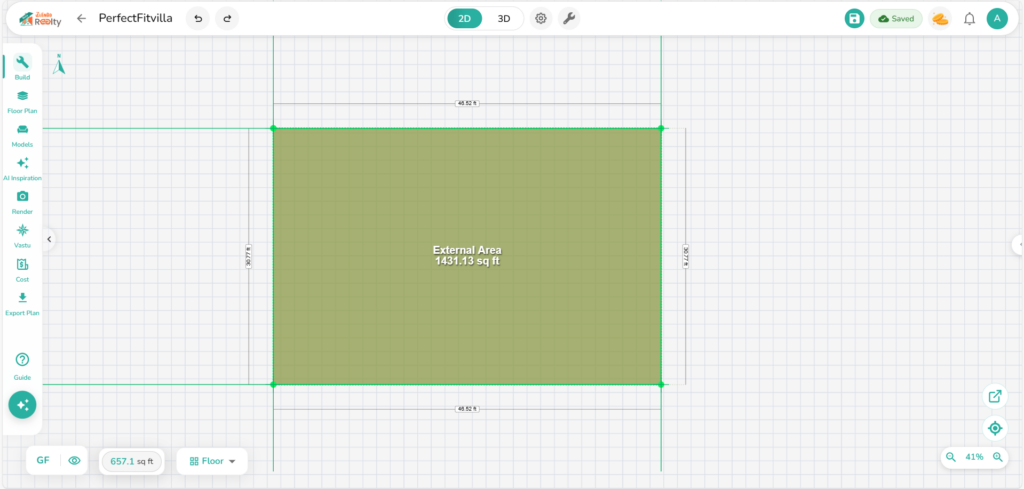
The area outside the Build-up area is the External Area. You can add Exterior and Garden elements like plants, pools, lighting within this area.
When you Start a Project from Scratch the Site Area you enter in the Create a New Project form will be the plan’s External Area in the 2D Workspace.
Drawing or Adding the External Area #
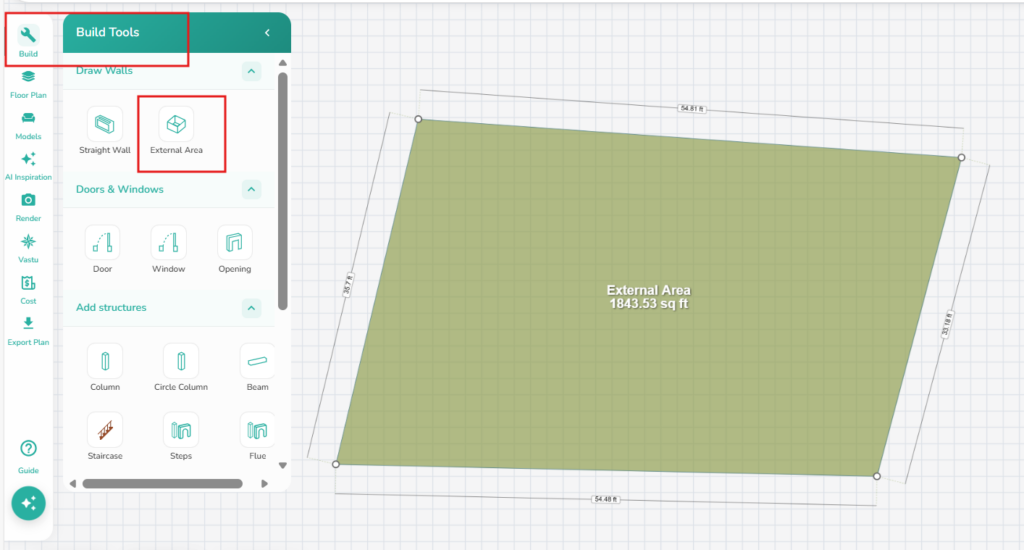
If you uploaded a floor plan, you may need to add/edit the External area manually.
Build –> Draw Walls –> External Area
Click and drag the editor pencil line from corner to corner. Double-click to finish.
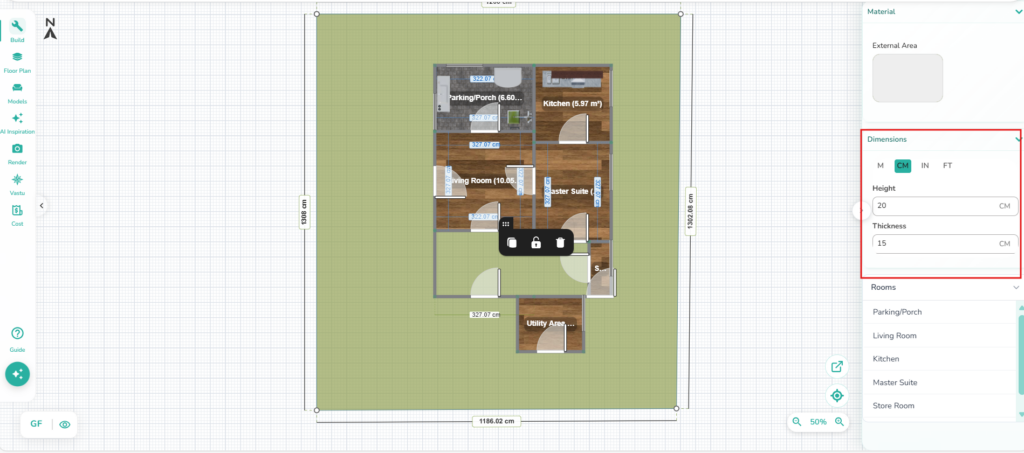
– Exact dimensions can be adjusted from the Dimensions box on the left.
Adding Outdoor Elements #
Outdoor elements include Outdoor furniture or external building items, like Roofing, Walkways, Swimming Pools, Lawns, and Plants.
To add an Outdoor element/item to the External Area (area outside the Indoor plan area):
Model –> Outdoor / Exterior
Click on an item/object to select it and click inside the External Area where you want to place it.
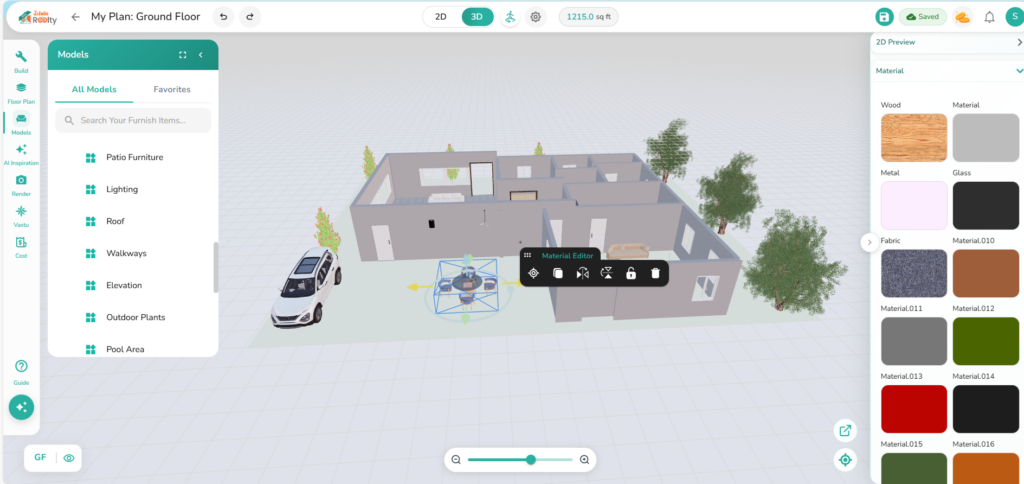
View the Exterior Area in 3D Mode to make Change Position/Dimension/Texture/Color
In 3D Mode, click on the Material Editor tool to alter dimensions, color and texture of an added element (Trees, plants, pool etc.).
– Use the rotation arrows (visible around the selected 3D object) to turn it clockwise or anticlockwise and the straight arrows to reposition/move it in a desired direction.