The Quick Start Hub: Four Design Options #
Welcome to Zlendo Realty! This dashboard is designed to be your all-in-one interior design command center.
Right at the top of the Dashboard, you have four ways to kick off a new design.
Start From Scratch: Best for when you have a specific vision and want a blank canvas.
Upload 2D Plan: Turn your existing blueprints or sketches into a digital model.
Template Based Design: Save time by choosing a pre-made layout and customizing it to fit your needs.
Wizard: Based on your inputs and preferences, the AI can automatically generate smart layout suggestions tailored to your space.

Dashboard Sidebar (Navigation) #
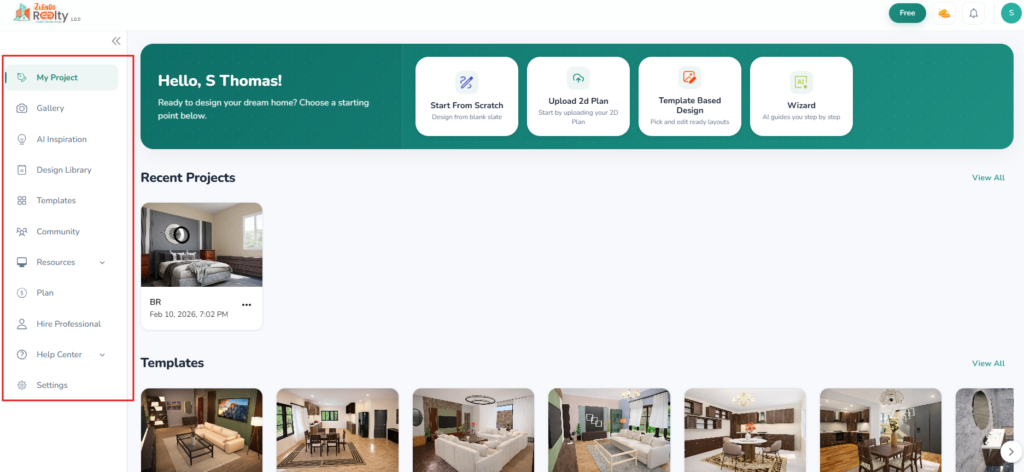
The Dashboard left-hand sidebar menu helps you navigate effortlessly between your project files, asset libraries, and professional support services.
1. My Project #
This is your main Dashboard page and the default landing page.
What it is: A central hub showing your most recent work and options to start new designs.
How to use it: Click here to quickly jump back into a project you’ve been working on. You can also start fresh using the Start From Scratch, Upload 2D Plan, Template Based Design, or the AI-guided Wizard.
2. Gallery #
Your personal storage for all exported visual content.
What it is: A collection of all your saved screenshots and high-quality renders.
How to use it: Use this tab to check the status of a “Render in progress” or to find and download previously completed images. You can use the search bar to locate specific renders by project name.
3. AI Inspiration #
An AI-powered discovery engine for interior design.
What it is: A curated feed of high-quality, AI-generated room designs categorized by type (Living Room, Bedroom, Kitchen, etc.).
How to use it: Browse through these professional-grade visuals to find styles, color palettes, or furniture layouts that you want to replicate in your own projects.
4. Design Library #
The master catalog of 3D assets.
What it is: A comprehensive directory of furniture, fixtures, and decor items ranging from electronics to kitchen appliances.
How to use it: Use the categories or search bar to find specific pieces for your design. Each item lists its estimated cost, helping you keep your project within a realistic budget.
5. Templates #
A library of pre-configured architectural layouts.
What it is: A collection of pre-designed floor plans and villa layouts that are ready to be edited.
How to use it: Filter by room count, house type, or architectural style to find a layout that fits your needs. Click Use to load the template into your workspace, saving you the time of building walls from scratch.
6. Community #
The social hub for Zlendo users.
What it is: A public showcase where designers share their creations and connect with others.
How to use it: Explore the Featured tab to see top-rated designs for inspiration. You can also view your own shared content under My Posts to see how the community is interacting with your work.
7. Support & Account Management #
The bottom section of the sidebar handles the technical and financial side of your workspace:
Resources: Stay updated and read our latest blogs.
Plan: View your current subscription status and pricing options.
Hire Professional: Connect with expert designers if you need professional assistance with your project.
Help Center: Access tutorials and support guides for any troubleshooting needs.
Dashboard Content Sections #
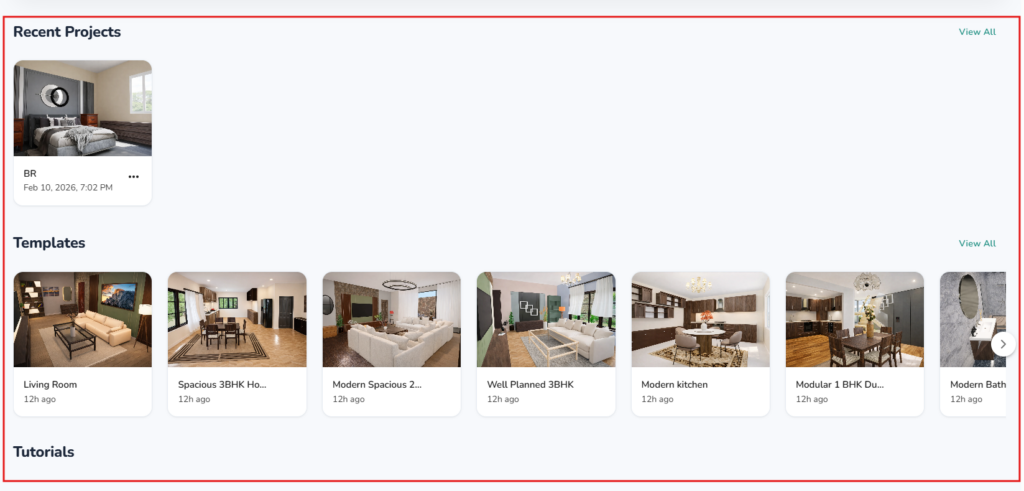
From the Dashboard view, you can quickly pick up where you left off with one-click access to your latest design drafts, get some inspiration, or learn a Workspace skill.
Recent Projects: Jump right back into the work you were doing last.
Templates: A quick-scroll gallery of popular room layouts (Living Rooms, Kitchens, etc.) to spark ideas.
Tutorials: Located at the bottom, this is where you can learn the “how-to” of the platform
Account & Status #
In the top-right corner of the Dashboard, you have the quick access icons to a few Account-related pages.
Notifications: Stay updated on project renders or community comments.
Check your Plan & Upgrade: See if you are on the “Free” or “Pro” tier. You can upgrade your plan any time you wish to.
Currency/Credits: View your “Gold Coin” balance for premium assets and upgrade if required.
Your Profile: Click on your Profile icon to access and edit your Profile, view Billing History/Upgrade your Plan, Manage Account settings and your password.


