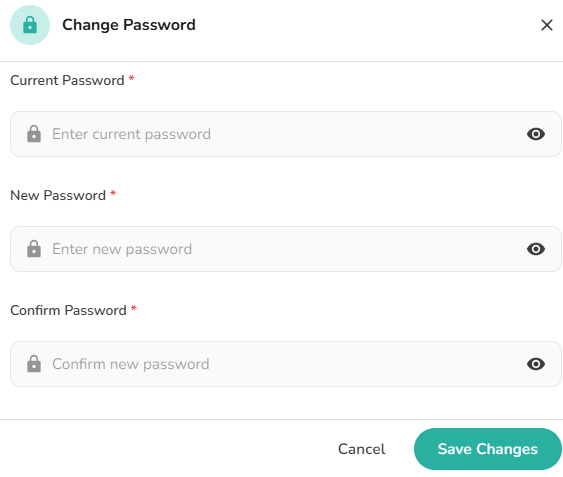
Once you have logged in successfully, you will be on the Zlendo Realty Dashboard page. On the top-right corner of the screen, you will see your Profile icon with your Name initial.
Click on the Profile Icon from the drop-down menu.
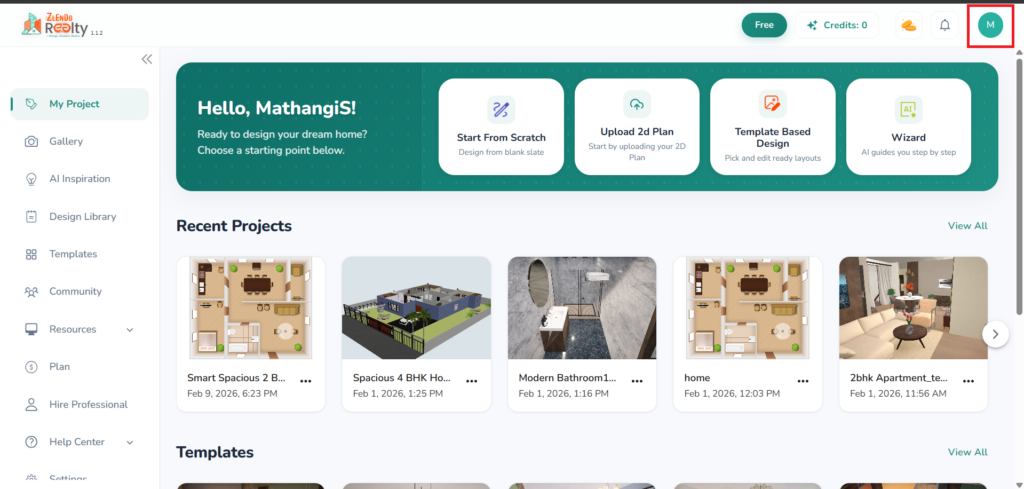
Your Zlendo Realty Profile #
Your Profile has four sections:
Personal information
Notifications: Here you can view Notifications.
Billing: Here you can upgrade your plan to a paid version and view billing history.
Account settings: Here you can change/update your password or permanently delete your Zlendo Realty account.
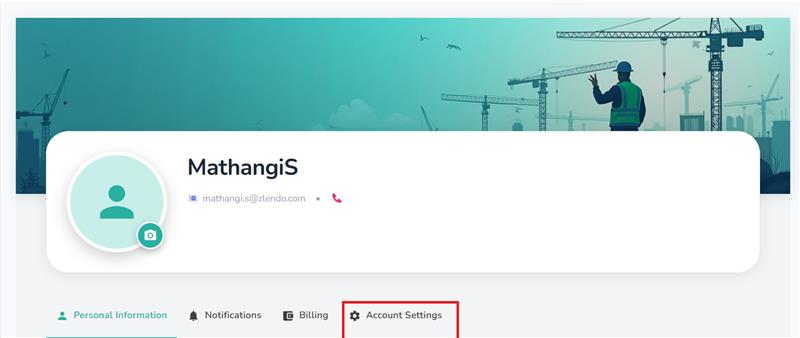
On the Account Settings screen, click on Update on the right of the Password section.
Profile –> Account Settings –-> Password –> Update.
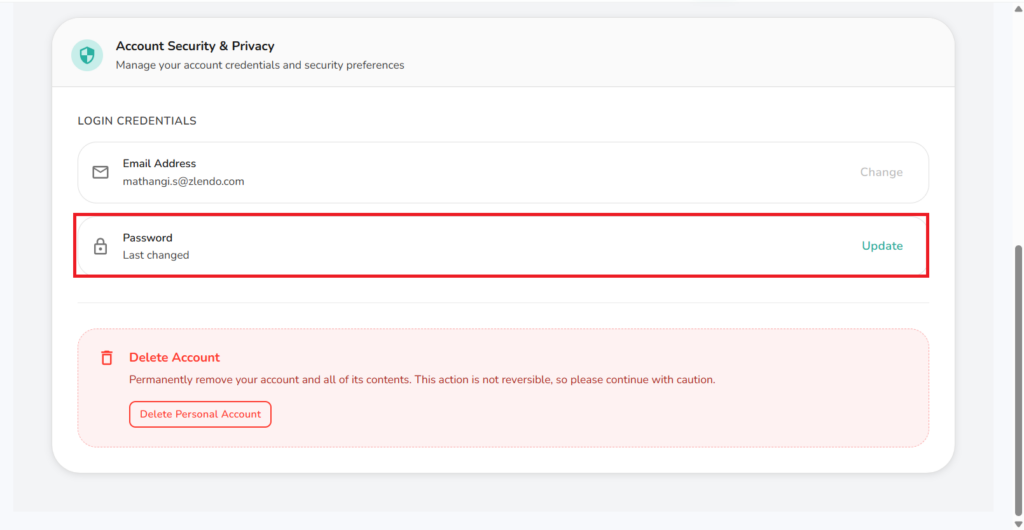
To Change your Password: On the pop-up Change Password box, fill out all fields and Save Changes.
Your new password must have at least:
– one uppercase letter
– one lowercase letter
– one number
– one special character