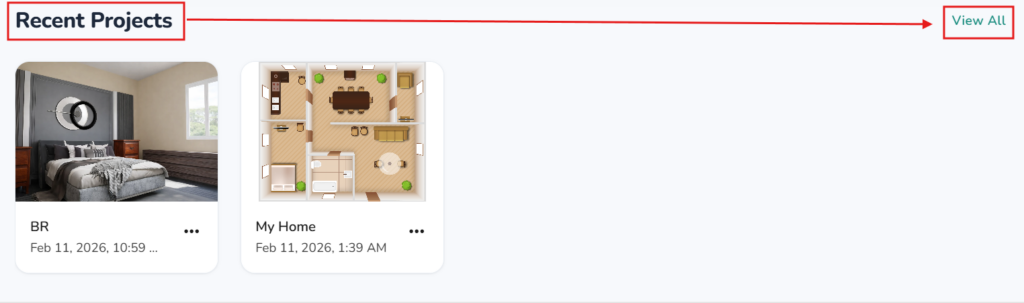
Finding your Projects #
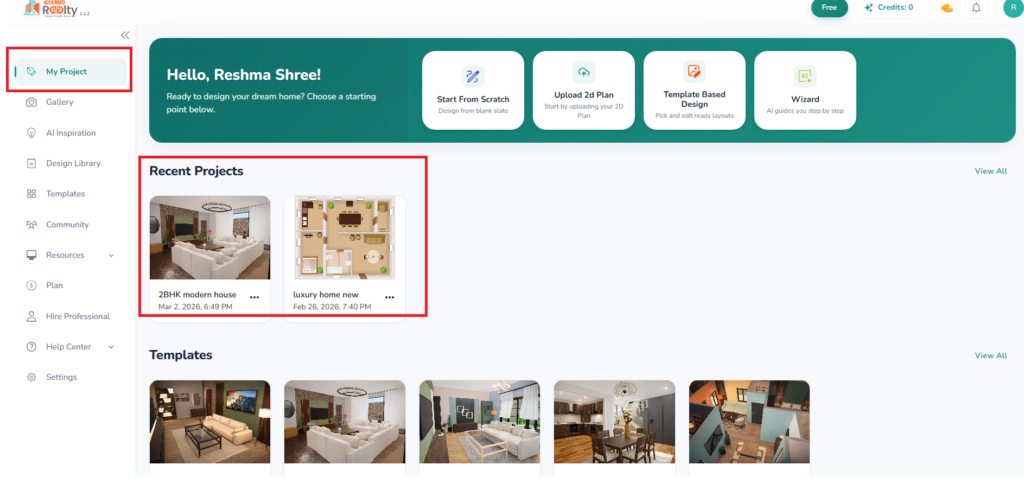
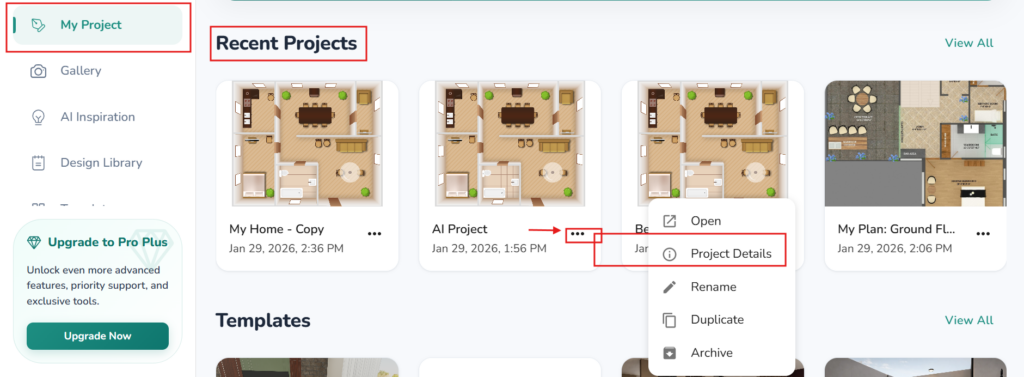
You will find your latest projects on the Dashboard My Projects section.
Dashboard –> My Projects –> Recent Projects
Managing your Projects #
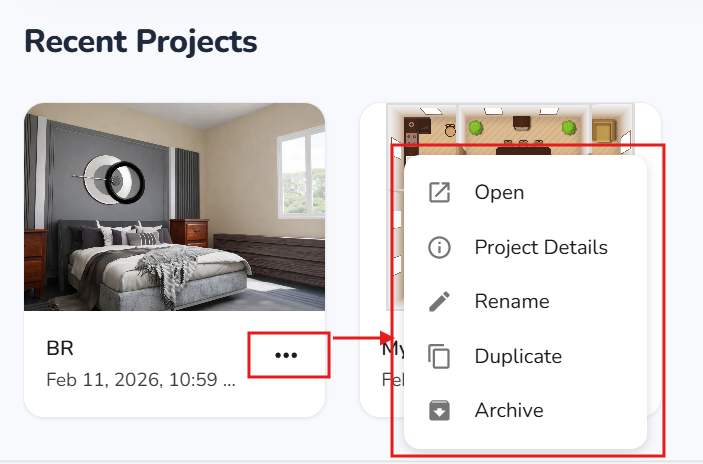
My Projects –> [Project Thumbnail] –> Manage your Projects
Click on the three dots at the bottom of the Project Thumbnail.
From the dropdown list choose the required action.
Project Details #
Project Thumbnail –> 3 Dots –> Project Details
Click on the 3 dots under the project thumbnail.
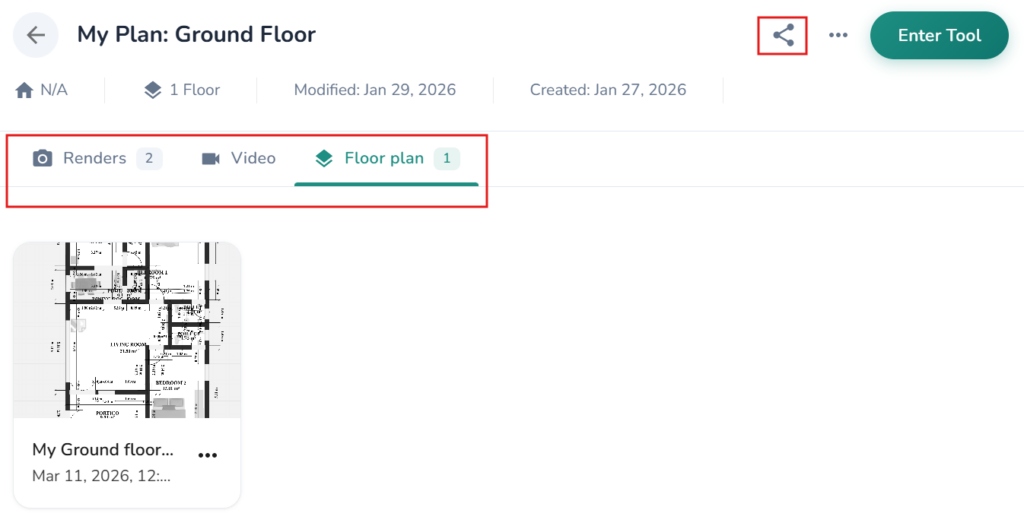
Click on Project Detials to:
– View your saved screenshots/Renders/Videos/Floorplans of the Project
– Edit the floor plan further – click on the Enter button
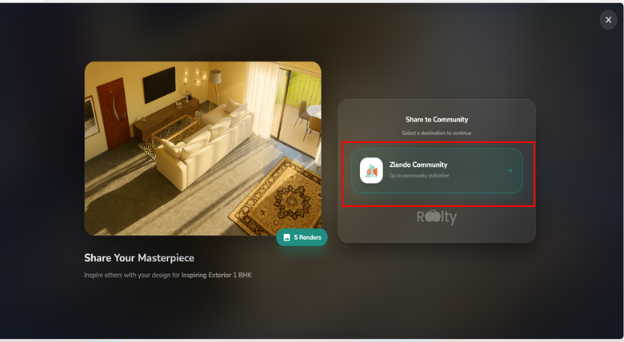
– Share the Project or Design Template the Zlendo Realty Community as a post: Click on the share icon
Read more about Creating a Design template and posting your designs to your Community here: “Creating & Sharing Project Templates“
Rename/Duplicate/Archive a Project #
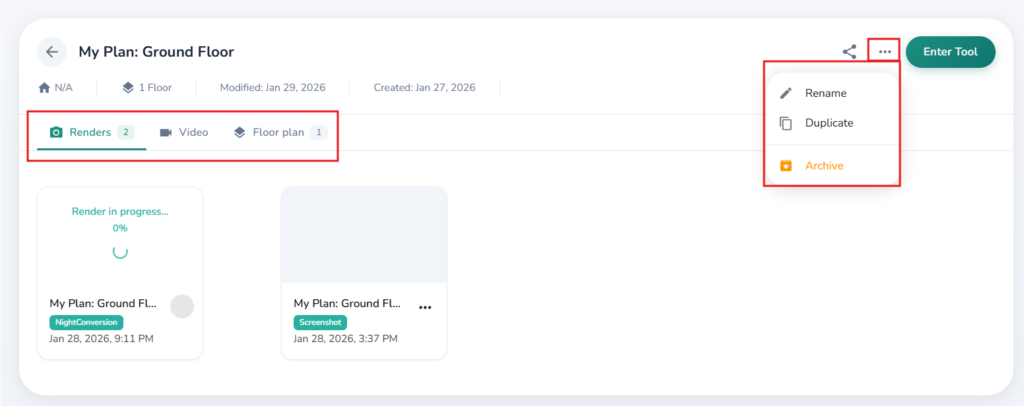
Project Thumbnail –> 3 Dots –> Rename/Duplicate/Archive
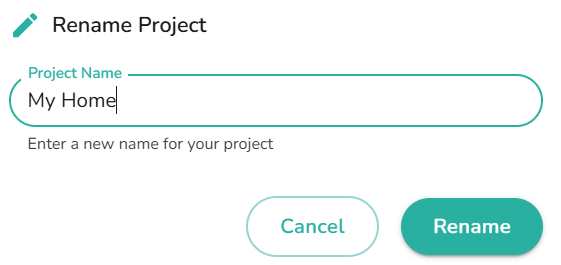
To change a Project name, Click Rename
– Fill out the new name in the pop-up box and save the action.
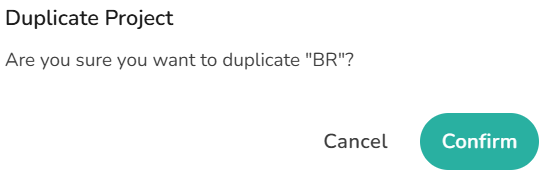
To Duplicate the Project, click on Duplicate and confirm and save the action.
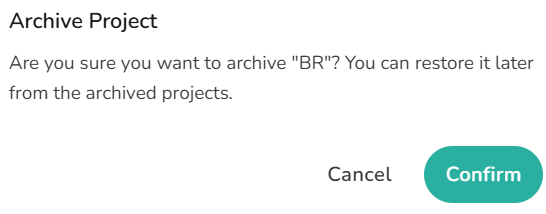
Archive a Project if you do not wish to view it in your Projects List.
– To archive a project, click on Archive and confirm your choice to save the action.
Unarchive a Project #
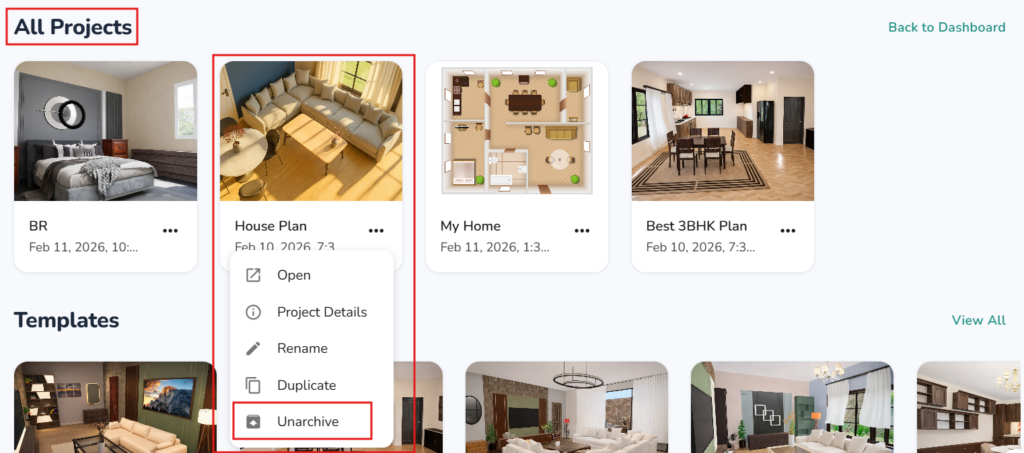
An Archived project will be removed from the Recent Projects view. However, it can be restored if you change your mind.
All projects created / archived can be viewed in the All Projects view.
Dashboard –> Recent Projects –> View All –> Unarchive
In the View All projects screen,
Click on the 3 dots under the Project thumbnail you want to Unarchive.
– From the dropdown menu Select Unarchive.
– The Unarchived project will show in My/Recent Projects section again.