Upgrading your plan gives you access to advanced rendering capabilities, professional design tools, and higher-resolution outputs. Zlendo offers 3 plans: Free, Pro and Pro Plus.
Follow these steps to move from a Free plan to a Pro or Pro Plus subscription.
There are several ways to view the Plan cards and to Upgrade your current plan to a paid version.
Steps to Upgrade #
1. From the Zlendo Realty Dashboard #
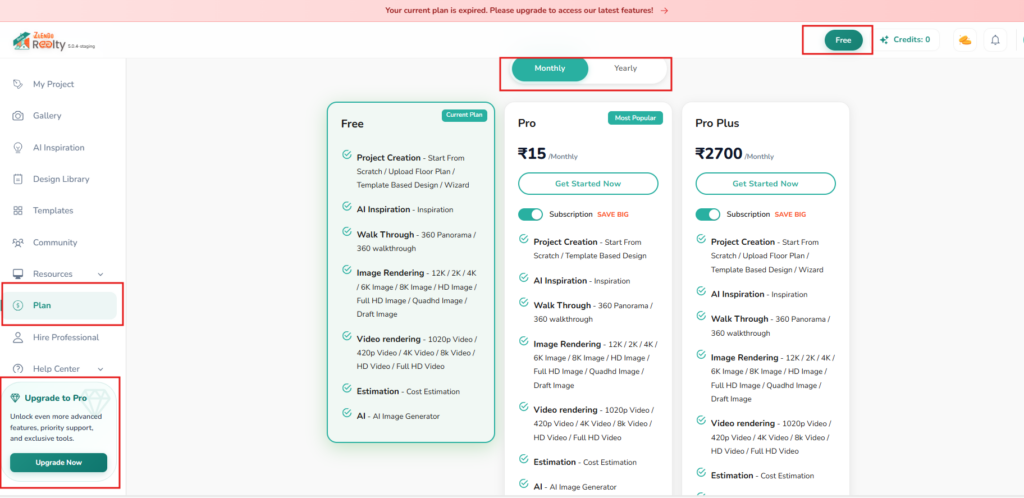
On the Dashboard left-hand sidebar, click on the Plan tab.
Alternatively, you can also click on:
– the Upgrade Now button located in the promotional banner at the bottom of the sidebar or Special/seasonal Offers banner on top of the Dashboard page.
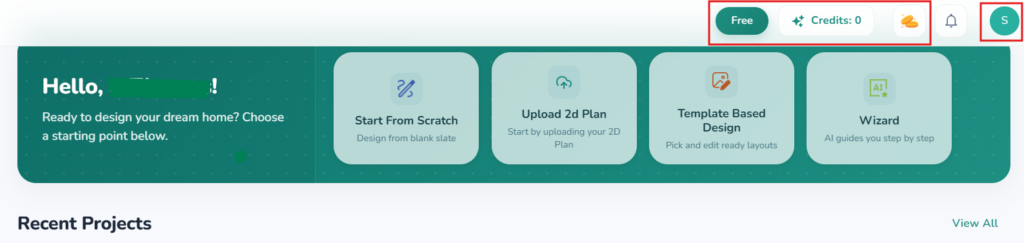
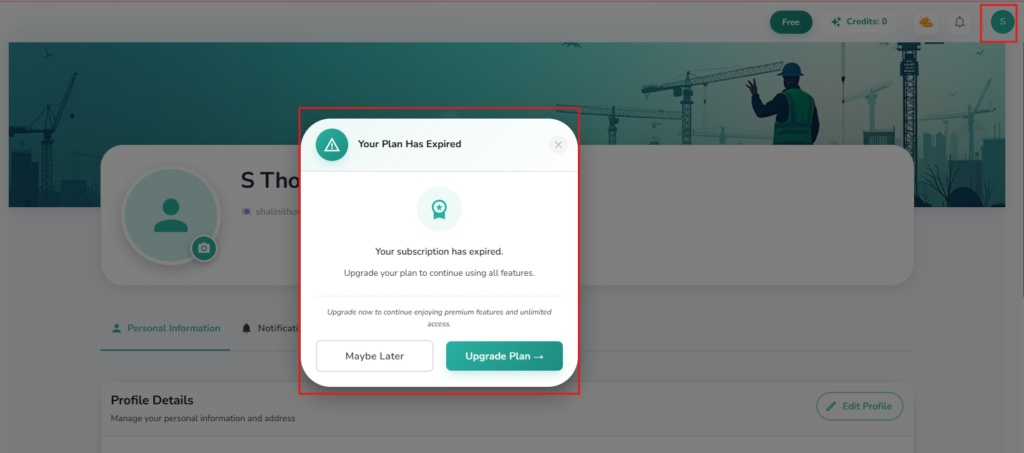
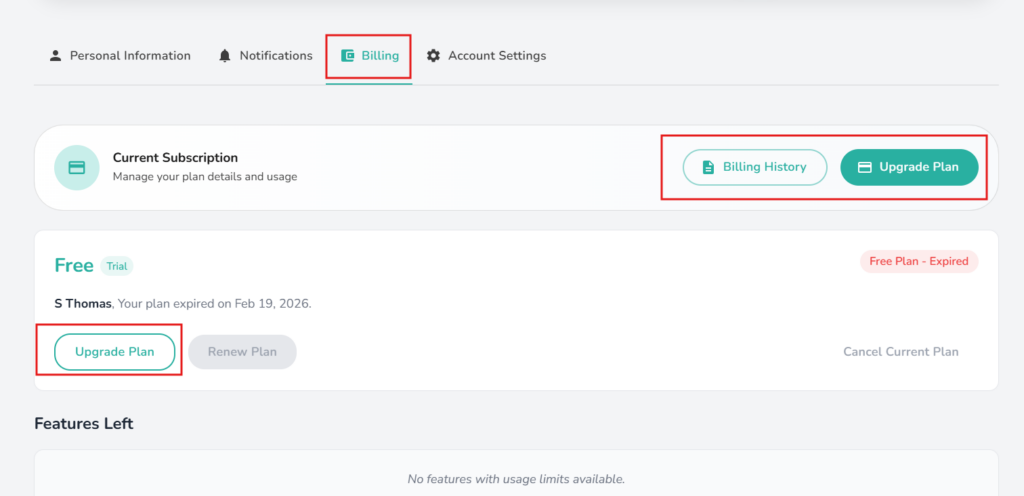
– The Plan button / Add Credits or Feature Usage / Profile icons on the top right corner of your Dashboard Page.
2. Select Your Billing Cycle #
At the top of the pricing page, use the toggle to switch between Monthly and Yearly billing view.
Tip: Choosing Yearly billing often includes a “Save Big” discount.
3. Compare and Choose a Plan #
Review the features listed under the Pro and Pro Plus columns (e.g., 8K image rendering, 4K video rendering, and full AI Inspiration access).
Once you’ve decided, click the Get Started Now button under your preferred plan.
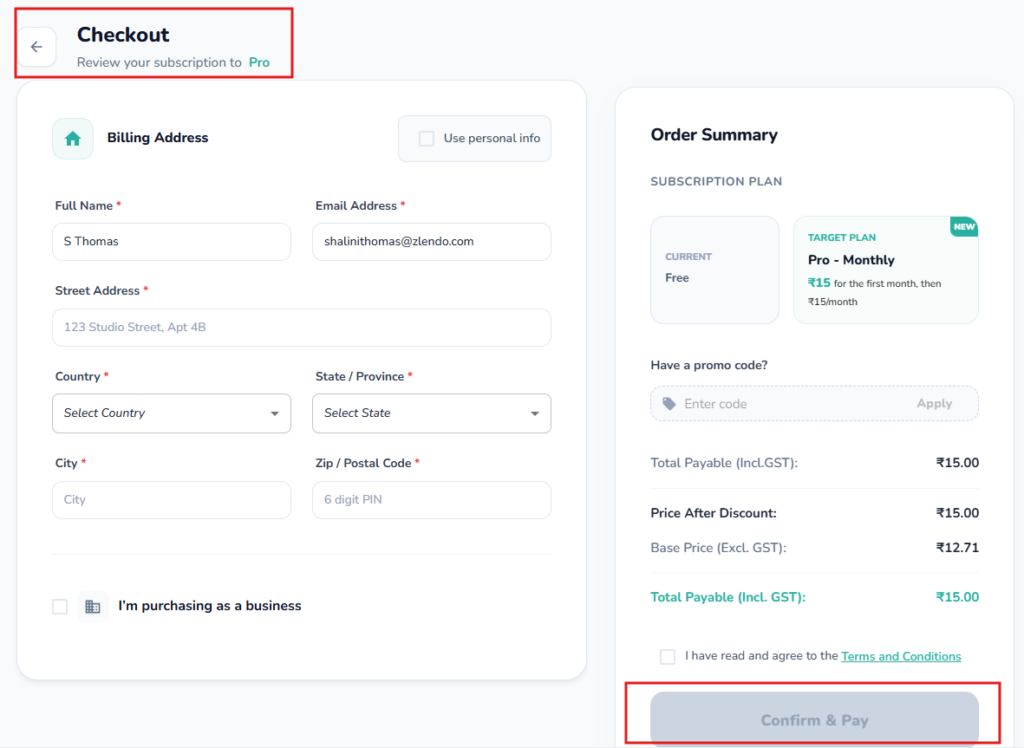
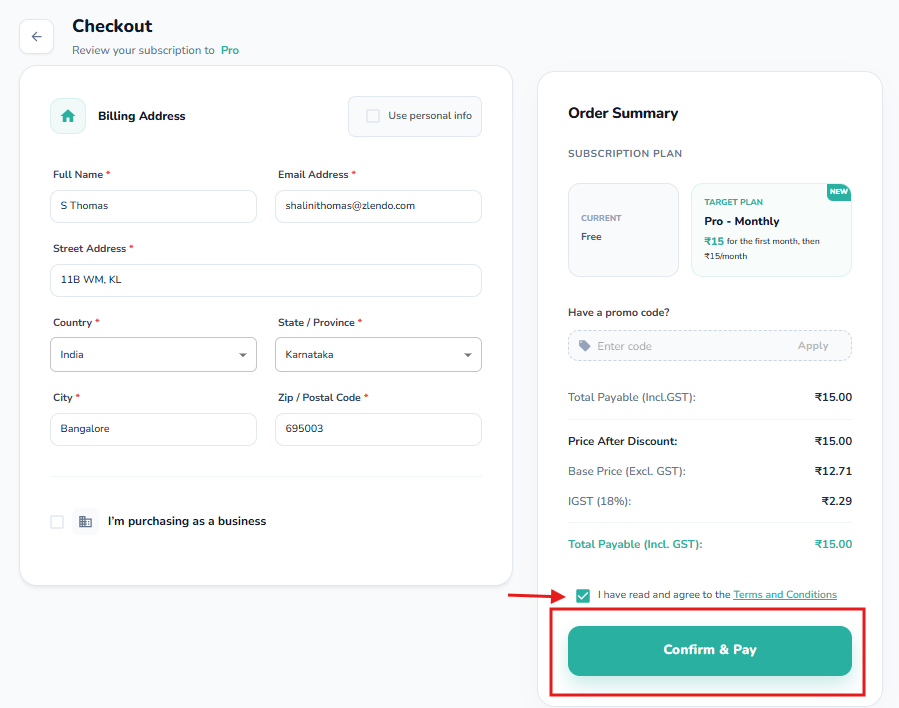
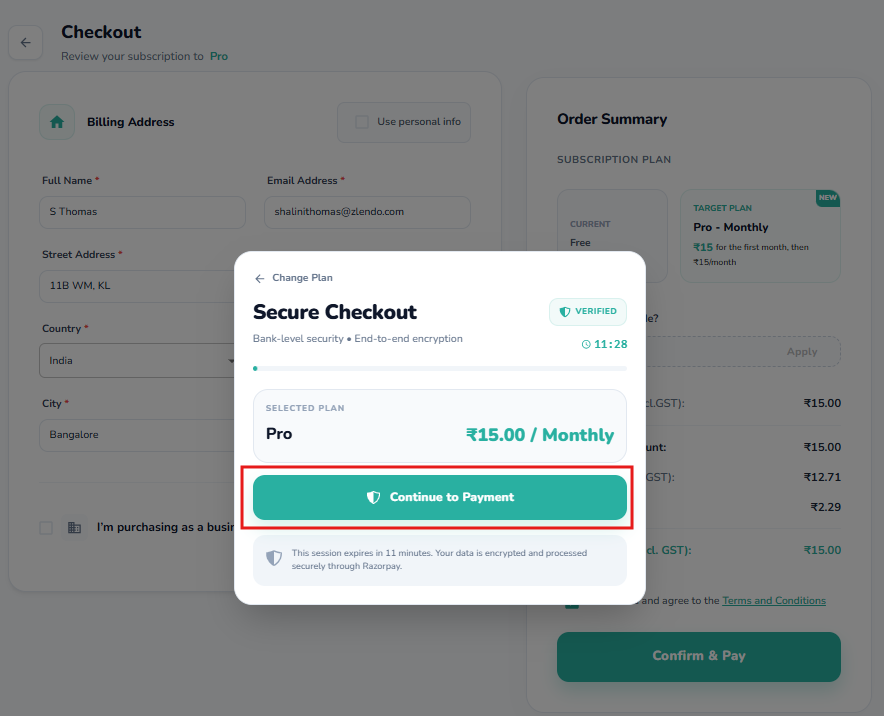
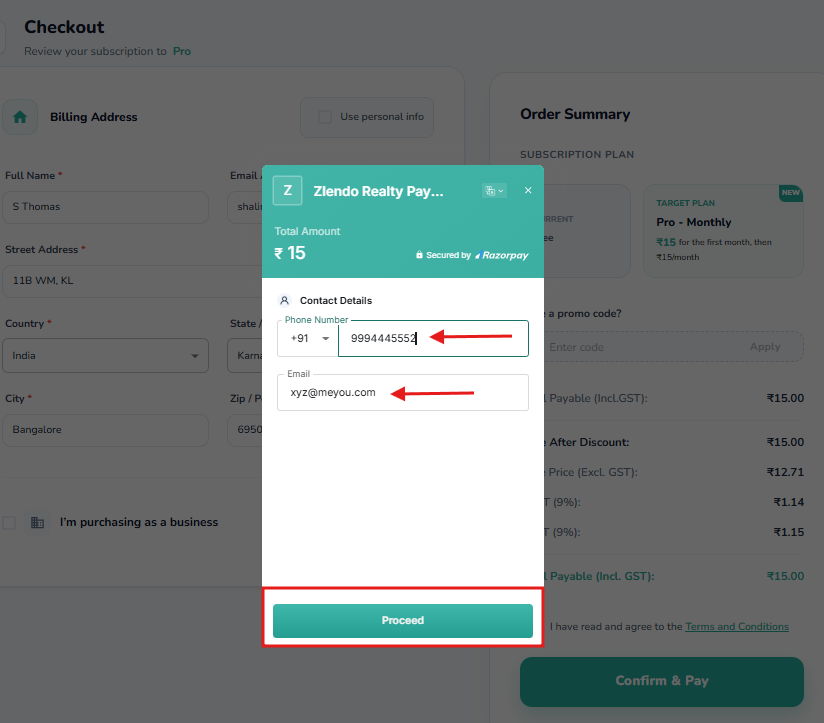
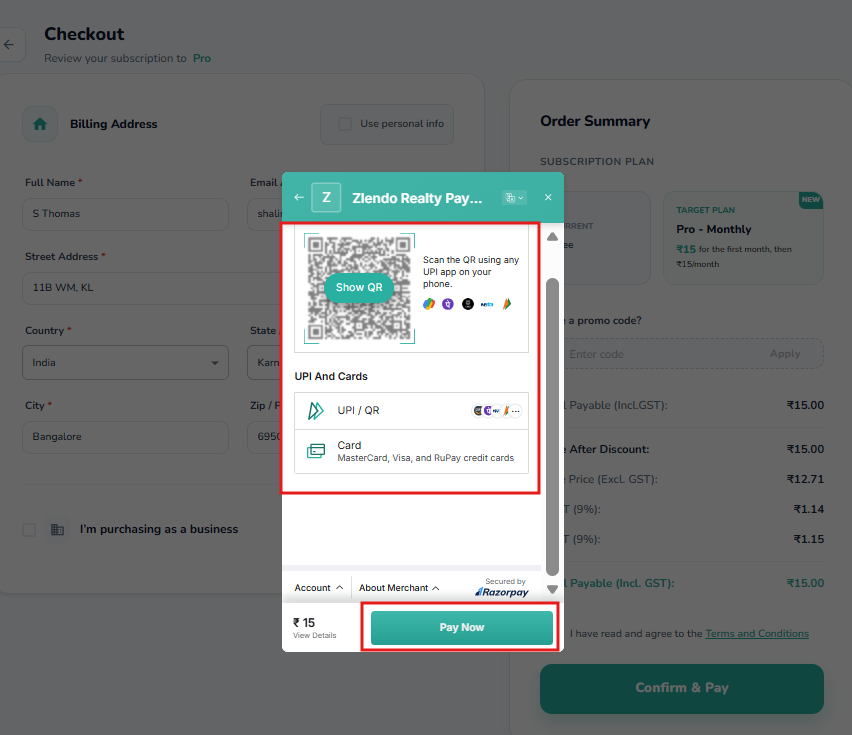
4. Complete Payment #
You will be redirected to the secure checkout page.
Choose your payment method: UPI / Card
– Enter your payment details and confirm the transaction.
Once processed, your account status (visible in the top-right corner) will update from “Free” to your new plan level immediately.
Frequently Asked Questions #
Why does it say my current plan is expired?
If you see a red banner stating your plan is expired, it means your previous subscription period has ended or your trial has concluded. Following the upgrade steps above will restore full access to your projects.
Can I switch from Pro to Pro Plus later?
Yes. You can return to the Plan section at any time to upgrade your tier. The system will typically calculate a pro-rated amount based on your remaining billing cycle.


