Zlendo Realty|Help Center

AI Floor Planner

Design & Visualize in 3D

2D to 3D Converter

Instant floor plan conversion

Smart Room Styler

AI-driven interior styling

Interiors & Exteriors

Region-aware design intelligence

Smart Cost Estimator

Precise project budgeting

Vastu Optimizer

Ancient wisdom, modern tech

Realistic Renders

Photorealistic lighting visualization

Virtual Walkthrough

8K Ultra-realistic experiences

Home Remodeling

Revitalize your current space

Interior Design

Aesthetic room planning

Vastu Optimization

Harmony & energy flow

New Home Building

From plot to perfection

Design Library

Inspiration gallery

Tutorials

Learn the platform

Help Center

Find answers & support

Blog

Insights & Updates

Plans

Business Free Trial

Try enterprise features

Affiliate & Partner Program

Grow with Zlendo

Zlendo Realty API Suite

Grow your Business with Us

Business
Login Start For Free

Menu

AI Floor Planner 2D to 3D Converter Smart Room Styler Interiors & Exteriors Smart Cost Estimator Vastu Optimizer Realistic Renders Virtual Walkthrough
Home Remodeling Interior Design Vastu Optimization New Home Building
Design Library Tutorials Help Center Blog
Plans
Business Free Trial Affiliate & Partner Program Zlendo Realty API Suite
For Individuals For Business
Login Start For Free

General

4
  • About Zlendo Realty 
  • Zlendo Realty FAQ
  • Navigation Tools & Keyboard Shortcuts Cheat Sheet
  • Signing In 

Editor

8
  • Export Plan Tool
  • Editor Tour: Introducing the Project Workspace
  • Navigation Tools & Keyboard Shortcuts Cheat Sheet
  • 2D Floor Planner: Drawing or Editing in the Zlendo Realty Workspace
  • 3D Visualization, 360° Walkthrough & Panorama
  • Zlendo Realty Render Tool
  • Zlendo Realty AI Inspiration Tools
  • Zlendo Realty Cost Estimation Tool

Project Cost Estimation

2
  • Zlendo Realty Cost Estimation Tool
  • Editor Tour: Introducing the Project Workspace

Vastu

1
  • Zlendo Realty Vastu Tool

Render

2
  • Zlendo Realty Render Tool
  • Editor Tour: Introducing the Project Workspace

3D Editing & Viewing

5
  • 3D Visualization, 360° Walkthrough & Panorama
  • Navigation Tools & Keyboard Shortcuts Cheat Sheet
  • Editor Tour: Introducing the Project Workspace
  • Zlendo Realty Cost Estimation Tool
  • Zlendo Realty Render Tool

AI Inspiration

2
  • Zlendo Realty AI Inspiration Tools
  • Editor Tour: Introducing the Project Workspace

Interior Design

5
  • Furniture & Decor
  • Zlendo Realty AI Inspiration Tools
  • Editor Tour: Introducing the Project Workspace
  • 2D Floor Planner: Drawing or Editing in the Zlendo Realty Workspace
  • 3D Visualization, 360° Walkthrough & Panorama

Real-World Preview

1
  • 3D Visualization, 360° Walkthrough & Panorama

Signing In

1
  • Signing In 

Getting Started

3
  • Creating a Zlendo Realty Account 
  • Signing In 
  • Zlendo Realty Dashboard: First-Time User Tour 

Password Change

1
  • Resetting Your Password 

Projects

10
  • Export Plan Tool
  • 2D Floor Planner: Drawing or Editing in the Zlendo Realty Workspace
  • Creating New Projects
  • Find & Manage Projects
  • Editor Tour: Introducing the Project Workspace
  • 3D Visualization, 360° Walkthrough & Panorama
  • Navigation Tools & Keyboard Shortcuts Cheat Sheet
  • Zlendo Realty AI Inspiration Tools
  • Furniture & Decor
  • Zlendo Realty Cost Estimation Tool

Project Workspace Settings

1
  • Editor Tour: Introducing the Project Workspace

Project Workspace

8
  • Editor Tour: Introducing the Project Workspace
  • Navigation Tools & Keyboard Shortcuts Cheat Sheet
  • 2D Floor Planner: Drawing or Editing in the Zlendo Realty Workspace
  • 3D Visualization, 360° Walkthrough & Panorama
  • Zlendo Realty Cost Estimation Tool
  • Zlendo Realty Render Tool
  • Zlendo Realty Vastu Tool
  • Zlendo Realty AI Inspiration Tools

FAQ

1
  • Zlendo Realty FAQ

Workspace Navigation

2
  • Navigation Tools & Keyboard Shortcuts Cheat Sheet
  • 3D Visualization, 360° Walkthrough & Panorama

360° Walkthrough & Panorama

2
  • 3D Visualization, 360° Walkthrough & Panorama
  • Navigation Tools & Keyboard Shortcuts Cheat Sheet

Account Setup

1
  • Creating a Zlendo Realty Account 

Creating New Projects

1
  • Creating New Projects

2D Drawing & Editing

5
  • 2D Floor Planner: Drawing or Editing in the Zlendo Realty Workspace
  • Editor Tour: Introducing the Project Workspace
  • Navigation Tools & Keyboard Shortcuts Cheat Sheet
  • Zlendo Realty Render Tool
  • Zlendo Realty Cost Estimation Tool

Dashboard

2
  • Zlendo Realty Dashboard: First-Time User Tour 
  • Find & Manage Projects

Find Projects

1
  • Find & Manage Projects

Manage Projects

1
  • Find & Manage Projects

Account

2
  • Creating a Zlendo Realty Account 
  • Payment & Billing

Payment & Billing

1
  • Payment & Billing

Create Templates

1
  • Zlendo Realty Community: Creating Project Templates & Sharing Designs

Community

1
  • Zlendo Realty Community: Creating Project Templates & Sharing Designs

Share Designs

1
  • Zlendo Realty Community: Creating Project Templates & Sharing Designs

Export Plan

1
  • Export Plan Tool
View Categories
  • Home
  • Docs
  • Projects
  • Creating New Projects
  • Creating New Projects

Creating New Projects

3 min read

You have 4 ways to start your new project.

To get started, you can choose a Design option from the Dashboard.

Create: Start from Scratch (Use the Zlendo Realty Drawing board) 

Upload a 2D Floor plan that you have 

Template Based Design (Choose a free Zlendo Realty Template)

Wizard (AI-generated layouts for your dream home)
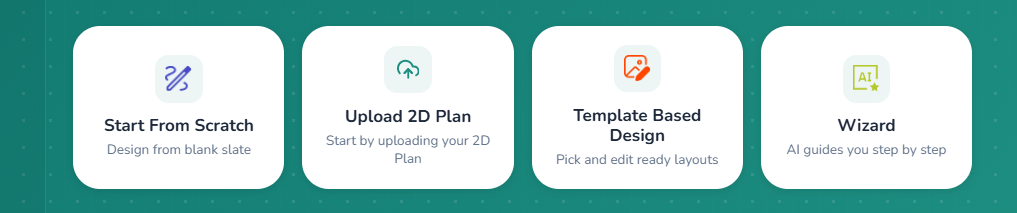
Four Design Options

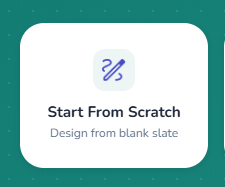
1. Start from Scratch: Draw your Own Plan #

To draw your own plan, click on ‘Start from Scratch‘ on the Dashboard.

Dashboard –> Start from Scratch

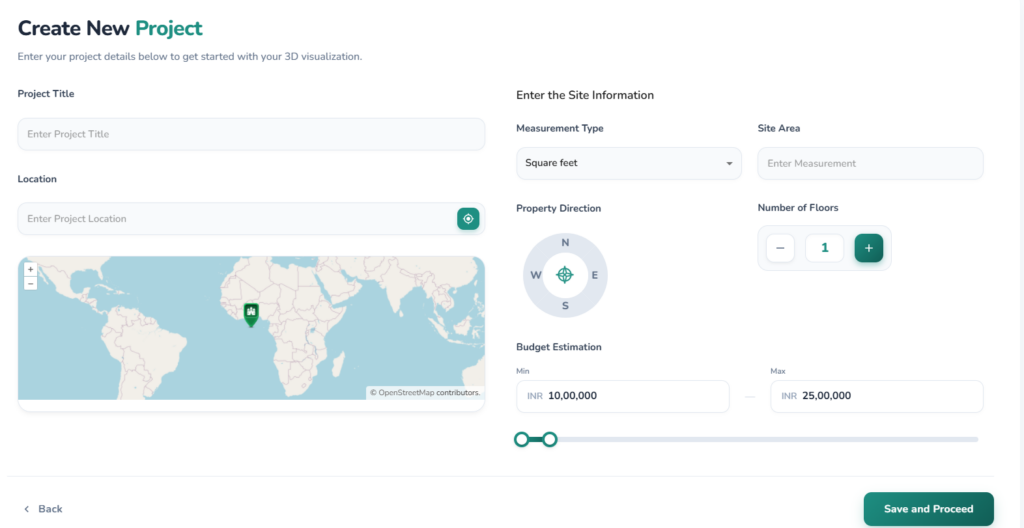
On the Create a New Project page that opens, fill out all fields.

Click Save and Proceed
New Project Form
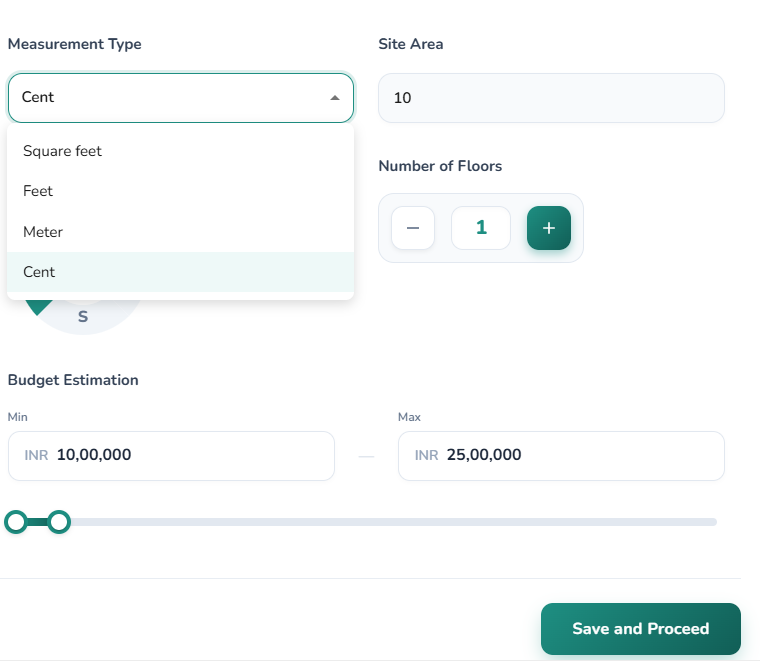
New Project Details: Measurement Type, Site Area, Project Budget

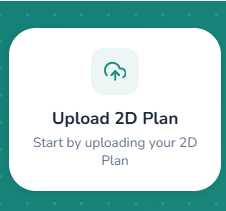
2. Uploading and Digitizing 2D Floor Plans #

The second option you have is to upload a 2D floor plan and edit it to match your preferences.

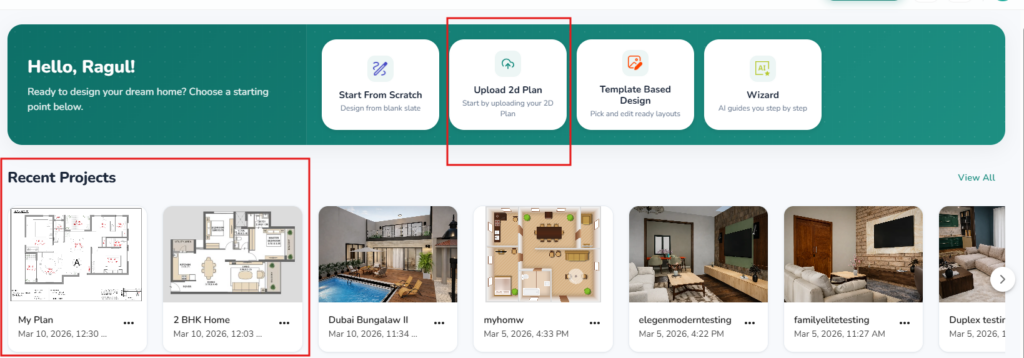
Dashboard –>‘Upload 2D Plan‘

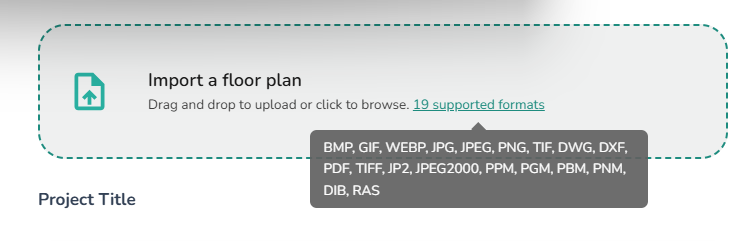
You have 19 options for floor plan format (BMP/GIF/JPG/PNG/DWG etc.) that you can upload.

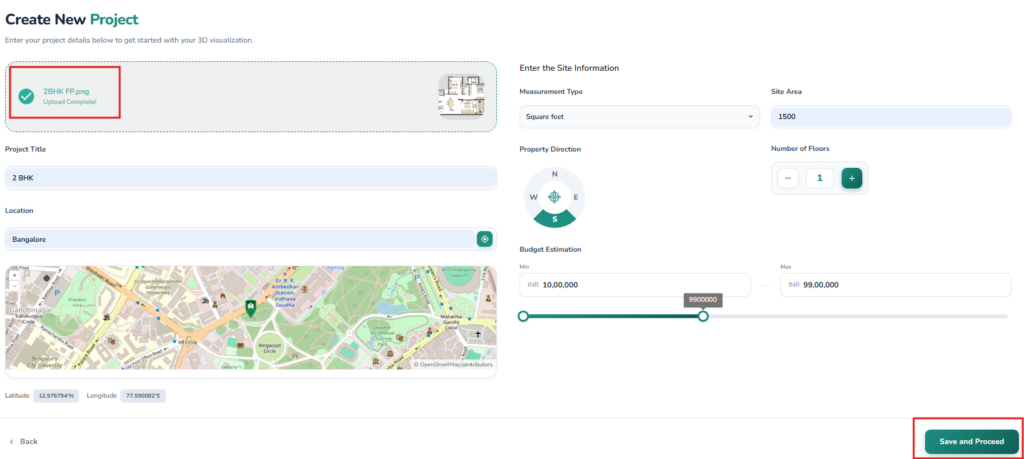
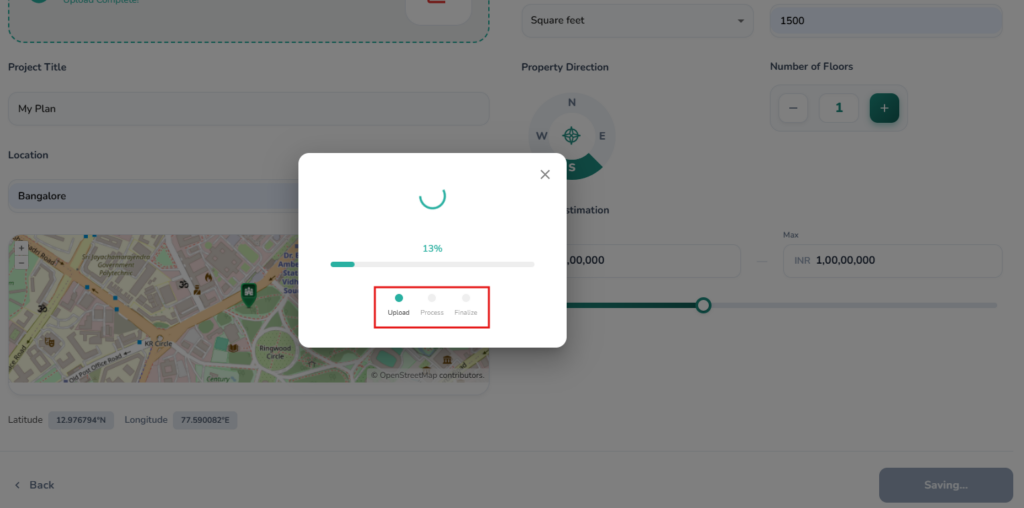
When the 2D plan upload is completed, fill out the rest of the Project details in the form.

Save to proceed.

The recognition and upload process will take a few seconds. Once upload is complete, you will be redirected to the Dashboard and find the newly digitized floor plan under Recent Projects.
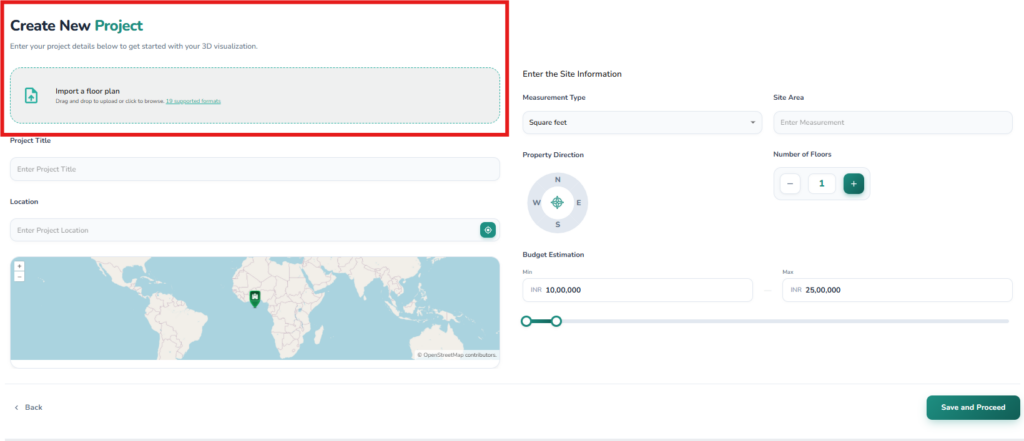
New Project Form
Click to Upload, Fill out the form, Save to Proceed
Digitization in Progress
Find your uploaded 2D plans under Recent Projects on your Dashboard

3. Using Zlendo Realty Templates  #

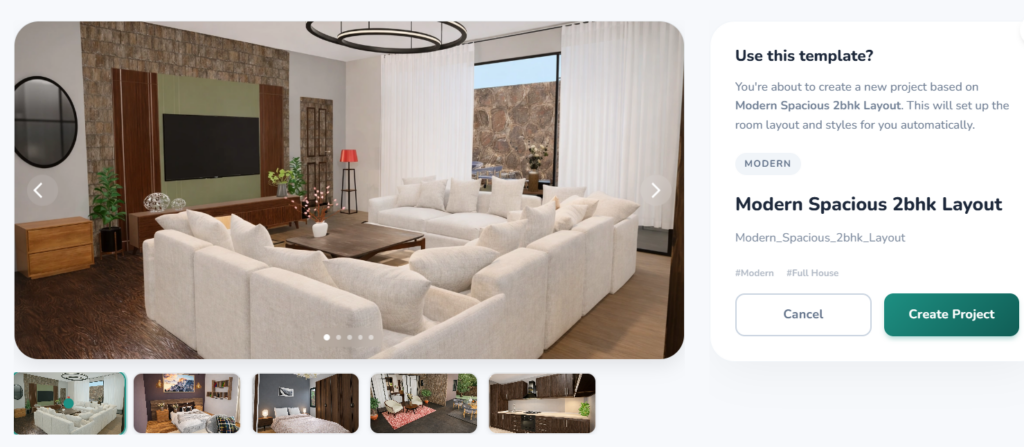
The easiest way to get started is to work with a Zlendo Realty Template that you like.

Dashboard –> Template Based Design

Choose a design from the Zlendo Realty Template Library

Click Create Project

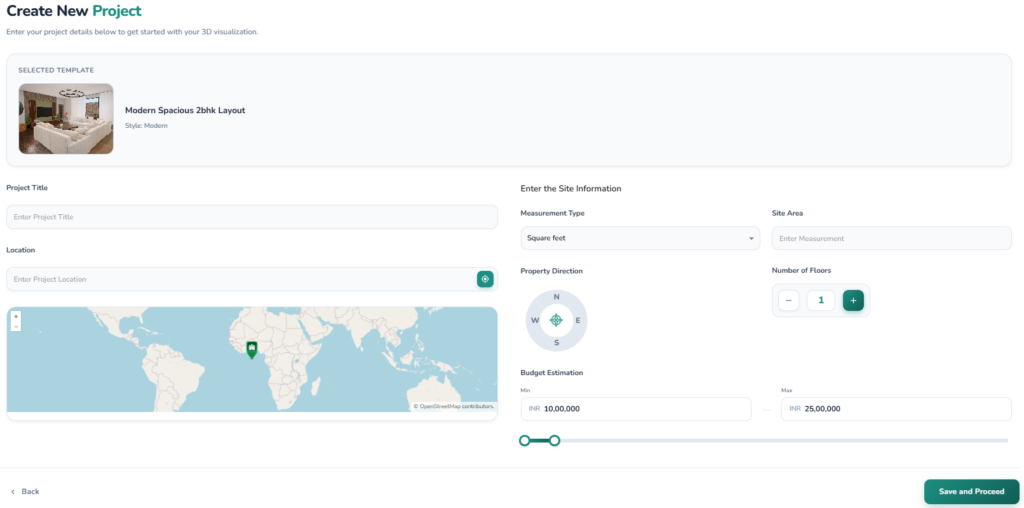
Fill the Create New Project form to save and proceed.
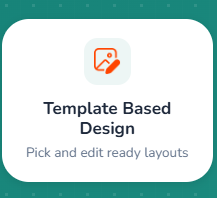
Choose a Template
New Project Form: Fill the Project Details

4. Using the AI Wizard  #

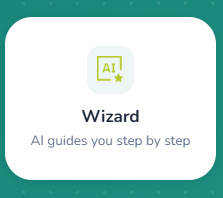
Click on Wizard to get the best version of your designs with AI Generated Design Layouts.

Dashboard –> Wizard

Fill the Project Information Form. Click Save to Proceed.

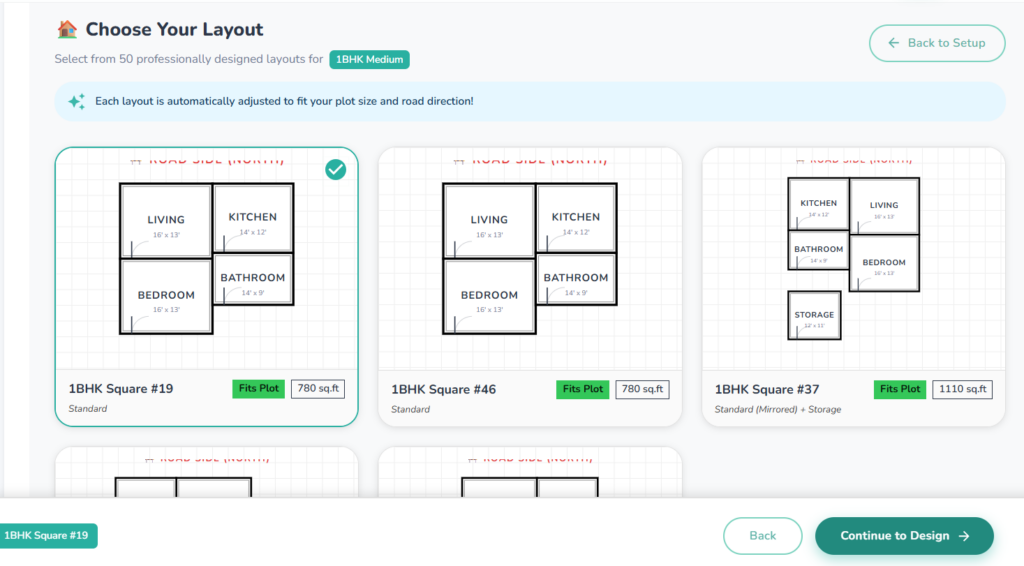
On the layout options page, click on a layout to choose your preferred Layout from 50 professionally designed options.
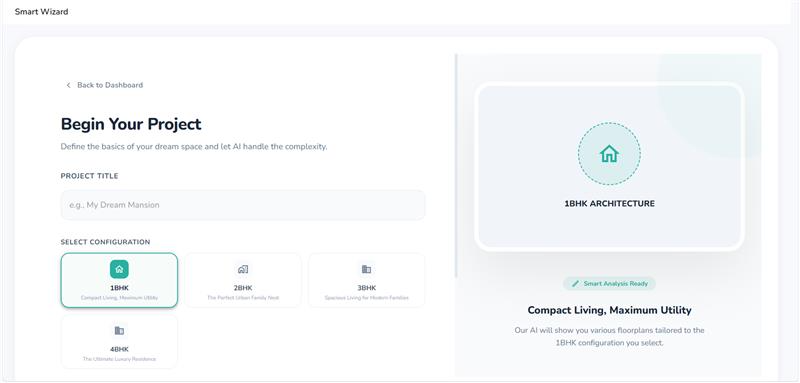
Project Form
Choose your Layout

How to Fill the New Project Form #

Filling in the New Project Form accurately is important to get the full benefit of using Zlendo Realty Smart features.

Project Title: Assign a unique name to your project, such as “My Home,” to easily identify it within your dashboard.

Location: Enter your address or city to automatically generate local maps and receive localized material cost estimates.

Site Measurement & Area: Choose your preferred unit—like Cents, Feet, or Meters—and enter the total area of your plot.

Property Direction: Select the primary orientation of your site (N, E, W, or S) to help align your design accurately.

Number of Floors: Specify the total number of levels planned for your building to set the project’s scale.

Budget Estimation: Input your target price range to ensure your design choices remain within your financial goals.

💡 Pro-Tip #

Mastering the Sun #

Choosing your property direction isn’t just a technical detail—it’s the first step in mastering natural light and energy efficiency in your 3D model.

Selecting your Property Direction (N / E / W / S) allows Zlendo Realty to simulate how the sun will interact with your home throughout the day. Here is how it affects your design:

North-Facing: Provides consistent, soft light throughout the day, which is perfect for studios or workspaces where you want to avoid harsh glares.

South-Facing: Offers the most direct sunlight, making these rooms naturally warmer—great for living areas, but you may need to add more cooling options in your Build tool.

East-Facing: Floods your rooms with bright light in the morning; ideal for bedrooms or breakfast nooks.

West-Facing: Captures the intense, warm “Golden Hour” light in the late afternoon, which can significantly heat up a room before sunset.

Why Location Matters #

Remember that entering your Location does more than just pin a map.

Because Zlendo Realty calculates Budget Estimation based on real-world data, choosing a specific city ensures your cost estimates for labor and materials are accurate to that specific region.

💰 Smart Budgeting with Zlendo Realty #

Setting an accurate Budget Estimation range is key to transforming a digital dream into a buildable reality.

Localized Material Costs: Because your Location data is used to pull real-world product prices, your budget range will reflect the actual market rates for labor and materials in your specific city.

Scale Accuracy: Always double-check your Site Area and UOM (Unit of Measurement) before finalizing, as even a small error in area can significantly shift the total material costs calculated for your project.

Financial Guardrails: Use your budget range to filter items in the Design Library later; this ensures you don’t fall in love with a marble finish that exceeds your project’s financial plan.

Updated on March 10, 2026
Creating New Projects Projects

What are your Feelings

  • Happy
  • Normal
  • Sad

Share This Article :

  • Facebook
  • X
  • LinkedIn
  • Pinterest
Zlendo Realty Cost Estimation ToolFind & Manage Projects

Powered by BetterDocs

Table of Contents
  • 1. Start from Scratch: Draw your Own Plan
  • 2. Uploading and Digitizing 2D Floor Plans
  • 3. Using Zlendo Realty Templates 
  • 4. Using the AI Wizard 
  • How to Fill the New Project Form
    • 💡 Pro-Tip
    • Mastering the Sun
    • Why Location Matters
    • 💰 Smart Budgeting with Zlendo Realty

Create your account today

Experience the future of AI home design for free.

Get Started
Zlendo Realty Logo

The world's first Design-to-Sales engine. Experience your space in 360° ultra-realistic 8K, AR/MR.

Products

  • AI Floor Planner
  • 2D to 3D Converter
  • Smart Room Styler
  • Interiors & Exteriors
  • Smart Cost Estimator
  • Vastu Optimizer
  • Zlendo API Suite
  • Virtual Walkthrough

Use Cases

  • Commercial Spaces
  • Real Estate Brokers
  • NRI & Remote Planning
  • Developer Solutions
  • Home Remodeling
  • New Home Building

Resources

  • Design Library
  • Tutorials
  • Help Center
  • Grow with Zlendo
  • Contact Us

Legal

  • Privacy Policy
  • Terms of Service
  • Cookie Policy
  • Refund Policy
  • SLA

Contact Us

  • [email protected]
  • 0452-3583474
  • Headquarters

    36/1, Ganapathy Street,
    Alagappan Nagar, Madurai – 625003
    Tamil Nadu, India

  • Other Cities

    Pune • Bengaluru • Delhi • Hyderabad

Copyright © 2026 Zlendo Technologies Pvt. Ltd. | All Rights Reserved.

Cookie PolicyTerms & ConditionsPrivacy Policy
Contact Us