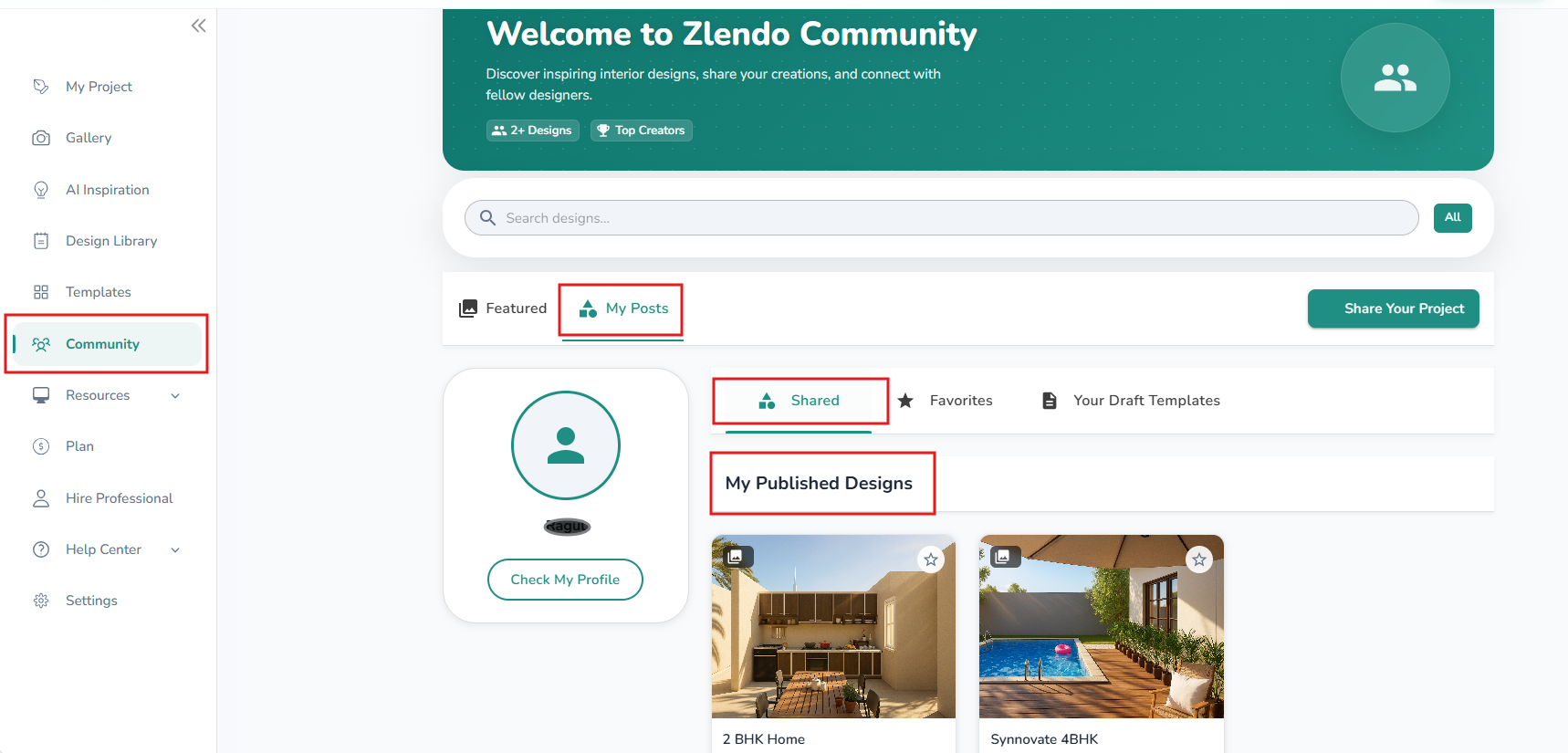
The Zlendo Realty Community is a vibrant digital hub designed for architects, interior designers, and home enthusiasts to connect and grow. It serves as a collaborative space where creativity meets professional insight, allowing users to move beyond individual drafting and into a shared ecosystem of design.
Sharing Design Templates #
You can create your own design template from your project renders and share it on Zlendo Realty Community as a Post.
You can also view other featured designs see how the design community is interacting with your work.
Community –> Share Post –> Recent Projects –> Project Thumbnail –> 3 Dots –> Project Options –> Share
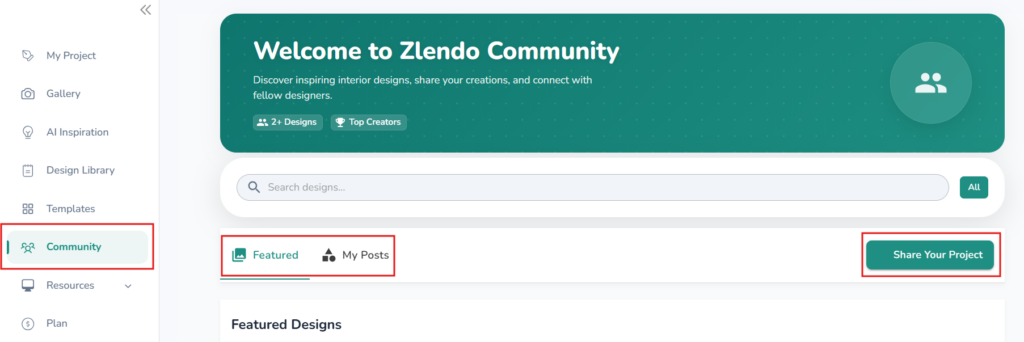
1. Navigate to Community
On the side bar of the Dashborad, Open your Community page.
– Click on the Share Your Project button.
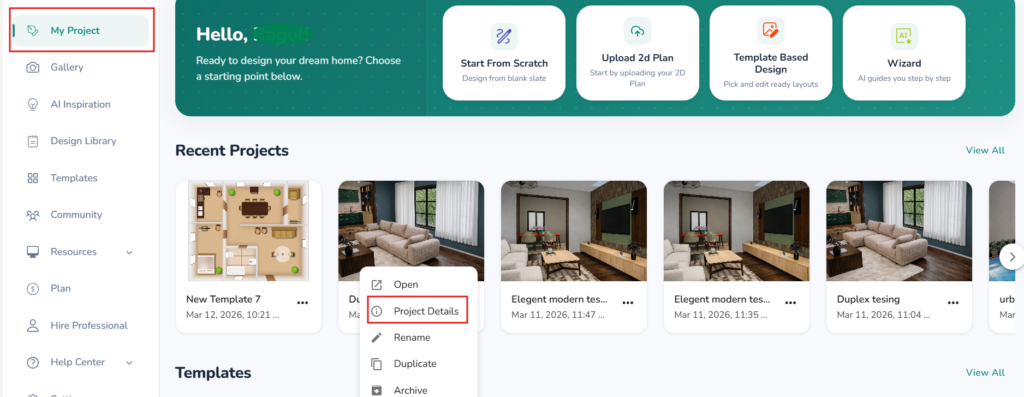
– You will be redirected to the Recent Projects section on the Dashboard.
– Find the Project Thumbnail you wish to share and click the three dots (⋮) in the corner.
– Select Project Options from the dropdown menu.
2. Create the Design Template
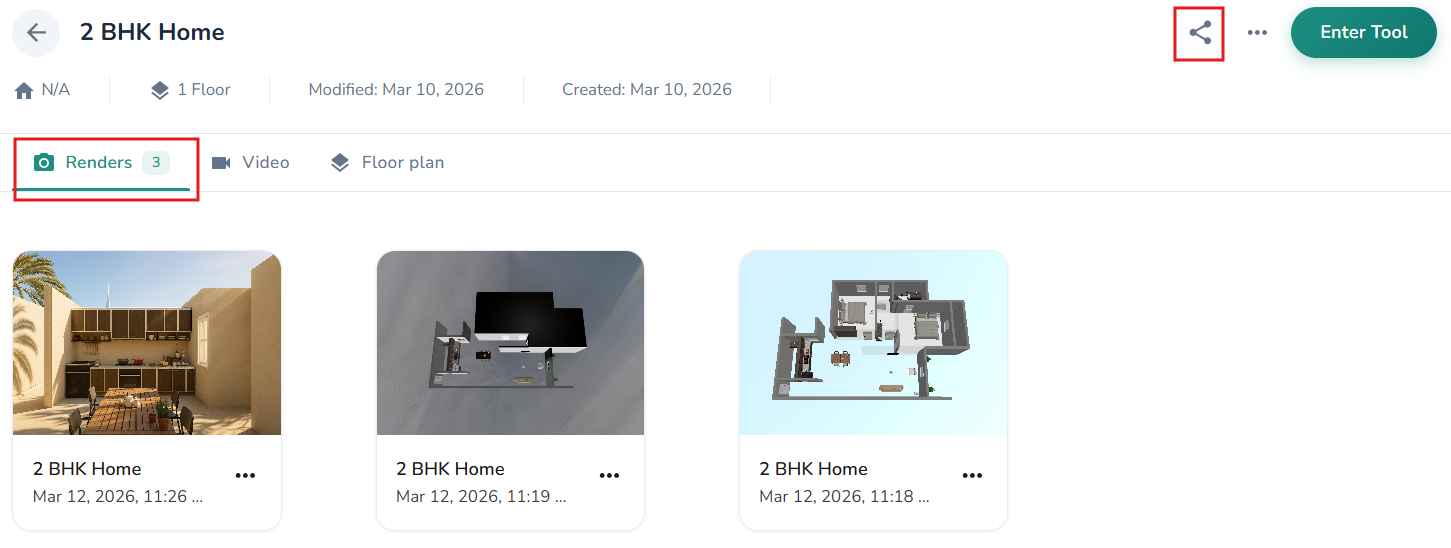
On the Project Details Page:
Navigate to the Renders tab.
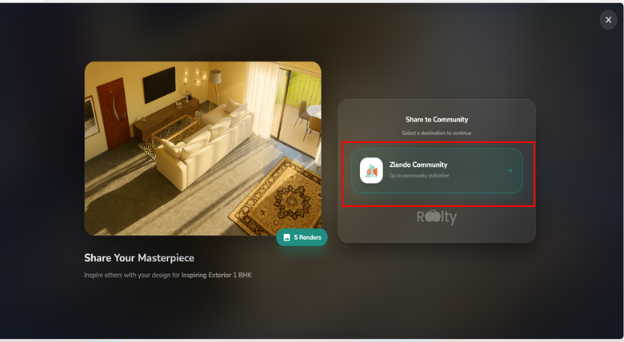
– Click the Share icon to launch the Template Creation Wizard.
– This four-step wizard ensures your project is presented with the professional polish it deserves.
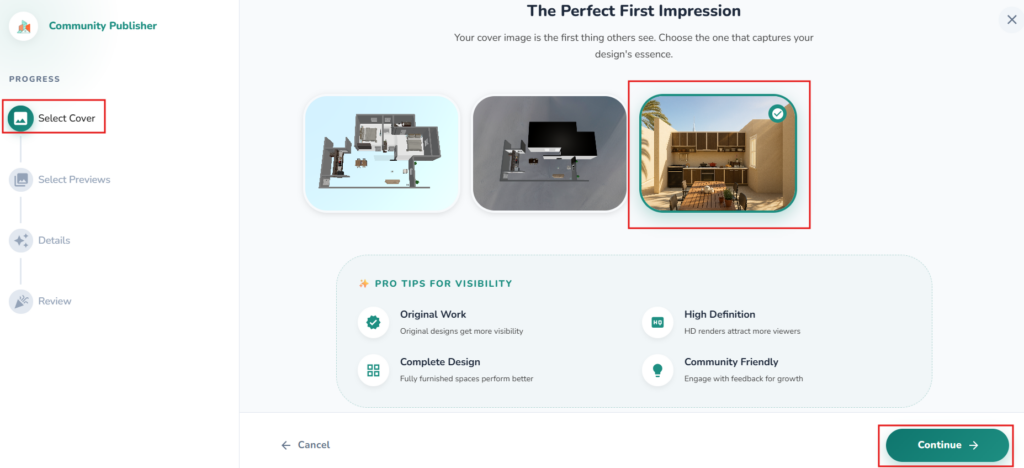
Step 1: Select the Template Cover
Choose the “hero” shot of your design. This is the first image users will see, so pick the one that truly captures the essence and atmosphere of your project.
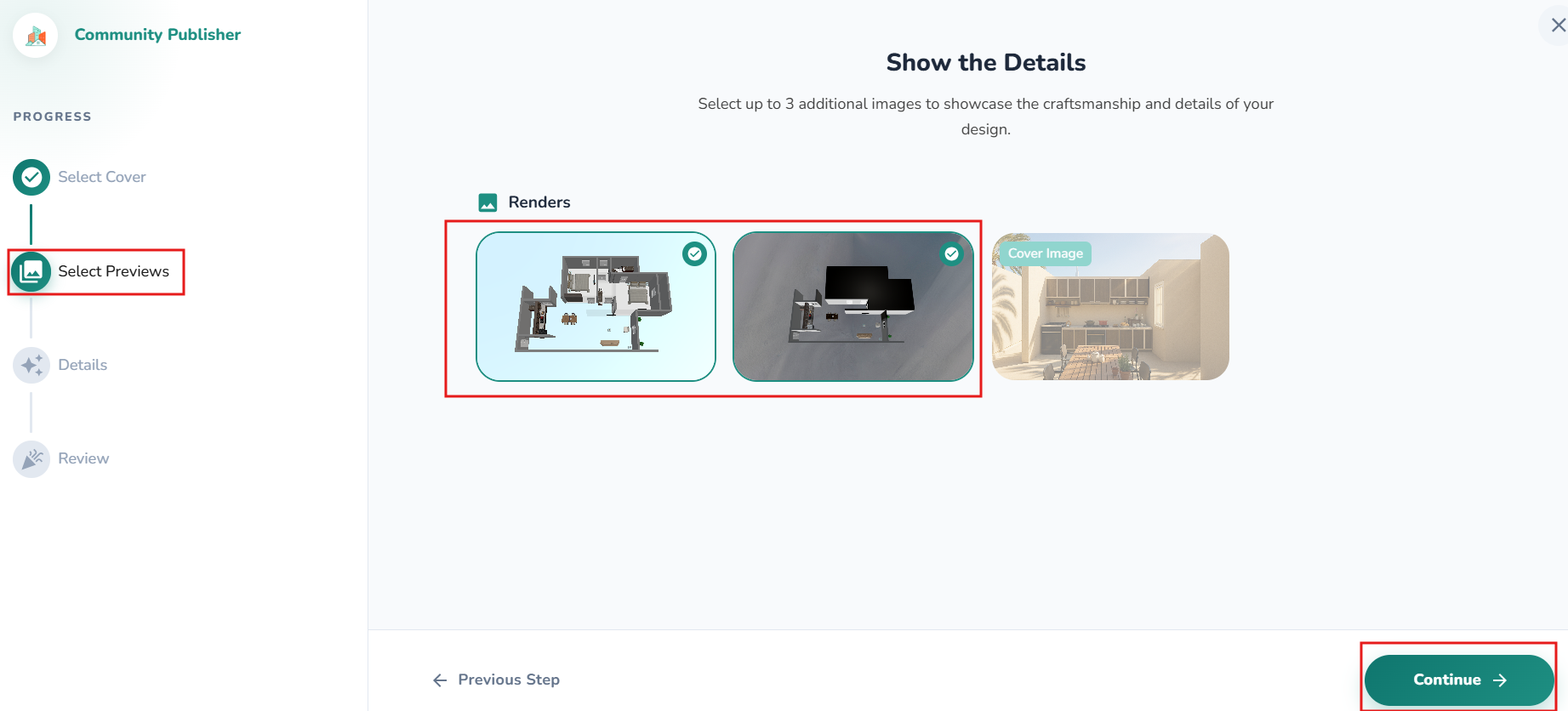
Step 2: Select Previews
Showcase the craftsmanship. You can select up to three additional images to highlight specific details, such as custom lighting, furniture scaling, or unique material textures.
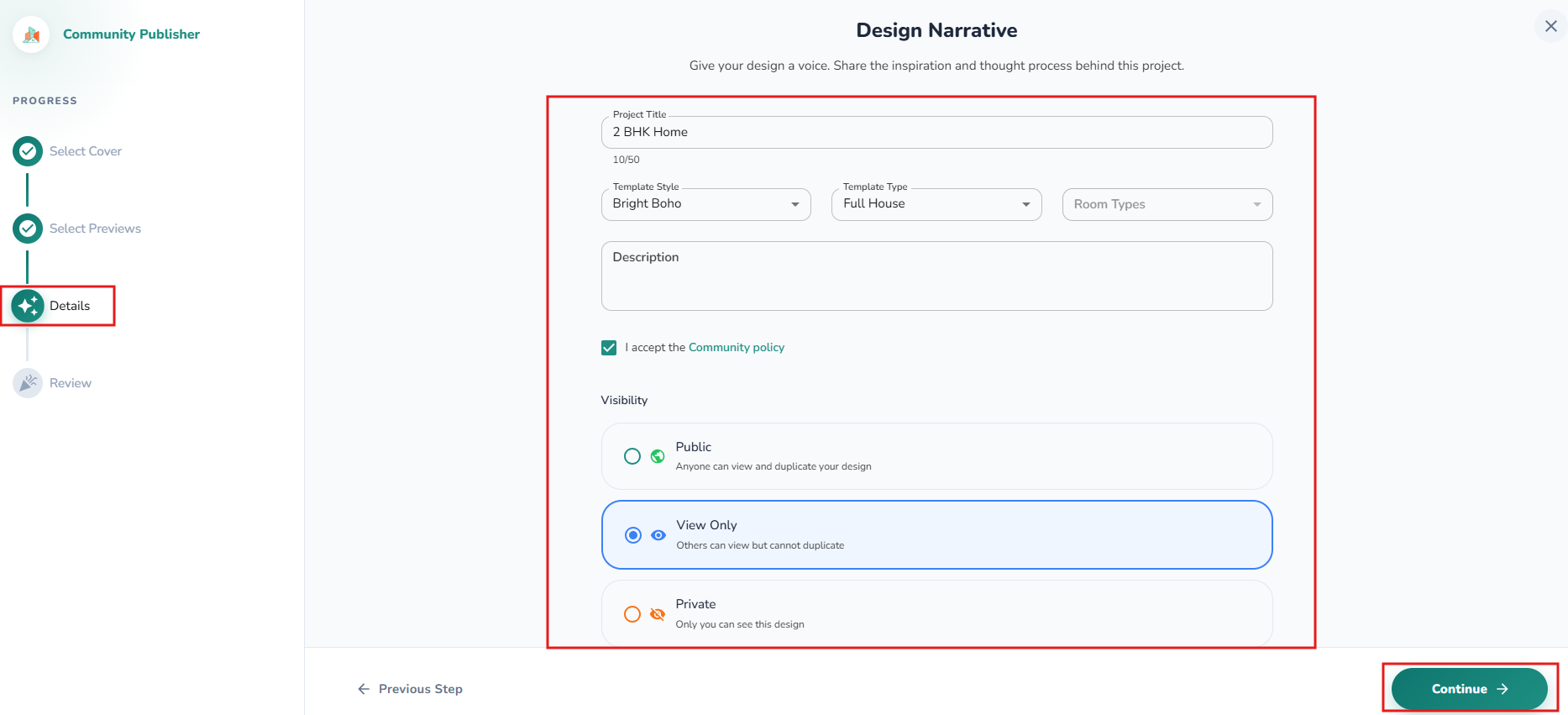
Step 3: Add Project Details
Give your design a voice. Use this space to share the inspiration and thought process behind the project. Explaining the “why” behind your layout helps other designers appreciate your creative choices.
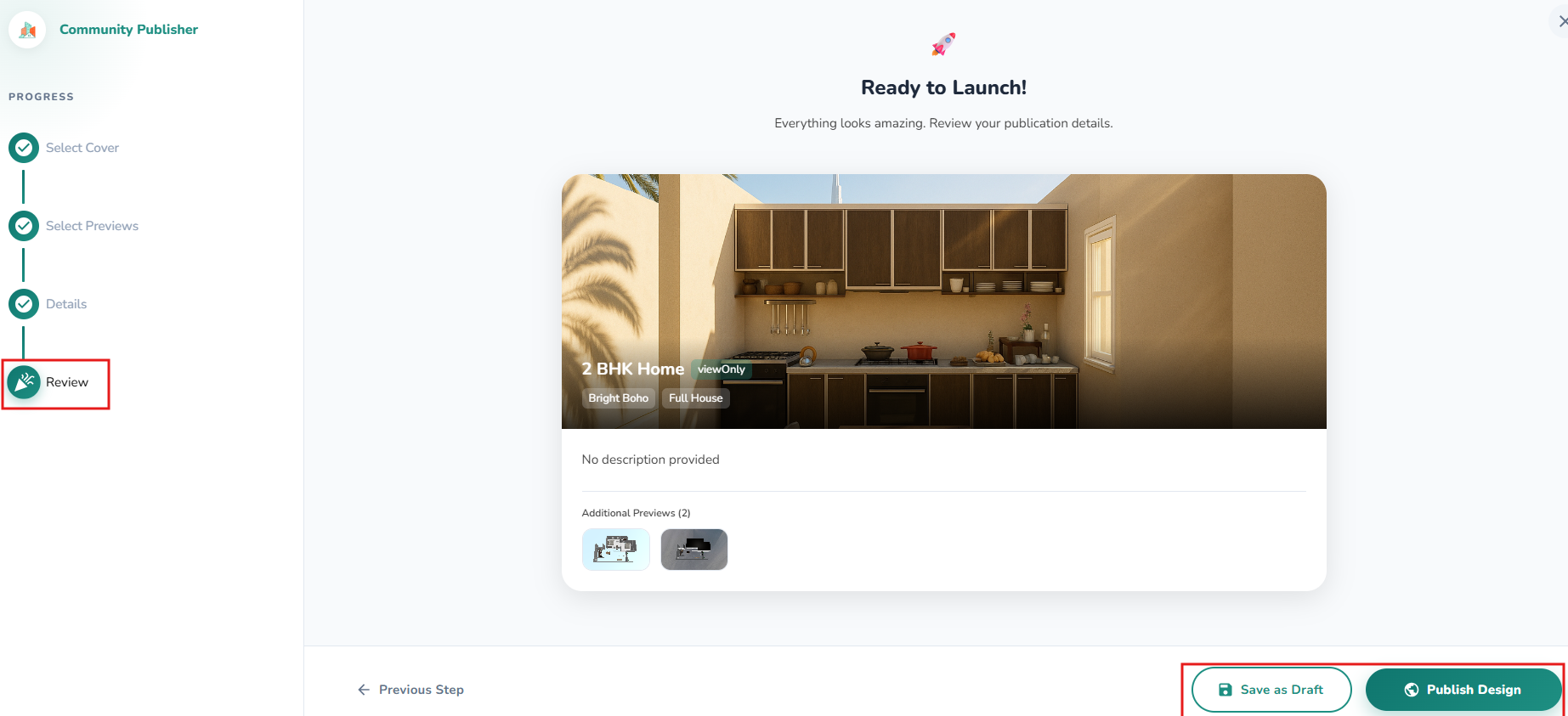
Step 4: Review
Carefully review your publication details to ensure every render and description is exactly as you intended. Select who can see your Design template: Public/Private/View only.
4. Publish and View
After the final review, you have two options:
- Publish Design: Make your project live for the entire community to see and interact with.
- Save as Draft: Keep your progress saved if you aren’t quite ready for the spotlight.
Once published, you can find your post and track engagement directly on your Community Page.