Zlendo Realty|Help Center

AI Floor Planner

Design & Visualize in 3D

2D to 3D Converter

Instant floor plan conversion

Smart Room Styler

AI-driven interior styling

Interiors & Exteriors

Region-aware design intelligence

Smart Cost Estimator

Precise project budgeting

Vastu Optimizer

Ancient wisdom, modern tech

Realistic Renders

Photorealistic lighting visualization

Virtual Walkthrough

8K Ultra-realistic experiences

Home Remodeling

Revitalize your current space

Interior Design

Aesthetic room planning

Vastu Optimization

Harmony & energy flow

New Home Building

From plot to perfection

Design Library

Inspiration gallery

Tutorials

Learn the platform

Help Center

Find answers & support

Blog

Insights & Updates

Plans

Business Free Trial

Try enterprise features

Affiliate & Partner Program

Grow with Zlendo

Zlendo Realty API Suite

Grow your Business with Us

Business
Login Start For Free

Menu

AI Floor Planner 2D to 3D Converter Smart Room Styler Interiors & Exteriors Smart Cost Estimator Vastu Optimizer Realistic Renders Virtual Walkthrough
Home Remodeling Interior Design Vastu Optimization New Home Building
Design Library Tutorials Help Center Blog
Plans
Business Free Trial Affiliate & Partner Program Zlendo Realty API Suite
For Individuals For Business
Login Start For Free

General

4
  • About Zlendo Realty 
  • Zlendo Realty FAQ
  • Navigation Tools & Keyboard Shortcuts Cheat Sheet
  • Signing In 

Editor

8
  • Export Plan Tool
  • Editor Tour: Introducing the Project Workspace
  • Navigation Tools & Keyboard Shortcuts Cheat Sheet
  • 2D Floor Planner: Drawing or Editing in the Zlendo Realty Workspace
  • 3D Visualization, 360° Walkthrough & Panorama
  • Zlendo Realty Render Tool
  • Zlendo Realty AI Inspiration Tools
  • Zlendo Realty Cost Estimation Tool

Project Cost Estimation

2
  • Zlendo Realty Cost Estimation Tool
  • Editor Tour: Introducing the Project Workspace

Vastu

1
  • Zlendo Realty Vastu Tool

Render

2
  • Zlendo Realty Render Tool
  • Editor Tour: Introducing the Project Workspace

3D Editing & Viewing

5
  • 3D Visualization, 360° Walkthrough & Panorama
  • Navigation Tools & Keyboard Shortcuts Cheat Sheet
  • Editor Tour: Introducing the Project Workspace
  • Zlendo Realty Cost Estimation Tool
  • Zlendo Realty Render Tool

AI Inspiration

2
  • Zlendo Realty AI Inspiration Tools
  • Editor Tour: Introducing the Project Workspace

Interior Design

5
  • Furniture & Decor
  • Zlendo Realty AI Inspiration Tools
  • Editor Tour: Introducing the Project Workspace
  • 2D Floor Planner: Drawing or Editing in the Zlendo Realty Workspace
  • 3D Visualization, 360° Walkthrough & Panorama

Real-World Preview

1
  • 3D Visualization, 360° Walkthrough & Panorama

Signing In

1
  • Signing In 

Getting Started

3
  • Creating a Zlendo Realty Account 
  • Signing In 
  • Zlendo Realty Dashboard: First-Time User Tour 

Password Change

1
  • Resetting Your Password 

Projects

10
  • Export Plan Tool
  • 2D Floor Planner: Drawing or Editing in the Zlendo Realty Workspace
  • Creating New Projects
  • Find & Manage Projects
  • Editor Tour: Introducing the Project Workspace
  • 3D Visualization, 360° Walkthrough & Panorama
  • Navigation Tools & Keyboard Shortcuts Cheat Sheet
  • Zlendo Realty AI Inspiration Tools
  • Furniture & Decor
  • Zlendo Realty Cost Estimation Tool

Project Workspace Settings

1
  • Editor Tour: Introducing the Project Workspace

Project Workspace

8
  • Editor Tour: Introducing the Project Workspace
  • Navigation Tools & Keyboard Shortcuts Cheat Sheet
  • 2D Floor Planner: Drawing or Editing in the Zlendo Realty Workspace
  • 3D Visualization, 360° Walkthrough & Panorama
  • Zlendo Realty Cost Estimation Tool
  • Zlendo Realty Render Tool
  • Zlendo Realty Vastu Tool
  • Zlendo Realty AI Inspiration Tools

FAQ

1
  • Zlendo Realty FAQ

Workspace Navigation

2
  • Navigation Tools & Keyboard Shortcuts Cheat Sheet
  • 3D Visualization, 360° Walkthrough & Panorama

360° Walkthrough & Panorama

2
  • 3D Visualization, 360° Walkthrough & Panorama
  • Navigation Tools & Keyboard Shortcuts Cheat Sheet

Account Setup

1
  • Creating a Zlendo Realty Account 

Creating New Projects

1
  • Creating New Projects

2D Drawing & Editing

5
  • 2D Floor Planner: Drawing or Editing in the Zlendo Realty Workspace
  • Editor Tour: Introducing the Project Workspace
  • Navigation Tools & Keyboard Shortcuts Cheat Sheet
  • Zlendo Realty Render Tool
  • Zlendo Realty Cost Estimation Tool

Dashboard

2
  • Zlendo Realty Dashboard: First-Time User Tour 
  • Find & Manage Projects

Find Projects

1
  • Find & Manage Projects

Manage Projects

1
  • Find & Manage Projects

Account

2
  • Creating a Zlendo Realty Account 
  • Payment & Billing

Payment & Billing

1
  • Payment & Billing

Create Templates

1
  • Zlendo Realty Community: Creating Project Templates & Sharing Designs

Community

1
  • Zlendo Realty Community: Creating Project Templates & Sharing Designs

Share Designs

1
  • Zlendo Realty Community: Creating Project Templates & Sharing Designs

Export Plan

1
  • Export Plan Tool
View Categories
  • Home
  • Docs
  • Editor
  • 3D Editing & Viewing
  • 360° Walkthrough & Panorama
  • 3D Visualization, 360° Walkthrough & Panorama

3D Visualization, 360° Walkthrough & Panorama

5 min read

Visualizing your dream property shouldn’t require a leap of faith. At Zlendo Realty.com, our 3D visualization tool bridges the gap between a flat 2D floor plan and a finished home, giving you a realistic perspective on every design choice.

Advanced Immersive Features in Zlendo Realty 3D #

FeatureDescriptionHow to Use
360° WalkthroughA first-person “joystick” style navigation.Click the Person Icon. Use on-screen controls or arrows to “walk” through the house.
360° PanoramaCreates a fixed-point spherical view.Select Panorama Mode to view a Room end-to-end.
VR ModeFull immersion using a VR headset.Tap the VR Goggles icon on your mobile device and insert it into a compatible headset.

Switching from 2D Mode to 3D #

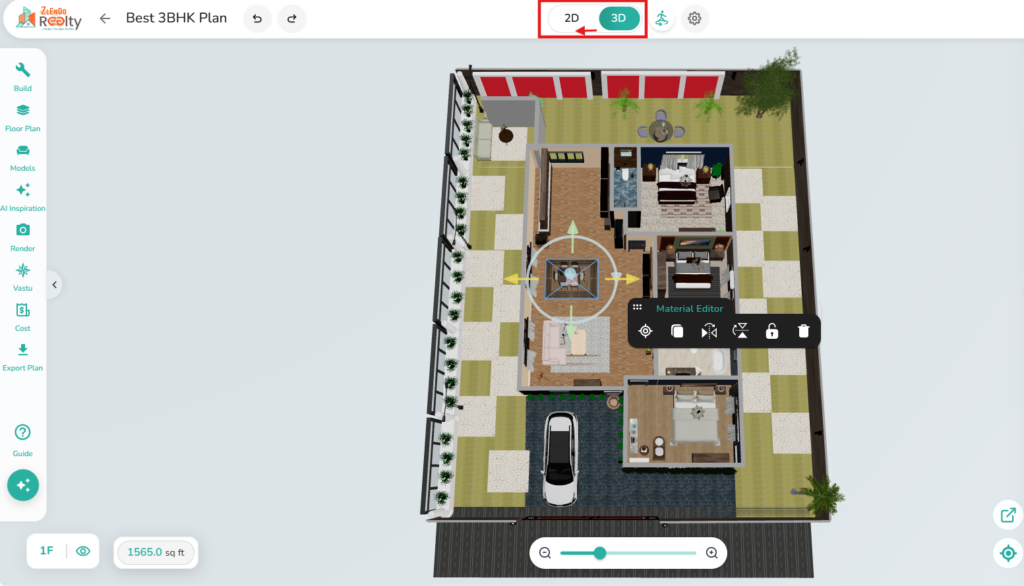
While 2D is perfect for technical precision and measurements, 3D is where your design comes to life. We recommend switching modes frequently during your workflow.

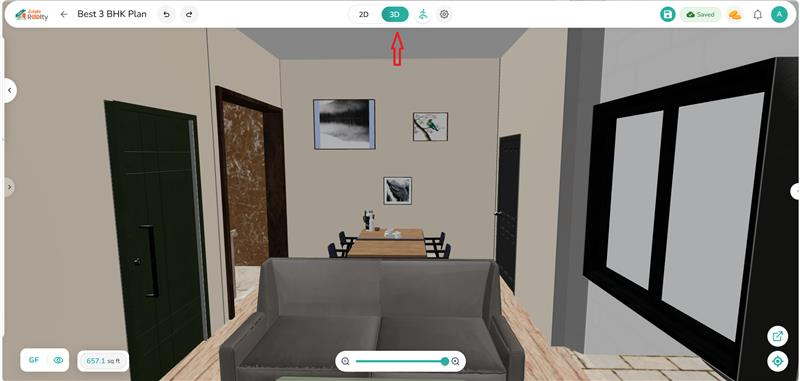
On the Workspace top menu ribbon, Click the Mode Switch Button (labeled “2D” / “3D”) to instantly toggle from 2D to 3D Mode.

💡 Zlendo Realty TIP: Use 3D View to Verify

Use 2D for “The Build” (drawing walls and placing structural elements) and 3D for “The Aesthetic” (choosing textures and fine-tuning decor).

Spatial Flow: Does the furniture placement feel natural or cluttered?

View in Multi-level Floors with roof.

Color Harmony: Do your chosen palettes look as good under “lighting” as they do in the swatch?

Scale & Proportion: Are the windows and doors positioned correctly for the best views?
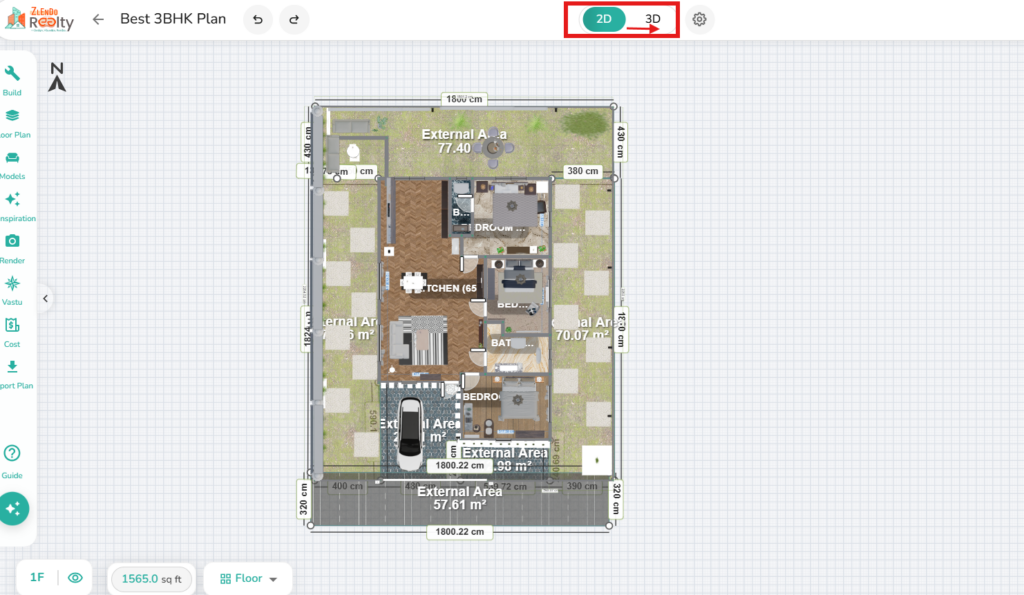
2D to 3D
3D to 2D
3D

Editing in 3D #

Viewing Multi-Level Floors #

In 3D you can view all floors in the plan together.

To view all floors and the roofs in the 3D view: Workspace tool bar –> Click on Floor Plan –> Show All
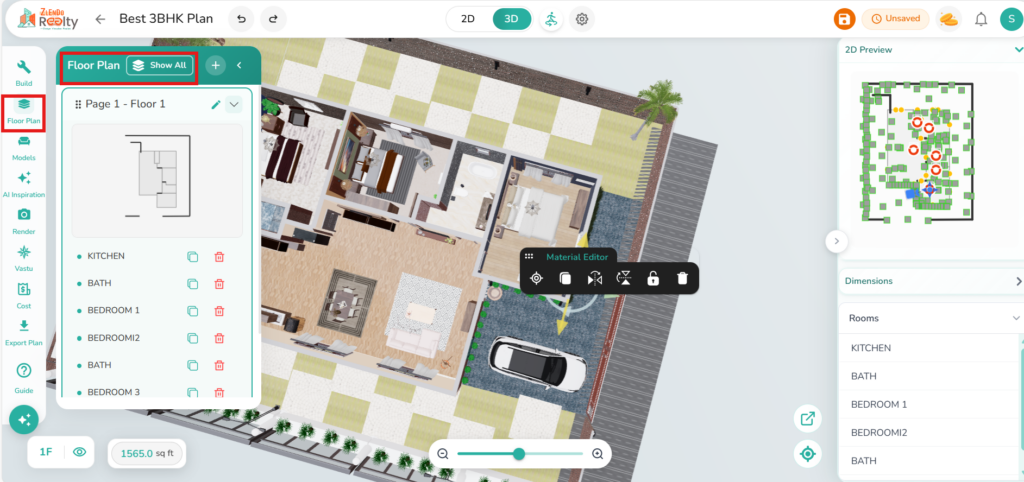
Multi Level Floor View

Change Materials/Items #

Experiment with finishes instantly.

Select the object or surface (wall, floor, or furniture) you wish to edit.

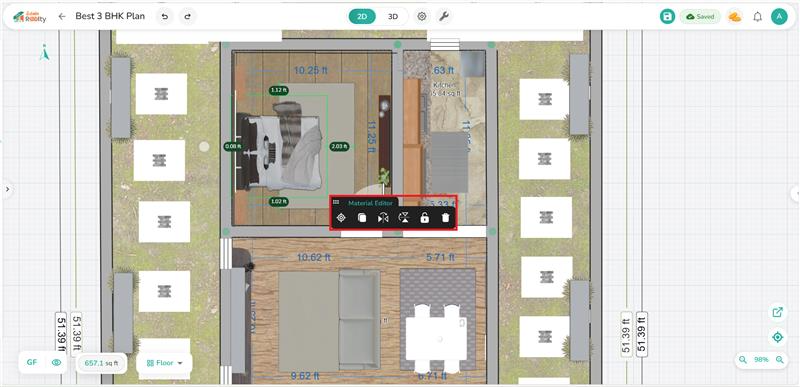
Click to open the Materials/Texture menu on the right.

Choose from the Materials catalog of woods, fabrics, metals, and paints to see the change applied in real-time.

Move & Rotate Objects #

In 3D Mode it’s easy to reposition furniture.

Tap twice on the furniture to edit it.

Use the guide arrows in snap mode to move a piece across the room or to turn it around.

Click again to lock it in place.
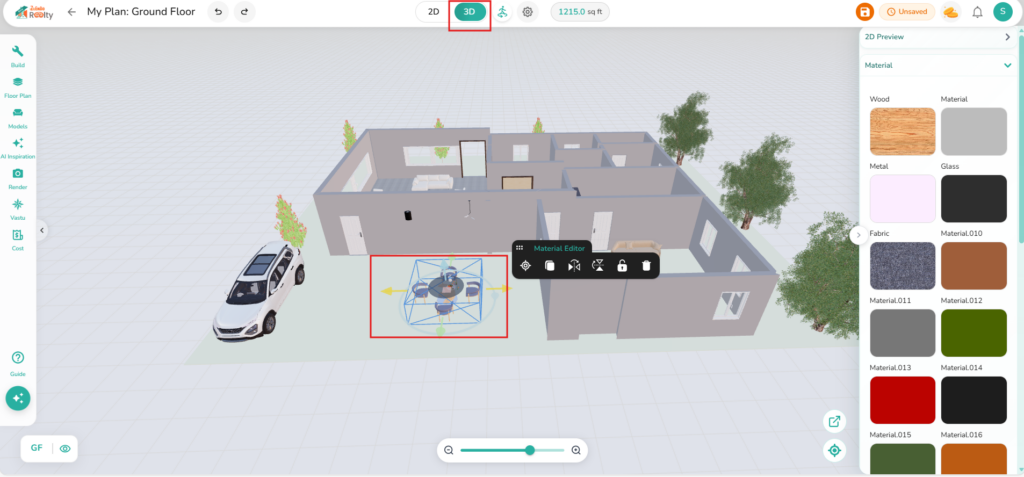
Movement And Rotation in 3D
Material Editor

Viewing a Room in 3D 360° Walkthrough & Panorama #

Two powerful immersive features in 3D Viewing are the Walkthrough and Panorama.

ℹ️ 360° Walkthrough: An Interactive Virtual Tour #

You can move from one point to another inside a property

Each point shows a 360-degree view

You navigate like walking through a real building (walk straight, turn around, or look out of a window).

You can click the onscreen arrows or hotspots (on doors) to go to the next room.

ℹ️ 360° Panorama: Step into the Full Picture #

A single 360-degree room image taken from one fixed position only

You can rotate and look around the room.

You cannot move to another room.

Zlendo Realty Interactive 3D Viewer Features Explained #

Feature360° Panorama (The “Look Around”)360° Walkthrough (The “Explore”)
MovementStatic. You are rooted to the floor.Dynamic. You can “walk” through doors.
PerspectiveSingle point of view.Multiple connected viewpoints.
NavigationRotation and zoom only.Hotspots, floor plans, and arrows.
Spatial AwarenessLow; hard to tell where rooms are.High; clear understanding of layout.
Best ForShowing a view or a small studio.Real estate, hotels, and large venues.

Using the 360° Walkthrough/Panorama Mode #

Walk through every room of a plan once you have completed the furnishing and decor.

Or view every detail in one room in full Panoramic viewing experience.

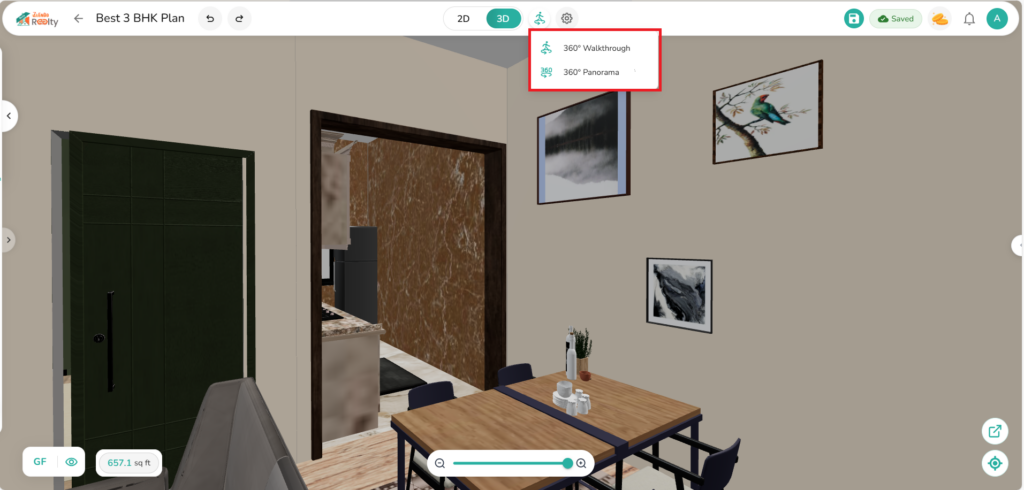
To get started, click on the 360° icon (man) and choose the 360° Walkthrough/Panorama view.
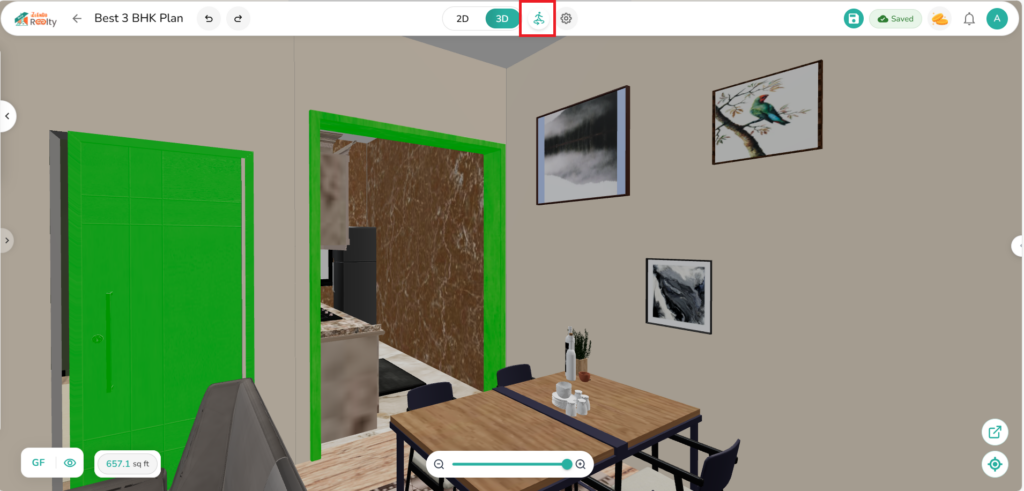
360 degree walkthrough Panaroma

360° Walkthrough/Panorama Settings #

Adjusting the Video Camera Settings #

To change the Camera settings, click on the Camera settings icon on the bottom-left of the 3D Walkthrough screen.

On the 360° Walkthrough/Panorama Camera Settings panel, you can adjust:

1. Camera Movement speed: Adjust how fast the camera moves when you navigate.

2. FOV: Adjust the camera’s Field of View. Increasing FOV will give you a wider view of the room.

3. Height: Raise or lower the Camera’s position.
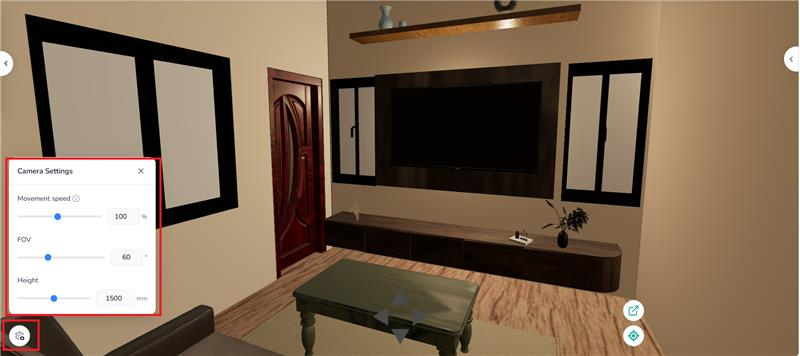
Camera Settings

Adjusting Room Lighting & Shadows #

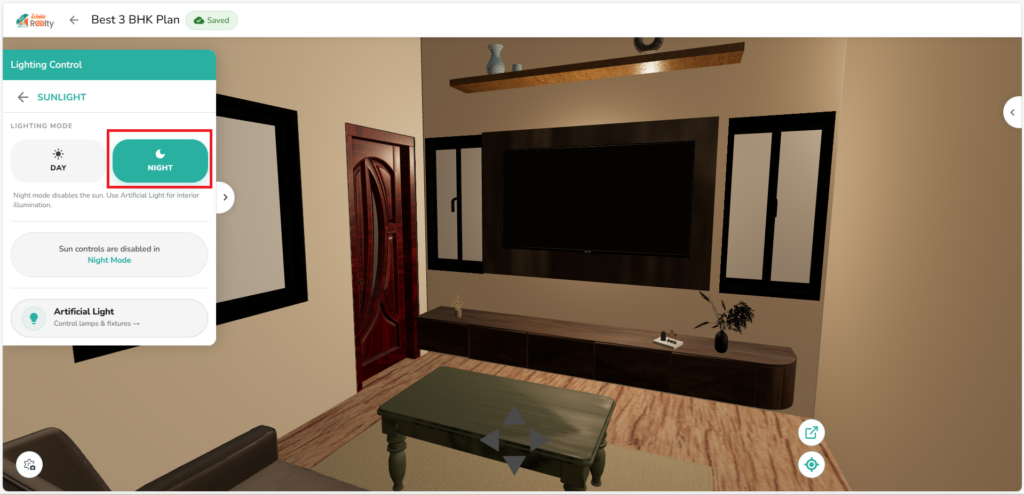
Lighting defines the mood of your space. You can view how a room will look in Daylight/Nighttime. If there are any lighting fixtures in the room you can also adjust the intensity and hue of a lamp or turn on/off a lamp.

In the 360° Walkthrough/Panorama view, on the top-left of the screen you have the Lighting Control panel.

On the Lighting Control panel you can adjust:

1. Sunlight

2. Artificial lighting in the room
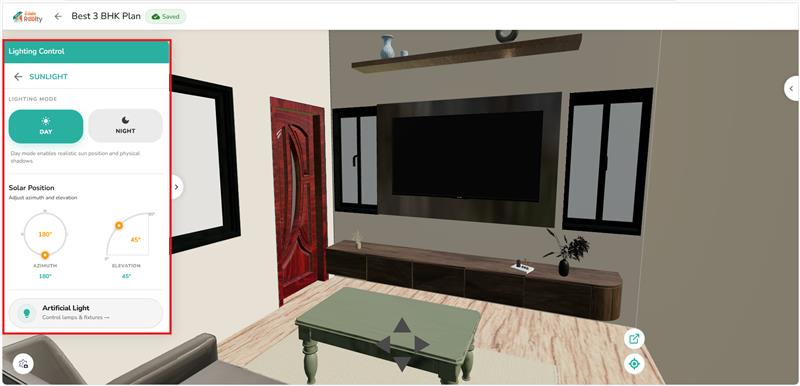
Lighting Control

Adjusting Sunlight Settings #

360-degree Walkthrough/Panorama mode –> Lighting Control –> Sunlight

Choose the time of day: Morning / Afternoon / Night or enter a time.

Adjust Solar Positioning: You can modify the sun’s position to see how your room looks at different times of the day (Early Morning/Noon/Evening).

Adjust shadows by altering the Sun’s degree of elevation.
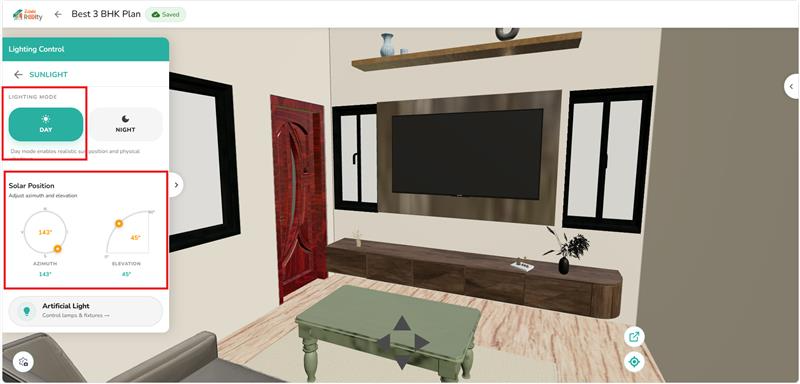
Day Light
Night Light

Adjusting Artificial Light Settings #

In the 360-degree Walkthrough/panorama mode, click on the left pullout arrow to open the Lighting Control panel.

On the Lighting Control Panel –> Artificial Light

1. Turn on/off the Room Lights

2. Adjust the Illumination Level

3. Adjust the lighting color mood
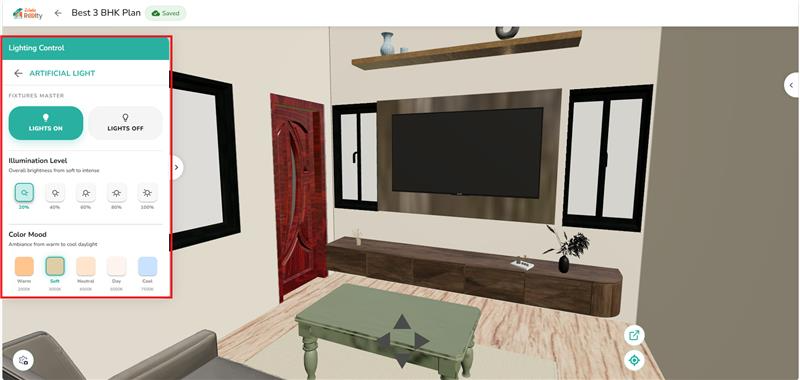
Adjusting Lighting Control

Navigation On Screen #

Moving through your design in 3D should feel natural. Use the following controls listed below to experience your plan in real-world settings.

In Normal 3D Mode #

Center View: To view the 3D floor plan from the to click on the Center View (target icon) at the bottom-right of the Workspace.

Zoom: Use the Zoom slider at the bottom of the screen or the mouse scroll wheel (or pinch-to-zoom) to get a closer look at textures or pull back for a bird’s-eye view.

Selection: Click on any object to highlight it.

Positioning: Click and drag the object to move it across the floor.

Rotation: Use the circular arrow handle that appears above or below a selected object to spin it to the desired angle.
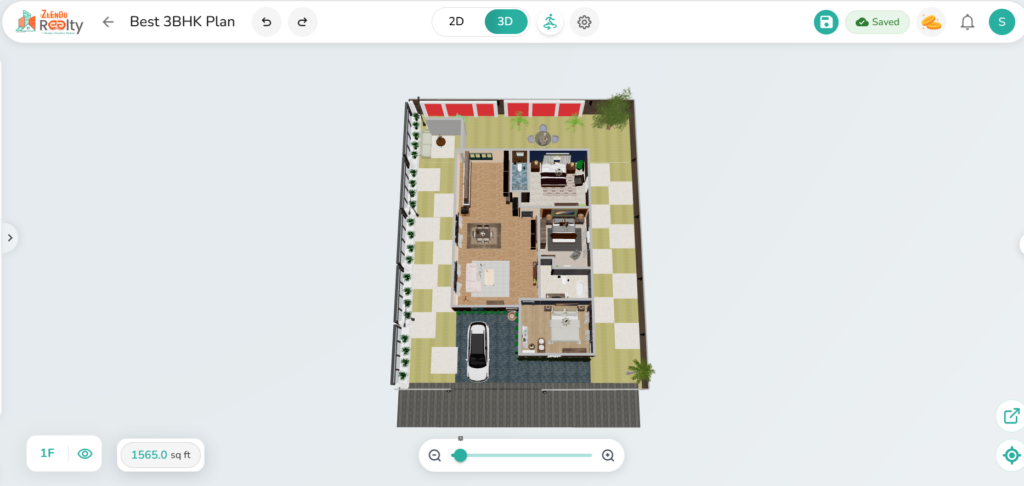
3D Mode

In 360° Walkthrough/Panorama Mode #

On the Walkthrough Screen you have the 2D Preview box on the right. The red circles in the 2D Preview shows the camera position and FOV in each room.

Use the 2D Preview panel to:

Change the room shown on the screen: Click on a red Camera circle in another room.

Center the camera in a room: Click on the red Camera circle of the room.

Navigating Inside a Room in Walkthrough/Panorama #

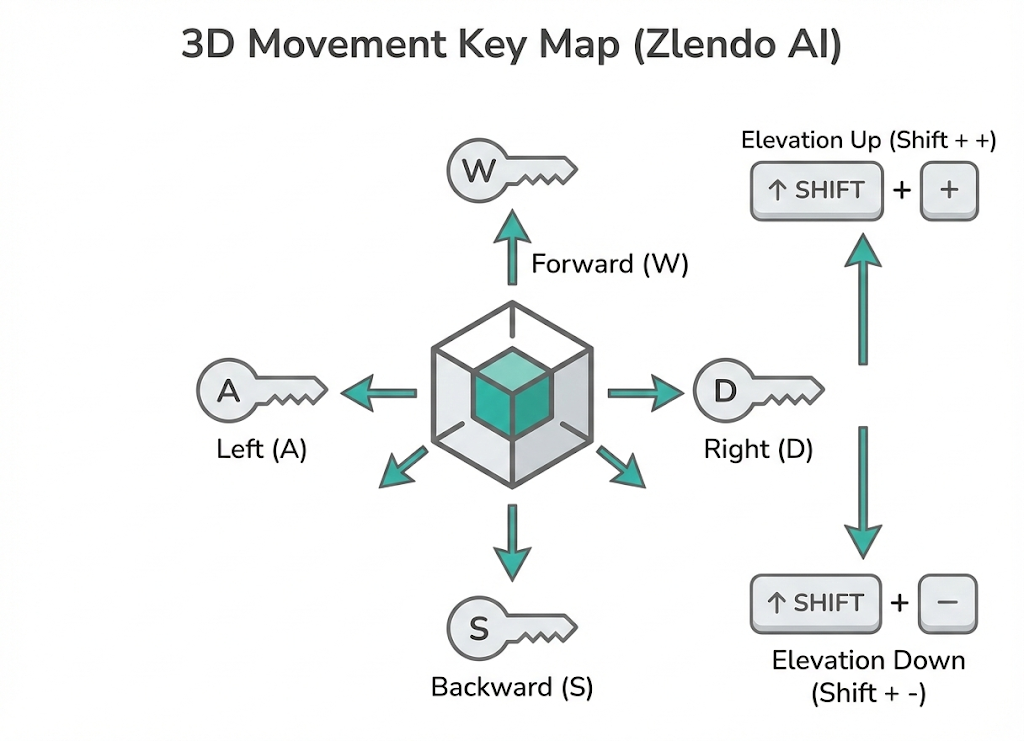
See also Navigation Tools & Keyboard Shortcuts Cheat Sheet.

Up/Down/Right/left keyboard shortcuts: Use the joystick control arrows inside a room or the W A S D keys on the keyboard.

To leave a room and enter the next one: Click on a door or use the 2D Preview red circle.

Orbit/Rotate: Click and drag the mouse hand (or use one finger on touchscreens) to rotate the camera around a central point.

Pan: Right-click and drag (or use two fingers) to move the camera sideways or up and down.
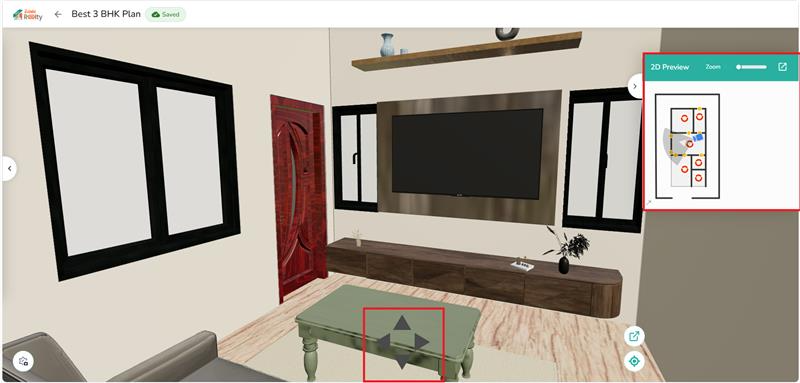
Navigation in Walkthrough Panaroma
Updated on March 12, 2026
3D Viewing Projects

What are your Feelings

  • Happy
  • Normal
  • Sad

Share This Article :

  • Facebook
  • X
  • LinkedIn
  • Pinterest
2D Floor Planner: Drawing or Editing in the Zlendo Realty WorkspaceFurniture & Decor

Powered by BetterDocs

Table of Contents
  • Advanced Immersive Features in Zlendo Realty 3D
  • Switching from 2D Mode to 3D
  • Editing in 3D
    • Viewing Multi-Level Floors
    • Change Materials/Items
    • Move & Rotate Objects
  • Viewing a Room in 3D 360° Walkthrough & Panorama
    • ℹ️ 360° Walkthrough: An Interactive Virtual Tour
    • ℹ️ 360° Panorama: Step into the Full Picture
    • Zlendo Realty Interactive 3D Viewer Features Explained
  • Using the 360° Walkthrough/Panorama Mode
  • 360° Walkthrough/Panorama Settings
    • Adjusting the Video Camera Settings
    • Adjusting Room Lighting & Shadows
      • Adjusting Sunlight Settings
      • Adjusting Artificial Light Settings
  • Navigation On Screen
    • In Normal 3D Mode
    • In 360° Walkthrough/Panorama Mode
      • Navigating Inside a Room in Walkthrough/Panorama

Create your account today

Experience the future of AI home design for free.

Get Started
Zlendo Realty Logo

The world's first Design-to-Sales engine. Experience your space in 360° ultra-realistic 8K, AR/MR.

Products

  • AI Floor Planner
  • 2D to 3D Converter
  • Smart Room Styler
  • Interiors & Exteriors
  • Smart Cost Estimator
  • Vastu Optimizer
  • Zlendo API Suite
  • Virtual Walkthrough

Use Cases

  • Commercial Spaces
  • Real Estate Brokers
  • NRI & Remote Planning
  • Developer Solutions
  • Home Remodeling
  • New Home Building

Resources

  • Design Library
  • Tutorials
  • Help Center
  • Grow with Zlendo
  • Contact Us

Legal

  • Privacy Policy
  • Terms of Service
  • Cookie Policy
  • Refund Policy
  • SLA

Contact Us

  • [email protected]
  • 0452-3583474
  • Headquarters

    36/1, Ganapathy Street,
    Alagappan Nagar, Madurai – 625003
    Tamil Nadu, India

  • Other Cities

    Pune • Bengaluru • Delhi • Hyderabad

Copyright © 2026 Zlendo Technologies Pvt. Ltd. | All Rights Reserved.

Cookie PolicyTerms & ConditionsPrivacy Policy
Contact Us